> ## Documentation Index
> Fetch the complete documentation index at: https://docs.mixpanel.com/llms.txt
> Use this file to discover all available pages before exploring further.
# Kameleoon
## Overview
Export Mixpanel cohorts to Kameleoon to create custom segments that you can apply in your Kameleoon experiments. Manage the Kameleoon integration from the Mixpanel integrations page.
Kameleoon also supports an integration to send experiment data to Mixpanel - for more details, see [the Kameleoon Mixpanel integration](https://help.kameleoon.com/en/setting-up-mixpanel/).
## Permissions
You must be a Mixpanel project admin to enable the Kameleoon integration.
## Enable the Integration
1. Select **Settings > Integrations** tab in the bottom left navigation bar of Mixpanel.
2. From the Integrations page, select the Kameleoon dropdown, and select **Connect**.
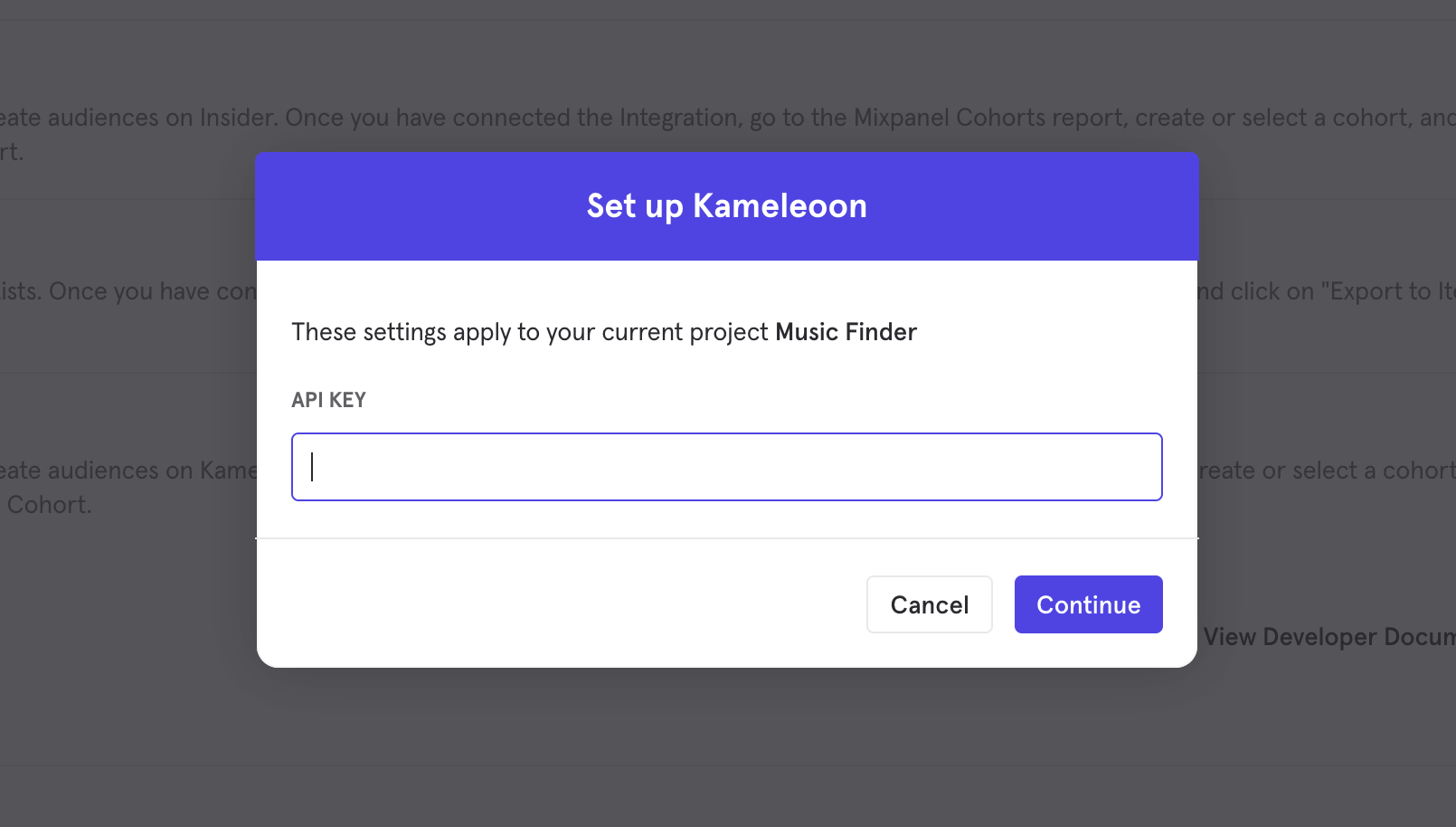 3. The connection uses one credential to authorize, "API Key". Supply an **API token** generated from your Kameleoon settings page to establish the connection.
4. The Kameleoon integration will show a **Connected** tag in the UI once the connection establishes.
## Matching Users Between Kameleoon and Mixpanel
Mixpanel only exports identified user profiles to match to Kameleoon - users without user profile properties (i.e. anonymous users) will not export.
The integration requires that you use the same system of identifiers for both tools, meaning the value you pass to `mixpanel.identify("internal_user_id")` will have the same value as you pass to Kameleoon when identifying a "visitor". Kameleoon will attempt to match users from inbound cohorts based on their Mixpanel distinct\_id.
Additionally, if you're using Mixpanel's identity merge feature, you may want to provide a consistent identity value to deliver to Kameleoon (as Mixpanel's distinct\_id for a given user may change over time as the user's Canonical ID shifts). To provide a consistent user identifier to Kameleoon, **you may specify a user property**, `$kameleoon_mapping_id`, whose value is a string representing the user's consistent identifier (for example, an internal user ID). Mixpanel will also deliver this property to Kameleoon for user matching.
## Export a Cohort
1. Navigate to **Lexicon**, then select the **Cohorts** tab to view all of your cohorts.
2. Select the cohort that you want to export. Click on the three-dot icon on the right side of the cohort.
3. Click Export to > Insider. Select either one-time sync or dynamic sync. Click **Start Sync**.
## Sync Types
This integration supports two types of exports: one-time export and dynamic sync. When you generate a one-time export or dynamic sync, it overwrites the previous export with an updated export that reflects users who qualify for the cohort at the time of export.
### One-Time Export
In a one-time export, Mixpanel sends Kameleoon a static export of users who currently qualify for the cohort. The cohort data will not be updated in Kameleoon after a one-time export.
### Dynamic Sync
In dynamic sync, Mixpanel initiates sync between a cohort and Kameleoon every two hours. The exported cohort will be updated every day to reflect the most recent list of users in a cohort.
## Select the Segment in Kameleoon
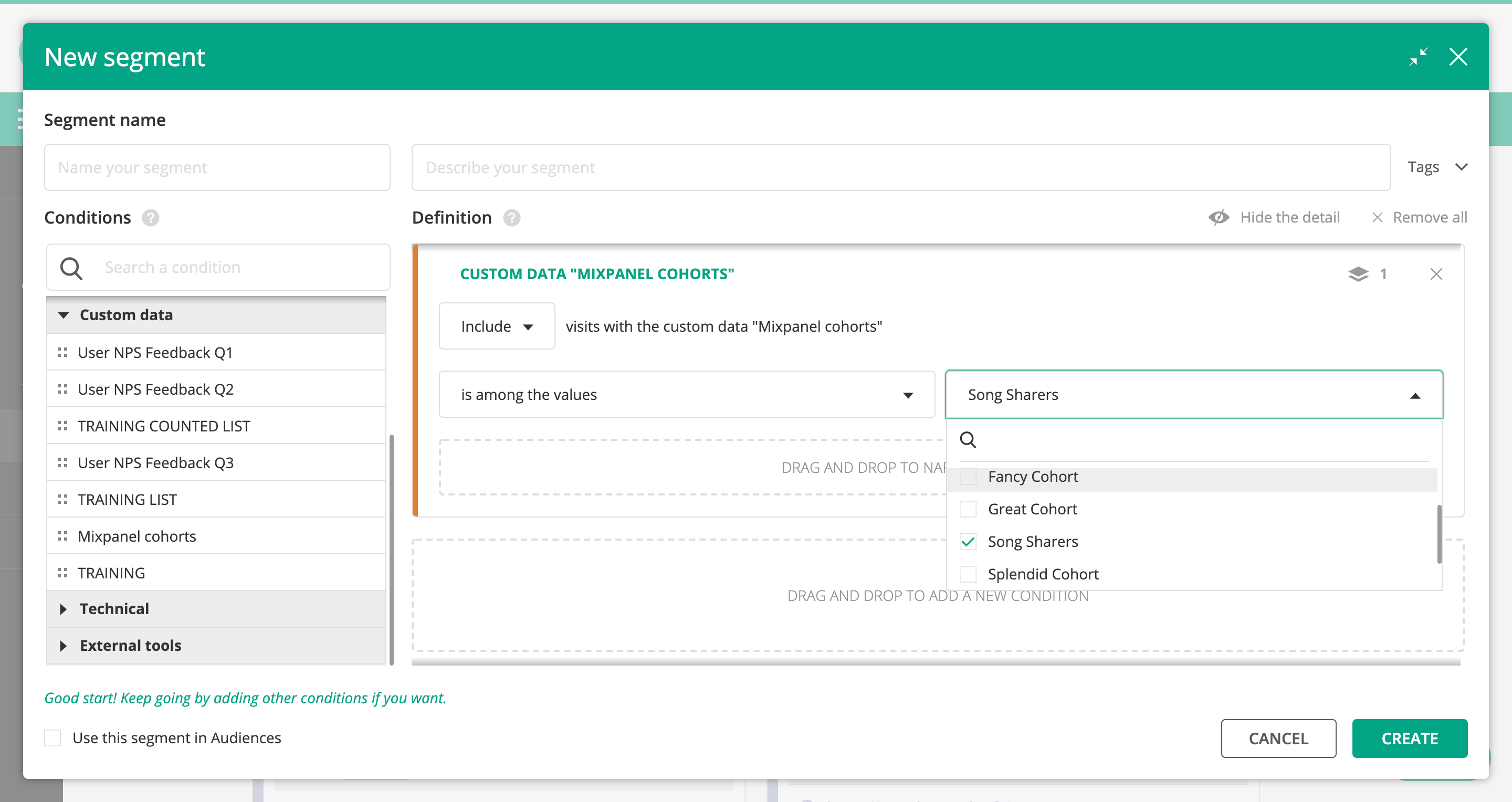
Once the export completes, you will see a Segment reflecting the set of users from your Mixpanel cohort in Kameleoon's Segment editor, as custom data (e.g. "Song Sharers"):
3. The connection uses one credential to authorize, "API Key". Supply an **API token** generated from your Kameleoon settings page to establish the connection.
4. The Kameleoon integration will show a **Connected** tag in the UI once the connection establishes.
## Matching Users Between Kameleoon and Mixpanel
Mixpanel only exports identified user profiles to match to Kameleoon - users without user profile properties (i.e. anonymous users) will not export.
The integration requires that you use the same system of identifiers for both tools, meaning the value you pass to `mixpanel.identify("internal_user_id")` will have the same value as you pass to Kameleoon when identifying a "visitor". Kameleoon will attempt to match users from inbound cohorts based on their Mixpanel distinct\_id.
Additionally, if you're using Mixpanel's identity merge feature, you may want to provide a consistent identity value to deliver to Kameleoon (as Mixpanel's distinct\_id for a given user may change over time as the user's Canonical ID shifts). To provide a consistent user identifier to Kameleoon, **you may specify a user property**, `$kameleoon_mapping_id`, whose value is a string representing the user's consistent identifier (for example, an internal user ID). Mixpanel will also deliver this property to Kameleoon for user matching.
## Export a Cohort
1. Navigate to **Lexicon**, then select the **Cohorts** tab to view all of your cohorts.
2. Select the cohort that you want to export. Click on the three-dot icon on the right side of the cohort.
3. Click Export to > Insider. Select either one-time sync or dynamic sync. Click **Start Sync**.
## Sync Types
This integration supports two types of exports: one-time export and dynamic sync. When you generate a one-time export or dynamic sync, it overwrites the previous export with an updated export that reflects users who qualify for the cohort at the time of export.
### One-Time Export
In a one-time export, Mixpanel sends Kameleoon a static export of users who currently qualify for the cohort. The cohort data will not be updated in Kameleoon after a one-time export.
### Dynamic Sync
In dynamic sync, Mixpanel initiates sync between a cohort and Kameleoon every two hours. The exported cohort will be updated every day to reflect the most recent list of users in a cohort.
## Select the Segment in Kameleoon
Once the export completes, you will see a Segment reflecting the set of users from your Mixpanel cohort in Kameleoon's Segment editor, as custom data (e.g. "Song Sharers"):
 ## Kameleoon Data into Mixpanel
Kameleoon offers the ability to forward experiment data to Mixpanel. For more detail, please refer to [the Kameleoon integration guide](https://help.kameleoon.com/en/setting-up-mixpanel/).
## Kameleoon Data into Mixpanel
Kameleoon offers the ability to forward experiment data to Mixpanel. For more detail, please refer to [the Kameleoon integration guide](https://help.kameleoon.com/en/setting-up-mixpanel/).