> ## Documentation Index
> Fetch the complete documentation index at: https://docs.mixpanel.com/llms.txt
> Use this file to discover all available pages before exploring further.
# Salesforce Marketing Cloud
## Overview
This integration lets you export cohorts from Mixpanel to Salesforce Marketing Cloud (SFMC).
Once the one-time setup process is done, it's easy to sync cohorts on a recurring basis entirely from the Mixpanel UI.
## Permissions
You must be a Mixpanel project admin to enable the SFMC integration.
## Enable the Integration
This process will require setup on both SFMC and Mixpanel.
### SFMC Setup
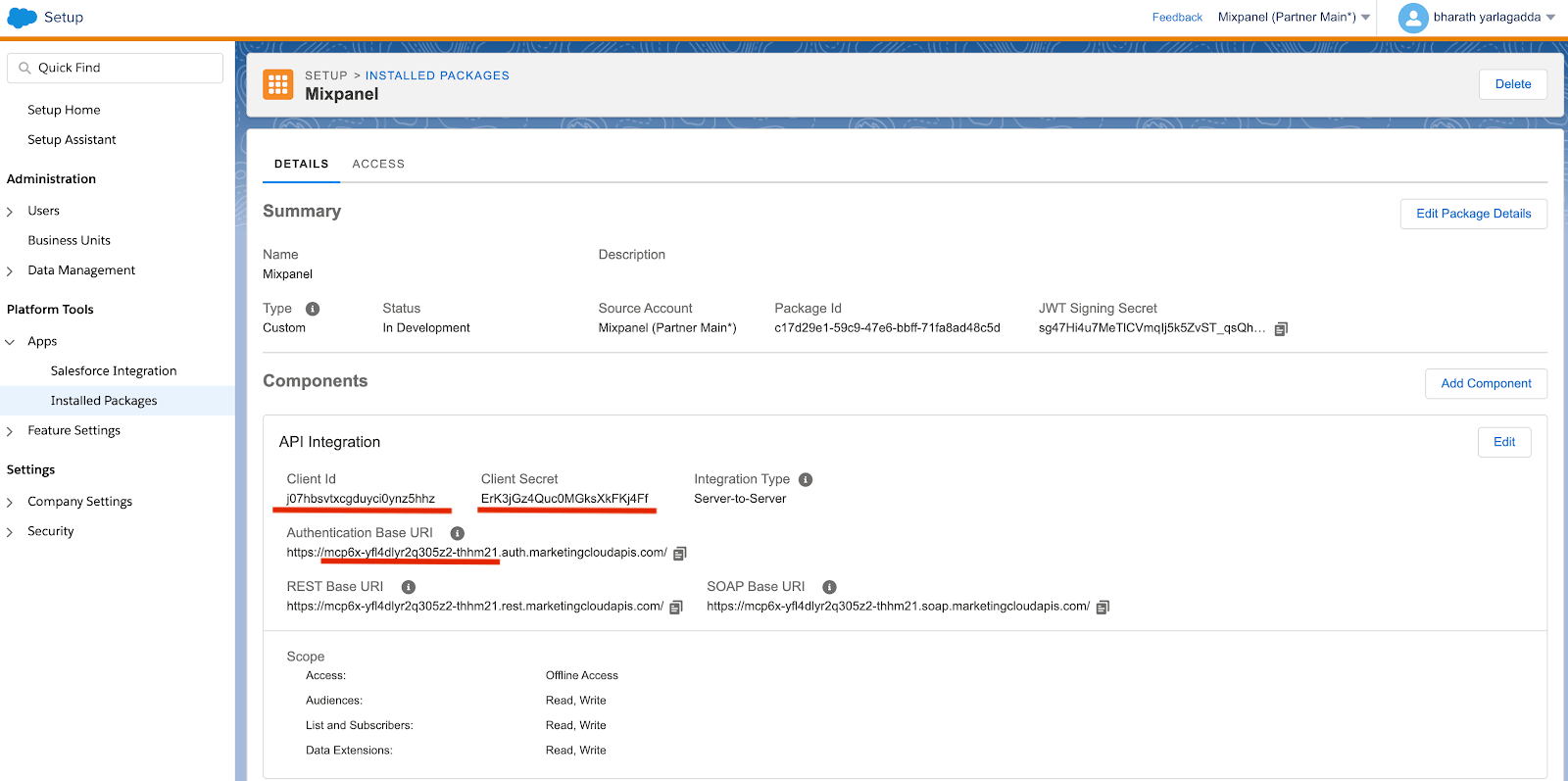
1. Navigate to **Setup → Apps → Installed packages**. Then create a package with with a Scope that provides **read/write access to DataExtensions**. Keep track of the following information (highlighted above) -- it will be useful to connect Mixpanel to SFMC:
* **Client Id**
* **Client Secret**
* **Subdomain**
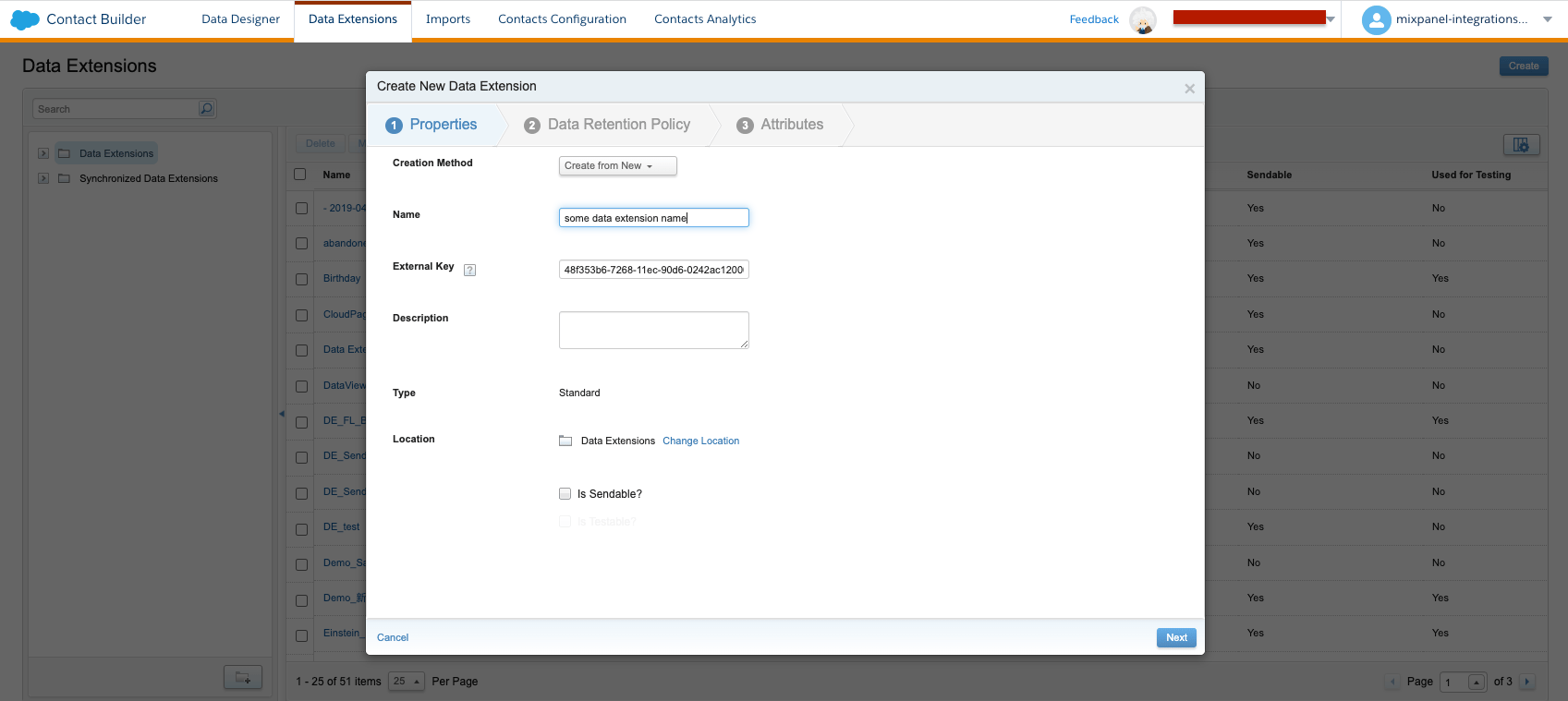
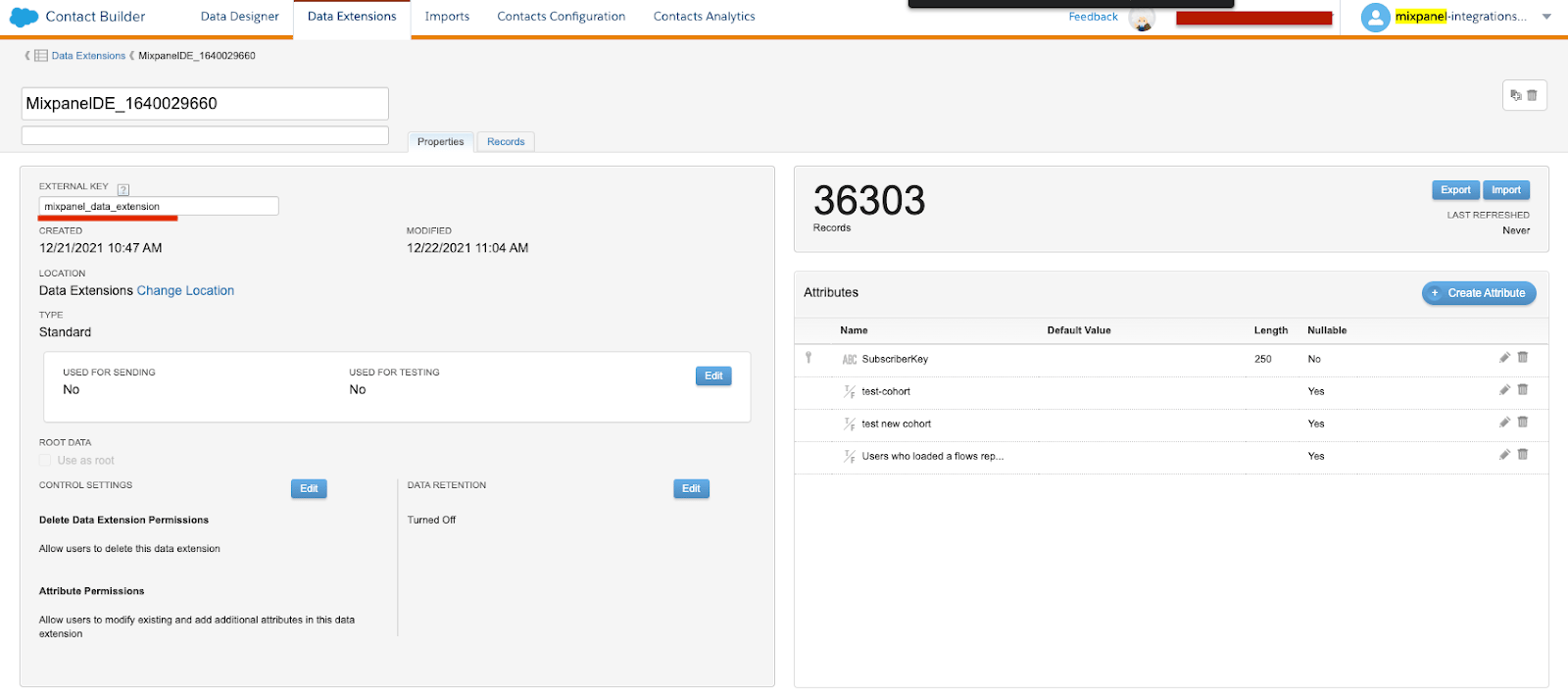
 2. Navigate to **Audience Builder → Contact Builder → Data Extensions** to Create a New Data Extension.
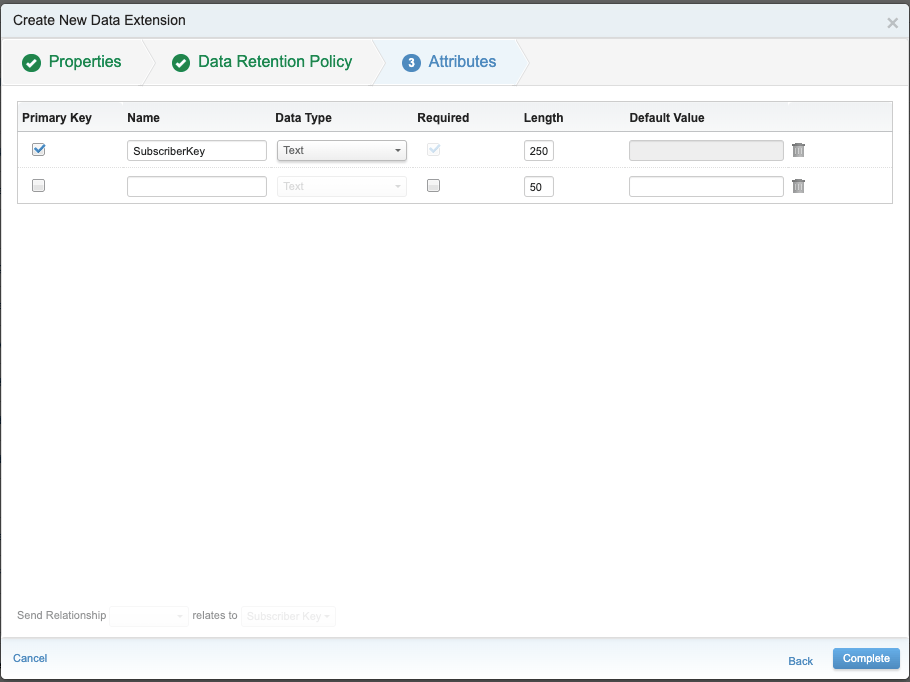
 3. Create a new **Data Extension** with a primary key of the name **SubscriberKey**. The key type for most use-cases will stay as **Text** and size of 250 characters unless you are selecting email or phone number as the id in which you can find corresponding data types. This field will contain ids that map to the unique user property in Mixpanel.
 4. Note the **External Key** (underlined below) for setup on Mixpanel.
 ### Mixpanel Setup
1. Navigate to **Settings** in the bottom left, then select **Integrations**.
2. Look for Salesforce Marketing Cloud in the Integrations list and click **Connect**. The following details are needed:
* **Data Extension External Key**
* An optional user property (distinct\_id will be used by default). This will sync to the SubscriberKey field
* **client\_id**, **client\_secret**, **subdomain**
### Mixpanel Setup
1. Navigate to **Settings** in the bottom left, then select **Integrations**.
2. Look for Salesforce Marketing Cloud in the Integrations list and click **Connect**. The following details are needed:
* **Data Extension External Key**
* An optional user property (distinct\_id will be used by default). This will sync to the SubscriberKey field
* **client\_id**, **client\_secret**, **subdomain**
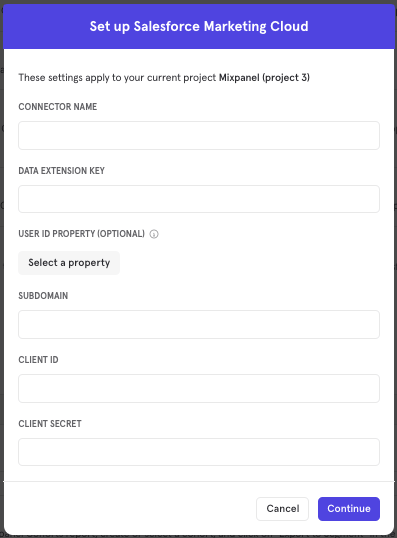 3. The SFMC integration will show a **Connected** tag in the UI once the connection succeeds.
## Matching Users between SFMC and Mixpanel
You can select any user property to sync to SFMC as the subscriber key. Once the user ID is set you cannot change it later as this can cause corruption in the Data Extension. If you absolutely need to change this field, you should recreate the Data Extension.
User profiles without the above selected user property will **not** export to SFMC - it is a requirement for user matching.
## Export a Cohort
To export a cohort from Mixpanel to SFMC:
1. Navigate to **Lexicon**, then select the **Cohorts** tab to view all of your cohorts.
3. The SFMC integration will show a **Connected** tag in the UI once the connection succeeds.
## Matching Users between SFMC and Mixpanel
You can select any user property to sync to SFMC as the subscriber key. Once the user ID is set you cannot change it later as this can cause corruption in the Data Extension. If you absolutely need to change this field, you should recreate the Data Extension.
User profiles without the above selected user property will **not** export to SFMC - it is a requirement for user matching.
## Export a Cohort
To export a cohort from Mixpanel to SFMC:
1. Navigate to **Lexicon**, then select the **Cohorts** tab to view all of your cohorts.
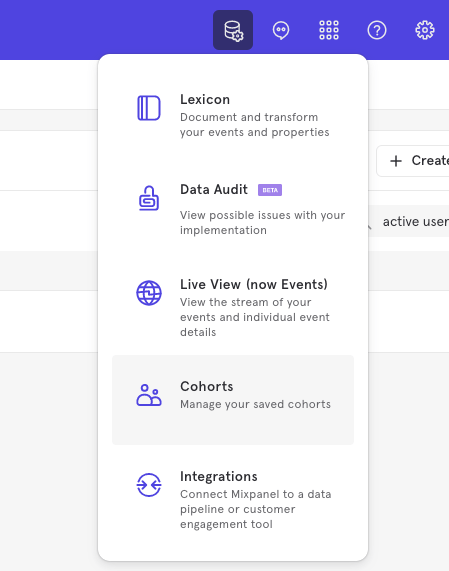 2. Select the cohort that you want to export. Click on the three-dot icon on the right side of the cohort.
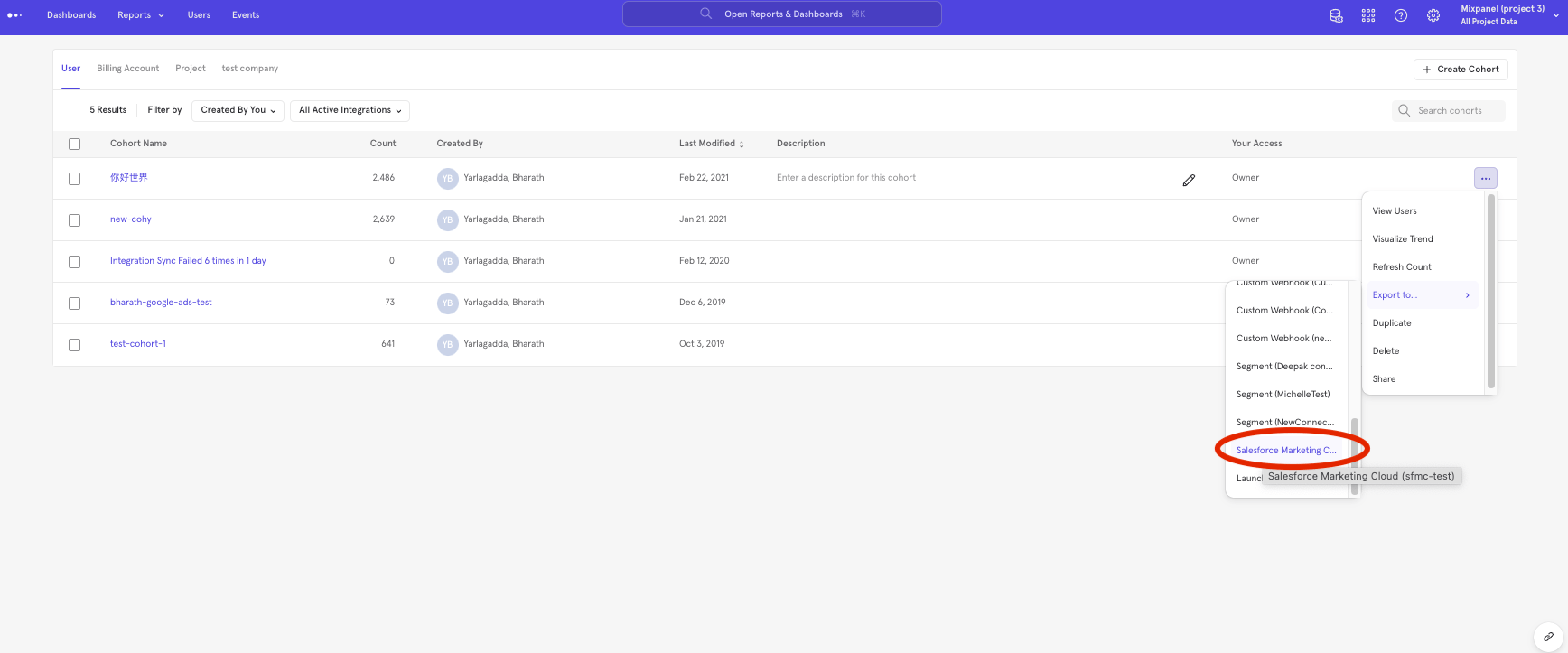
3. Click Export to > SFMC. Select either one-time sync or dynamic sync. Click **Start Sync**.
2. Select the cohort that you want to export. Click on the three-dot icon on the right side of the cohort.
3. Click Export to > SFMC. Select either one-time sync or dynamic sync. Click **Start Sync**.
 ## Sync Types
This integration supports two types of exports: one-time export and dynamic sync.
### One-Time Export
In a one-time export, Mixpanel sends SFMC a static export of users who currently qualify for the cohort. The cohort data will not be updated in SFMC after a one-time export.
### Dynamic Sync
In dynamic sync, Mixpanel initiates sync between a cohort and SFMC every 15 minutes. The exported cohort will be updated every 15 minutes to reflect the most recent list of users in a cohort.
## Data Extension in SFMC
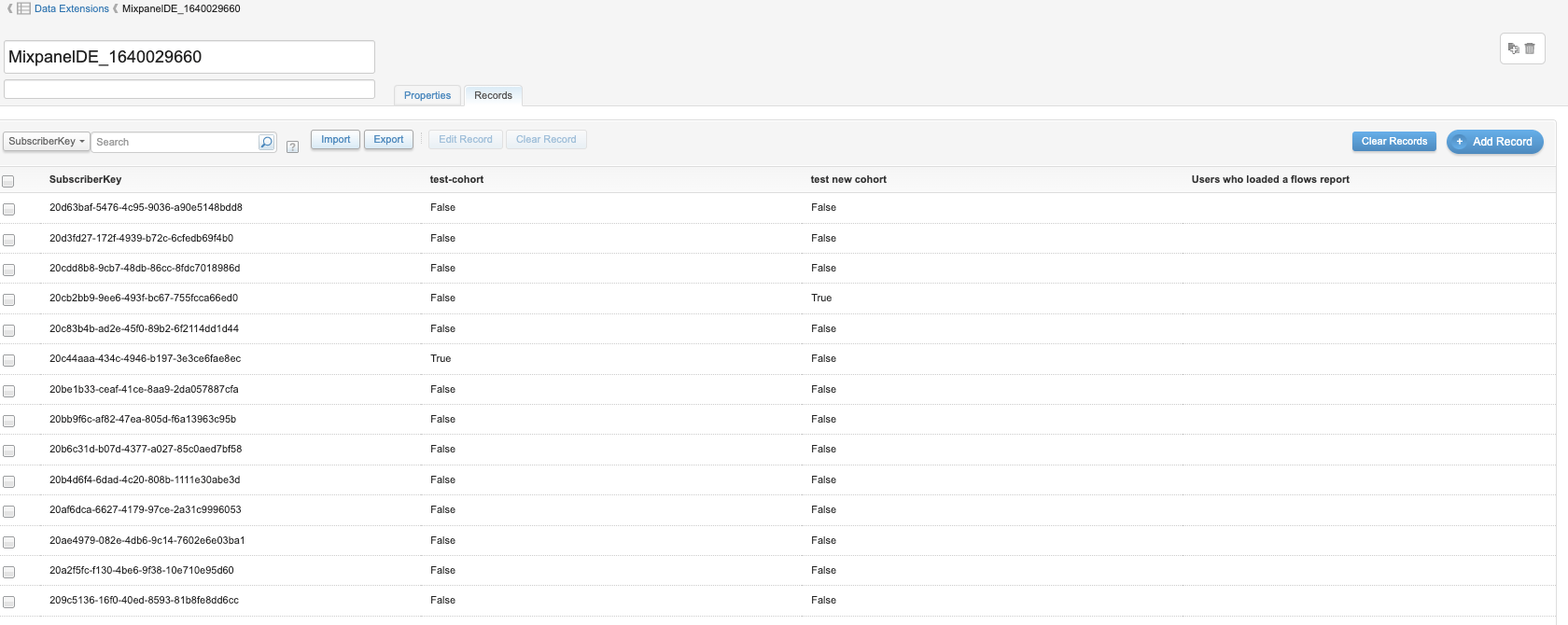
The cohort data will be exported to the SFMC Data Extension that was set up above. New cohorts are added as property fields to the data extension.
## Sync Types
This integration supports two types of exports: one-time export and dynamic sync.
### One-Time Export
In a one-time export, Mixpanel sends SFMC a static export of users who currently qualify for the cohort. The cohort data will not be updated in SFMC after a one-time export.
### Dynamic Sync
In dynamic sync, Mixpanel initiates sync between a cohort and SFMC every 15 minutes. The exported cohort will be updated every 15 minutes to reflect the most recent list of users in a cohort.
## Data Extension in SFMC
The cohort data will be exported to the SFMC Data Extension that was set up above. New cohorts are added as property fields to the data extension.
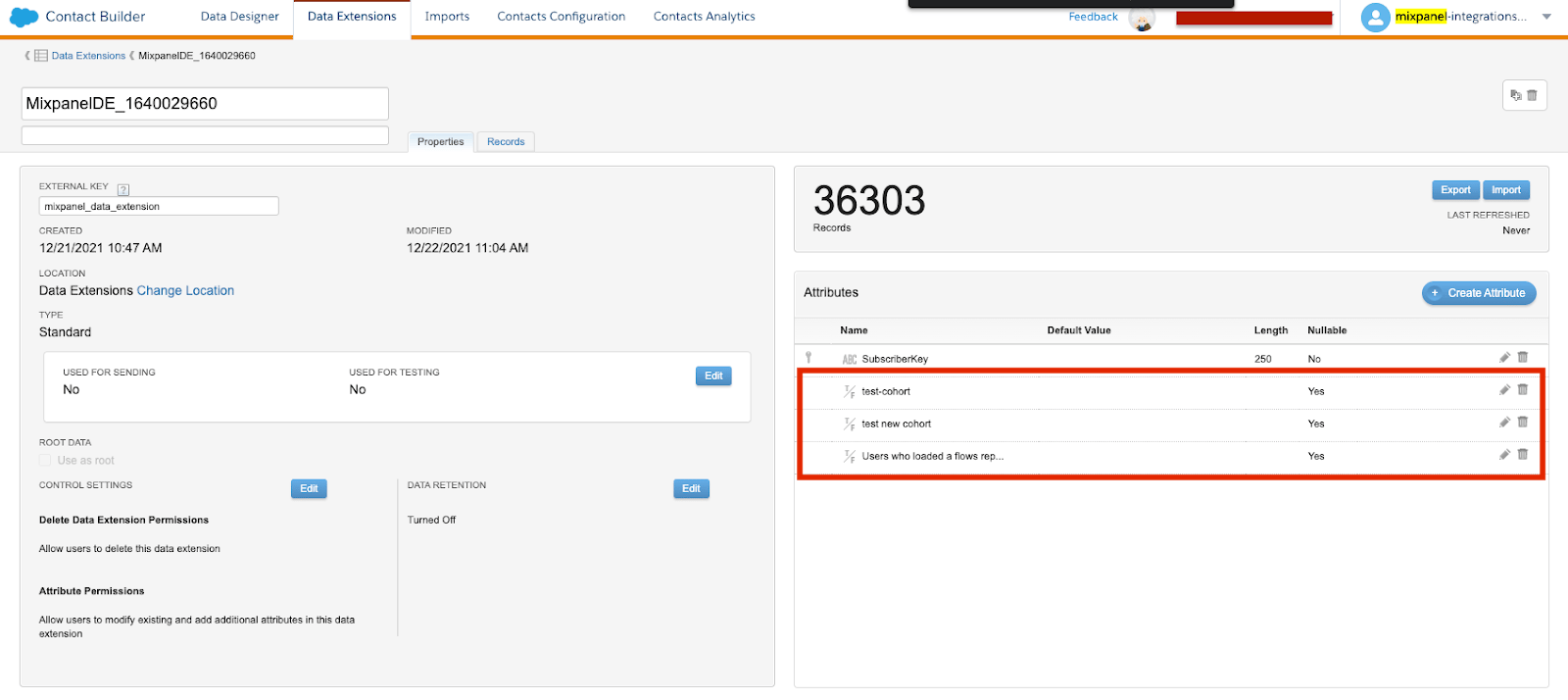 Each record in the Data Extension is a user and its properties show the membership of this user in different cohorts.