> ## Documentation Index
> Fetch the complete documentation index at: https://docs.mixpanel.com/llms.txt
> Use this file to discover all available pages before exploring further.
# Wingify
## Overview
Export Mixpanel cohorts to Wingify to create custom segments that you can apply in your Wingify experiments. Manage the Wingify integration from the Mixpanel Destinations page.
Wingify was formerly known as VWO. If you set up cohort exports before the rebrand, you may still be using the [VWO destination](/docs/cohort-sync/integrations/vwo), which remains available for existing connections.
## Permissions
You must be a Mixpanel project admin to enable the Wingify integration.
## Enable the Integration
To enable the integration:
1. Navigate to **Setting** in the nav bar, then select **Destinations**.
2. Click **Add Destination**, search Wingify and click.
3. In the **Connect to Wingify** modal, fill in the required fields:
* **Connector Name** - a name to identify this connection in Mixpanel.
* **API Key** - your Wingify API key.
* **Where is your Wingify's visitor data stored?** - select the datacenter that matches your Wingify account. This sets the regional endpoint Mixpanel exports your cohorts to.
4. Click **Continue**. The Wingify integration will show a **Connected** tag in the UI once the connection establishes.
## Matching Users between Wingify and Mixpanel
> **Warning:** Projects using the [simplified ID merge system](/docs/tracking-methods/id-management#identity-merge-apis) must have the `$user_id` in Mixpanel match the user identifier in the partner service. Using any alternative partner properties to match users between tools may result in partner events not being attributed to the correct user in Mixpanel. Any partner properties mentioned in the below section are primarily applicable to projects on the original ID merge system.
Mixpanel only exports identified user profiles that have the `$wingify_user_id` property, whose value should equal a matching User ID in Wingify (anonymous users will not export); the Wingify SDK sets this property automatically, or you can declare it through Mixpanel's own SDKs or HTTP API.
## Export a Cohort
To export a Cohort to Wingify:
1. Navigate to **Setting** in the nav bar, then select **Destinations**.
2. Find the Wingify destination in the list and click on it.
3. Click **Add Cohort Sync**.
4. Select the cohort you want to export and configure the sync (one-time or dynamic). Click **Create Sync**.
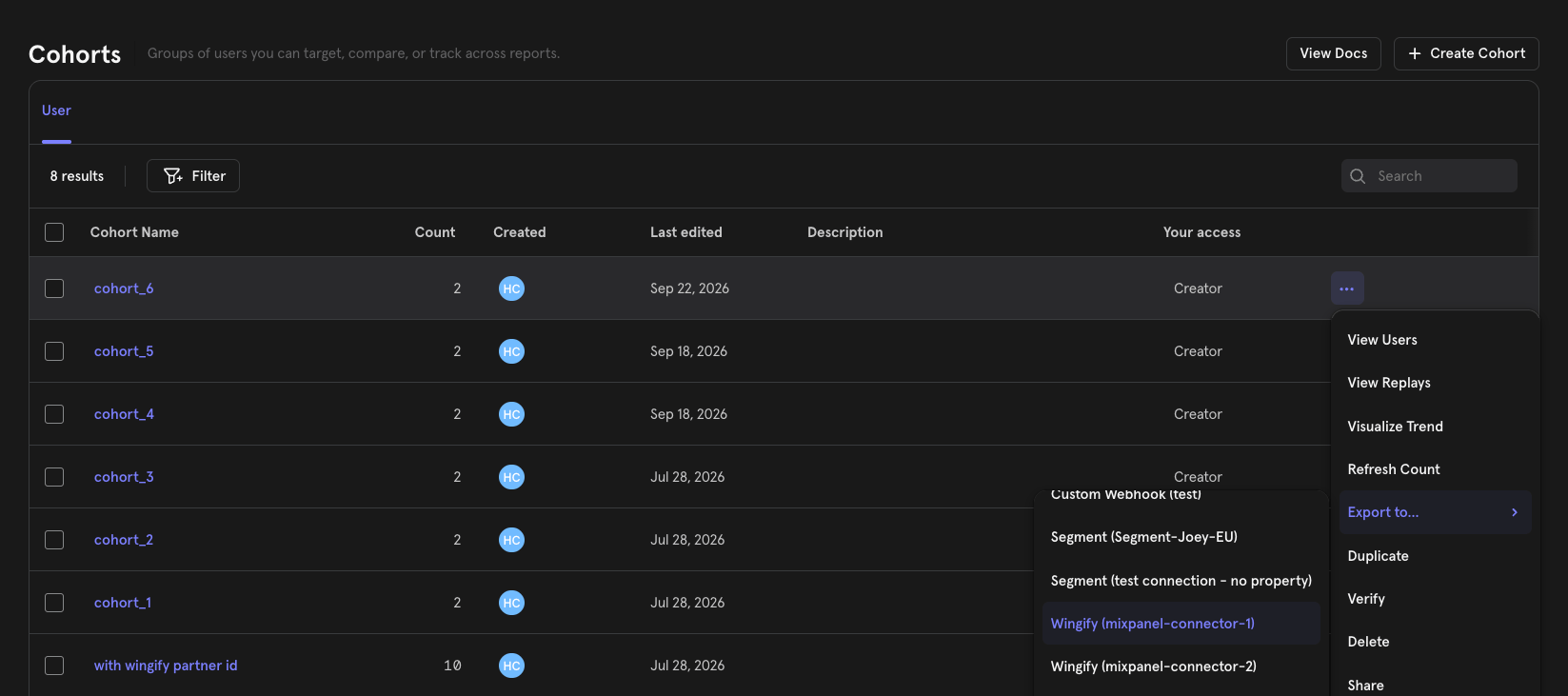
1. Navigate to **Lexicon**, then select the **Cohorts** tab to view all of your cohorts.
2. Click on the three-dot icon on the right side of the cohort that you want to export.
3. Click **Export to > Wingify**. Select either one-time sync or dynamic sync. Click **Begin Sync**.
 ## Activate the Cohort in Wingify
Exporting a cohort from Mixpanel only sends the cohort **name** to Wingify. No user membership data is ingested, and the cohort cannot be used for targeting, until you import it in Wingify using the steps below.
After you start a sync, complete the setup in Wingify:
1. In Wingify, open the **Mixpanel** integration, go to the **Config** tab, and find your connection by its connector name. Click its **Cohorts Synced** link, then click **Add cohort** and select the cohort Mixpanel exported by its name.
2. Once added, Wingify begins ingesting the cohort's members and the segment becomes available for experiment targeting.
This manual import step is required by Wingify's design and is not a Mixpanel limitation.
To verify the import, open **Settings > Accounts > Attributes List** in Wingify, where the cohort appears with **Source: Mixpanel** once the next sync completes. To check a specific user, open the cohort's three-dot menu, select **Test**, and enter that user's `$wingify_user_id`. The cohort's members are only searchable after you have imported it and the next sync has finished.
## Sync Types
This integration supports two types of exports: one-time export and dynamic sync. When you generate a one-time export or dynamic sync, it overwrites the previous export with an updated export that reflects users who qualify for the cohort at the time of export.
### One-Time Export
In a one-time export, Mixpanel sends Wingify a static export of users who currently qualify for the cohort. The cohort data will not be updated in Wingify after a one-time export.
### Dynamic Sync
In dynamic sync, Mixpanel initiates sync between a cohort and Wingify every two hours. The exported cohort will be updated to reflect the most recent list of users in a cohort.
## Activate the Cohort in Wingify
Exporting a cohort from Mixpanel only sends the cohort **name** to Wingify. No user membership data is ingested, and the cohort cannot be used for targeting, until you import it in Wingify using the steps below.
After you start a sync, complete the setup in Wingify:
1. In Wingify, open the **Mixpanel** integration, go to the **Config** tab, and find your connection by its connector name. Click its **Cohorts Synced** link, then click **Add cohort** and select the cohort Mixpanel exported by its name.
2. Once added, Wingify begins ingesting the cohort's members and the segment becomes available for experiment targeting.
This manual import step is required by Wingify's design and is not a Mixpanel limitation.
To verify the import, open **Settings > Accounts > Attributes List** in Wingify, where the cohort appears with **Source: Mixpanel** once the next sync completes. To check a specific user, open the cohort's three-dot menu, select **Test**, and enter that user's `$wingify_user_id`. The cohort's members are only searchable after you have imported it and the next sync has finished.
## Sync Types
This integration supports two types of exports: one-time export and dynamic sync. When you generate a one-time export or dynamic sync, it overwrites the previous export with an updated export that reflects users who qualify for the cohort at the time of export.
### One-Time Export
In a one-time export, Mixpanel sends Wingify a static export of users who currently qualify for the cohort. The cohort data will not be updated in Wingify after a one-time export.
### Dynamic Sync
In dynamic sync, Mixpanel initiates sync between a cohort and Wingify every two hours. The exported cohort will be updated to reflect the most recent list of users in a cohort.