> ## Documentation Index
> Fetch the complete documentation index at: https://docs.mixpanel.com/llms.txt
> Use this file to discover all available pages before exploring further.
# Schematized BigQuery Pipeline
Customers on an Enterprise or Growth plan can access Data Pipeline as an add-on package. See our [pricing page](https://mixpanel.com/pricing/) for more details.
This guide describes how Mixpanel exports your data to a [Google BigQuery](https://cloud.google.com/bigquery/) dataset.
## Design
Mixpanel exports data into customer-managed BigQuery. Mixpanel-hosted BigQuery is no longer supported for new pipelines.
 As part of the export pipeline, a new dataset `mixpanel_nessie_day_partitioned_` will be created if the customer chose to export into Mixpanel managed BigQuery or a dataset should be created with appropriate permissions on customer-managed BigQuery and provide us with a name. We also apply [transformation rules](/docs/data-pipelines/old-pipelines/schematized-export-pipeline#transformation-rules) to make the data compatible with data warehouses.
For user profile and identity mappings tables, we create a new table with a random suffix every time and then will update the `mp_people` and `mp_identity_mappings` views accordingly to use the latest table. You should always use the views and should refrain from using the actual tables as we don't delete the old tables immediately and you may be using an old table.
> **Important:** Please do not modify the schema of bigquery tables generated by Mixpanel. Altering the table schema can cause the pipeline to fail to export due to schema mismatches.
## Partitioning
The data in the tables is partitioned based on [`_PARTITIONTIME` pseudo column](https://cloud.google.com/bigquery/docs/querying-partitioned-tables#ingestion-time_partitioned_table_pseudo_columns) and in project timezone.
Note: TIMEPARTITIONING shouldn't be updated on the table. It will fail your export jobs. Create a new table/view from this table for custom partitioning.
## Queries
You can query data with a single table schema or with a multiple table schema in BigQuery. To get more information about the table schemas, please see [Schema](/docs/data-pipelines/old-pipelines/schematized-export-pipeline#schema).
To query a single table schema, use this snippet.
```sql theme={"system"}
SELECT count(*)
FROM mixpanel_nessie_day_partitioned_.mp_master_event
WHERE mp_event_name = “”
```
To query a multiple table schema, use this snippet.
```sql theme={"system"}
SELECT count(*)
FROM mixpanel_nessie_day_partitioned_.
```
`CLEANED_EVENT_NAME` is the transformed event name based on [transformation rules](/docs/data-pipelines/old-pipelines/schematized-export-pipeline#transformation-rules).
#### Getting the number of events in each day
You will need this if you suspect the export process is not exporting all the events you want. As the tables are partitions using [`_PARTITIONTIME` pseudo column](https://cloud.google.com/bigquery/docs/querying-partitioned-tables#ingestion-time_partitioned_table_pseudo_columns) and in project timezone, you can use to following query to get the number of events per day in an easy and fast way:
```sql theme={"system"}
SELECT
_PARTITIONTIME AS pt,
COUNT(*)
FROM
`mixpanel_nessie_day_partitioned_.mp_master_event`
WHERE
DATE(_PARTITIONTIME) <= "2021-12-03"
AND DATE(_PARTITIONTIME) >= "2021-12-01"
GROUP BY
pt
```
This example returns the number of events in each day in project timezone for a monoschema export pipeline and an example date range. You can adjust the query for multischema by putting the right table name in the query.
#### Querying the identity mapping table
When using the ID mappings table, you should use the **resolved** `distinct_id` in place of the non-resolved `distinct_id` whenever present. If there is no resolved `distinct_id`, you can then use the `distinct_id` from the existing people or events table.
Below is an example SQL query that references the ID mapping table to count number of events in a specific date range for each unique user in San Francisco :
```sql theme={"system"}
SELECT
CASE
WHEN m.resolved_distinct_id IS NOT NULL THEN m.resolved_distinct_id
WHEN m.resolved_distinct_id IS NULL THEN e.distinct_id
END as resolved_distinct_id,
COUNT(*) AS count
FROM mixpanel_nessie_day_partitioned_.mp_master_event e FULL OUTER JOIN mixpanel_nessie_day_partitioned_.mp_identity_mappings_data_view m
ON e.distinct_id = m.distinct_id
AND mp_city="San Francisco"
AND DATE(e._PARTITIONTIME) <= "2021-12-03"
AND DATE(e._PARTITIONTIME) >= "2021-12-01"
GROUP BY resolved_distinct_id
LIMIT 100
```
Counting number of times a user has done a specific behavior is also possible by adding more filters on event properties. You can adjust the query for multischema by putting the right table name in the query.
## Exporting into Customer managed BigQuery (Recommended)
We recommend exporting Mixpanel data into customer-managed BigQuery, for this the customer needs to follow these steps.
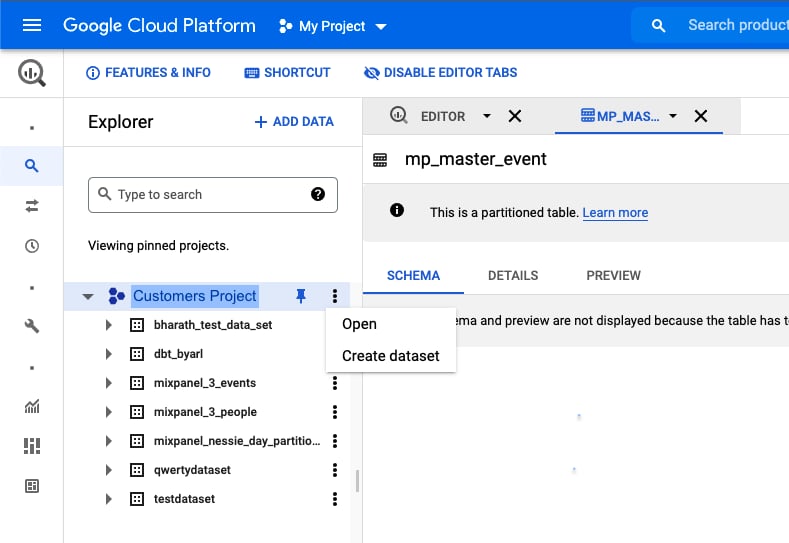
1. Create a dataset in their BigQuery
As part of the export pipeline, a new dataset `mixpanel_nessie_day_partitioned_` will be created if the customer chose to export into Mixpanel managed BigQuery or a dataset should be created with appropriate permissions on customer-managed BigQuery and provide us with a name. We also apply [transformation rules](/docs/data-pipelines/old-pipelines/schematized-export-pipeline#transformation-rules) to make the data compatible with data warehouses.
For user profile and identity mappings tables, we create a new table with a random suffix every time and then will update the `mp_people` and `mp_identity_mappings` views accordingly to use the latest table. You should always use the views and should refrain from using the actual tables as we don't delete the old tables immediately and you may be using an old table.
> **Important:** Please do not modify the schema of bigquery tables generated by Mixpanel. Altering the table schema can cause the pipeline to fail to export due to schema mismatches.
## Partitioning
The data in the tables is partitioned based on [`_PARTITIONTIME` pseudo column](https://cloud.google.com/bigquery/docs/querying-partitioned-tables#ingestion-time_partitioned_table_pseudo_columns) and in project timezone.
Note: TIMEPARTITIONING shouldn't be updated on the table. It will fail your export jobs. Create a new table/view from this table for custom partitioning.
## Queries
You can query data with a single table schema or with a multiple table schema in BigQuery. To get more information about the table schemas, please see [Schema](/docs/data-pipelines/old-pipelines/schematized-export-pipeline#schema).
To query a single table schema, use this snippet.
```sql theme={"system"}
SELECT count(*)
FROM mixpanel_nessie_day_partitioned_.mp_master_event
WHERE mp_event_name = “”
```
To query a multiple table schema, use this snippet.
```sql theme={"system"}
SELECT count(*)
FROM mixpanel_nessie_day_partitioned_.
```
`CLEANED_EVENT_NAME` is the transformed event name based on [transformation rules](/docs/data-pipelines/old-pipelines/schematized-export-pipeline#transformation-rules).
#### Getting the number of events in each day
You will need this if you suspect the export process is not exporting all the events you want. As the tables are partitions using [`_PARTITIONTIME` pseudo column](https://cloud.google.com/bigquery/docs/querying-partitioned-tables#ingestion-time_partitioned_table_pseudo_columns) and in project timezone, you can use to following query to get the number of events per day in an easy and fast way:
```sql theme={"system"}
SELECT
_PARTITIONTIME AS pt,
COUNT(*)
FROM
`mixpanel_nessie_day_partitioned_.mp_master_event`
WHERE
DATE(_PARTITIONTIME) <= "2021-12-03"
AND DATE(_PARTITIONTIME) >= "2021-12-01"
GROUP BY
pt
```
This example returns the number of events in each day in project timezone for a monoschema export pipeline and an example date range. You can adjust the query for multischema by putting the right table name in the query.
#### Querying the identity mapping table
When using the ID mappings table, you should use the **resolved** `distinct_id` in place of the non-resolved `distinct_id` whenever present. If there is no resolved `distinct_id`, you can then use the `distinct_id` from the existing people or events table.
Below is an example SQL query that references the ID mapping table to count number of events in a specific date range for each unique user in San Francisco :
```sql theme={"system"}
SELECT
CASE
WHEN m.resolved_distinct_id IS NOT NULL THEN m.resolved_distinct_id
WHEN m.resolved_distinct_id IS NULL THEN e.distinct_id
END as resolved_distinct_id,
COUNT(*) AS count
FROM mixpanel_nessie_day_partitioned_.mp_master_event e FULL OUTER JOIN mixpanel_nessie_day_partitioned_.mp_identity_mappings_data_view m
ON e.distinct_id = m.distinct_id
AND mp_city="San Francisco"
AND DATE(e._PARTITIONTIME) <= "2021-12-03"
AND DATE(e._PARTITIONTIME) >= "2021-12-01"
GROUP BY resolved_distinct_id
LIMIT 100
```
Counting number of times a user has done a specific behavior is also possible by adding more filters on event properties. You can adjust the query for multischema by putting the right table name in the query.
## Exporting into Customer managed BigQuery (Recommended)
We recommend exporting Mixpanel data into customer-managed BigQuery, for this the customer needs to follow these steps.
1. Create a dataset in their BigQuery
 2. Give Mixpanel the necessary permissions to export into this dataset.
> **Note:** If your organization uses [domain restriction constraint](https://cloud.google.com/resource-manager/docs/organization-policy/restricting-domains) you will have to update the policy to allow Mixpanel domain `mixpanel.com` and Google Workspace customer ID: `C00m5wrjz`.
We need two permissions to manage the dataset.
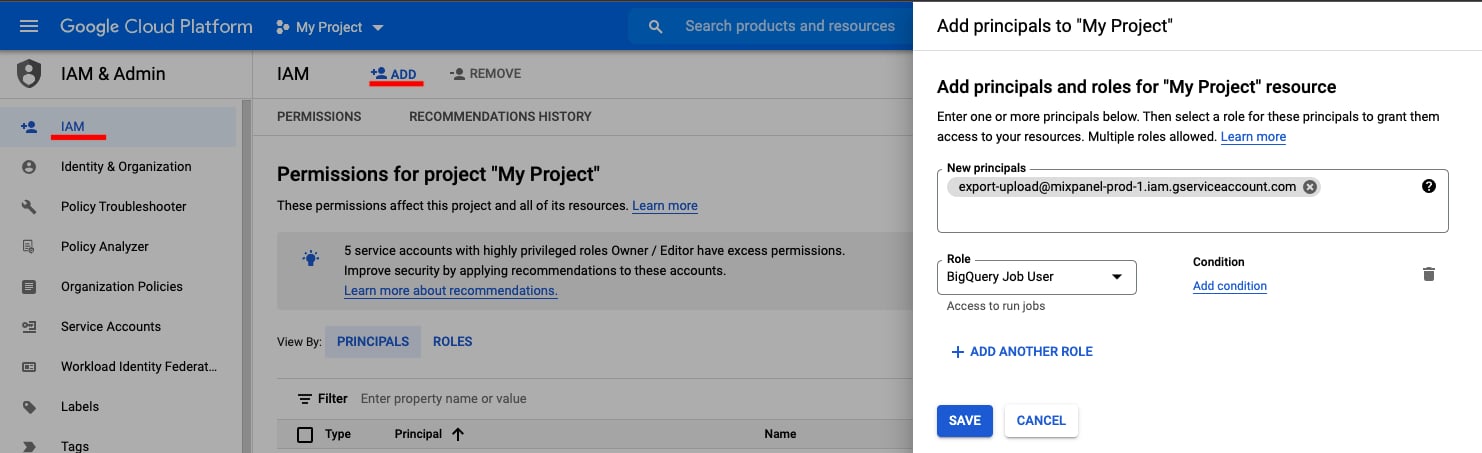
**BigQuery Job User**
* Go to **IAM \&Admin** in your Google Cloud Console.
* Click **+ ADD** to add principals
* Add new principal "[export-upload@mixpanel-prod-1.iam.gserviceaccount.com](mailto:export-upload@mixpanel-prod-1.iam.gserviceaccount.com)" and set role as "BigQuery Job User", and save.
2. Give Mixpanel the necessary permissions to export into this dataset.
> **Note:** If your organization uses [domain restriction constraint](https://cloud.google.com/resource-manager/docs/organization-policy/restricting-domains) you will have to update the policy to allow Mixpanel domain `mixpanel.com` and Google Workspace customer ID: `C00m5wrjz`.
We need two permissions to manage the dataset.
**BigQuery Job User**
* Go to **IAM \&Admin** in your Google Cloud Console.
* Click **+ ADD** to add principals
* Add new principal "[export-upload@mixpanel-prod-1.iam.gserviceaccount.com](mailto:export-upload@mixpanel-prod-1.iam.gserviceaccount.com)" and set role as "BigQuery Job User", and save.
 **BigQuery Data Owner**
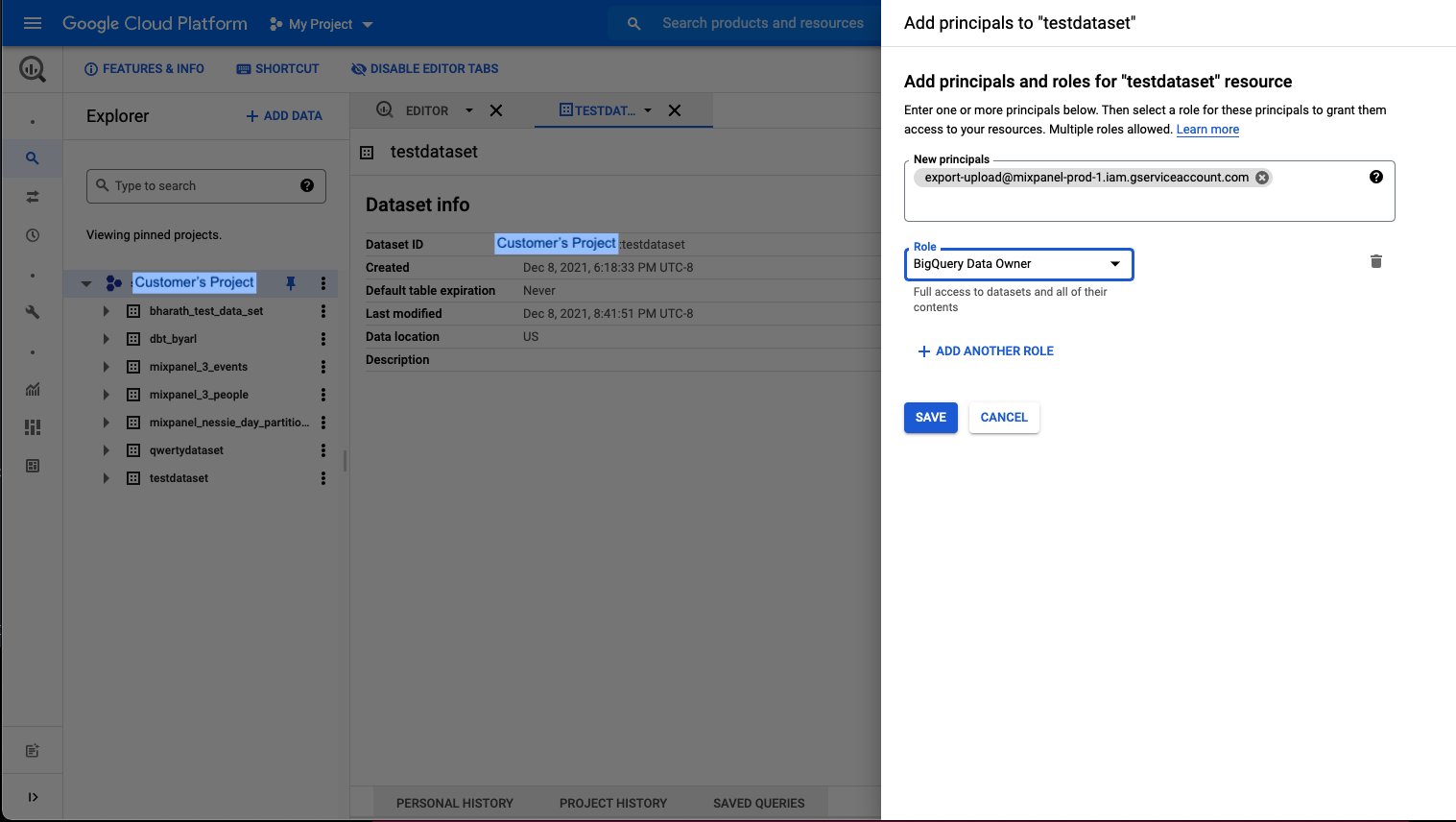
* Go to **BigQuery** in your Google cloud Console.
* Open the dataset you want mixpanel to export to.
* Click on **sharing** and **permissions** in the drop down.
* In the Data Permissions window click on **Add Principal**
* Add new principal "[export-upload@mixpanel-prod-1.iam.gserviceaccount.com](mailto:export-upload@mixpanel-prod-1.iam.gserviceaccount.com)" and set role as "BigQuery Data Owner", and save.
**BigQuery Data Owner**
* Go to **BigQuery** in your Google cloud Console.
* Open the dataset you want mixpanel to export to.
* Click on **sharing** and **permissions** in the drop down.
* In the Data Permissions window click on **Add Principal**
* Add new principal "[export-upload@mixpanel-prod-1.iam.gserviceaccount.com](mailto:export-upload@mixpanel-prod-1.iam.gserviceaccount.com)" and set role as "BigQuery Data Owner", and save.
 3. You need to pass this dataset and gcp project id as params when you [create your pipeline](/reference/create-warehouse-pipeline)