> ## Documentation Index
> Fetch the complete documentation index at: https://docs.mixpanel.com/llms.txt
> Use this file to discover all available pages before exploring further.
# Mixpanel SDKs: iOS (Objective-C)
## Getting Started
Please refer to our [Quickstart Guide](/docs/quickstart/connect-your-data?sdk=ios).
The [Full API Reference](https://mixpanel.github.io/mixpanel-iphone/index.html), [Library Source Code](https://github.com/mixpanel/mixpanel-iphone/), and an [Example Application](https://github.com/mixpanel/mixpanel-iphone/tree/master/HelloMixpanel) is documented in our GitHub repo.
## Installing the Library
You can install the Objective-C library by using CocoaPods, Carthage, or Swift Package Manager.
1. Install CocoaPods by typing the following in your command line:
```bash theme={"system"}
# install CocoaPods
gem install cocoapods
```
2. After install CocoaPods, create a local CocoaPods spec mirror by running the following:
```bash theme={"system"}
# Create CocoaPods spec mirror
pod setup
```
3. Then navigate to your Xcode project directory and create a Podfile by running the following:
```bash theme={"system"}
# create Podfile in project directory
pod init
```
4. Open the Podfile that was generated and add the Mixpanel library to your dependencies:
```ruby Ruby theme={"system"}
# add Mixpanel library to dependencies
target 'MyApp' do
pod 'Mixpanel'
end
```
5. Install the Mixpanel library and create a new Xcode workspace by running the following in the Xcode project directory:
```bash theme={"system"}
# install library in your dependencies
pod install
```
Mixpanel supports [Carthage](https://github.com/Carthage/Carthage#quick-start) to package your dependencies as a framework. Include the following dependency in your Cartfile:
```bash theme={"system"}
# add Mixpanel library to your dependencies
github "mixpanel/mixpanel-iphone"
```
1. In Xcode, select File > Add Packages...
2. Enter the package URL for [this repository](https://github.com/mixpanel/mixpanel-iphone) and select version v4.0.0 or above.
After installing the library, import the library into `AppDelegate.m` and create an instance of Mixpanel using [`sharedInstanceWithToken:`](https://mixpanel.github.io/mixpanel-iphone/Classes/Mixpanel.html#//api/name/sharedInstanceWithToken:) with your project token inside [`application:didFinishLaunchingWithOptions:`](https://developer.apple.com/documentation/uikit/uiapplicationdelegate#//apple_ref/occ/intfm/UIApplicationDelegate/application:willFinishLaunchingWithOptions:).
```objc Objective-C theme={"system"}
//import library to AppDelegate
#import "Mixpanel/Mixpanel.h"
- (BOOL)application:(UIApplication *)application didFinishLaunchingWithOptions:(NSDictionary *)launchOptions {
...
//create Mixpanel instance
[Mixpanel sharedInstanceWithToken:@"YOUR_PROJECT_TOKEN" trackAutomaticEvents:NO];
...
}
```
After you create the Mixpanel instance with your project token, you can return to the instance by calling [`sharedInstance`](https://mixpanel.github.io/mixpanel-iphone/Classes/Mixpanel.html#//api/name/sharedInstance).
```objc Objective-C theme={"system"}
// Returns to a previously initialized Mixpanel instance
Mixpanel *mixpanel = [Mixpanel sharedInstance];
```
### Library Configuration
For projects with EU or India data residency, you must configure the SDK to use the correct regional endpoint. Events sent to the wrong region will not be ingested. Learn more about [Privacy-Friendly Tracking](/docs/tracking-methods/sdks/ios#privacy-friendly-tracking).
The library can be initialized with different configurations. See a complete list of the configuration options [here](https://mixpanel.github.io/mixpanel-iphone/Classes/Mixpanel.html#//api/name/sharedInstanceWithToken:).
**Example Usage**
```objc Objective-C theme={"system"}
//import library to AppDelegate
#import "Mixpanel/Mixpanel.h"
- (BOOL)application:(UIApplication *)application didFinishLaunchingWithOptions:(NSDictionary *)launchOptions {
...
//create Mixpanel instance with trackCrashes enabled
[Mixpanel sharedInstanceWithToken:@"YOUR_PROJECT_TOKEN" trackAutomaticEvents:NO trackCrashes:YES];
...
}
```
## Sending Events
Use [`track:properties:`](https://mixpanel.github.io/mixpanel-iphone/Classes/Mixpanel.html#//api/name/track:properties:) to send an event by providing the event name and any event properties. This will trigger a request to the [/track API endpoint](/reference/track-event) to ingest the event into your project.
The [/track endpoint](/reference/track-event) will only validate events with timestamps within the last 5 days of the request. Events with timestamps older than 5 days will not be ingested. See below on best practices for historical imports.
**Example Usage**
```objc Objective-C theme={"system"}
// send "some_event"
// with "Plan" event prop set to "Premium"
Mixpanel *mixpanel = [Mixpanel sharedInstance];
[mixpanel track:@"some_event"
properties:@{ @"Plan": @"Premium" }];
```
### Timing Events
You can track the time it took for an action to occur, such as an image upload or a comment post, using [`timeEvent:`](https://mixpanel.github.io/mixpanel-iphone/Classes/Mixpanel.html#//api/name/timeEvent:). This will mark the "start" of your action, which you can then finish with a track call. The time duration is then recorded in the "Duration" property.
**Example Usage**
```objc Objective-C theme={"system"}
Mixpanel *mixpanel = [Mixpanel sharedInstance];
// start the timer for the event "Image Upload"
[mixpanel timeEvent:@"Image Upload"];
// 20 seconds later...
[self uploadImageWithSuccessHandler:^{
// track "Image Upload" event with "Duration" event prop set to 20
[mixpanel track:@"Image Upload"];
}];
```
### Flushing Events
To preserve battery life and customer bandwidth, the Mixpanel library doesn't send the events you record immediately. Instead, it sends batches to the Mixpanel servers every 60 seconds while your application is running, as well as when the application transitions to the background.
Call [`flush`](https://mixpanel.github.io/mixpanel-iphone/Classes/Mixpanel.html#//api/name/flush) manually if you want to force a flush at a particular moment.
**Example Usage**
```objc Objective-C theme={"system"}
Mixpanel *mixpanel = [Mixpanel sharedInstance];
// flush batched events for ingestion immediately
[mixpanel flush];
```
**Flush Interval**
You can update the default flush interval from 60 seconds to another interval using [`flushInterval`](https://mixpanel.github.io/mixpanel-iphone/Classes/Mixpanel.html#//api/name/flushInterval).
**Example Usage**
```objc Objective-C theme={"system"}
Mixpanel *mixpanel = [Mixpanel sharedInstance];
//set the flush interval to every 120 seconds
[Mixpanel sharedInstance].flushInterval = 120;
```
#### Importing Historical Events
The Objective-C SDK is a tracking SDK designed for real-time tracking in a client-side environment. Calling `track:properties:` triggers a request to our [/track API endpoint](/reference/track-event), which will validate for events with a timestamp that is within the last 5 days of the request. **Events older than 5 days will not be ingested**.
For bulk import of historical events older than 5 days, we will need to use the [/import API endpoint](/reference/import-events) which is optimized for scripting and supports ingesting historical data. We recommend the [Python SDK](/docs/tracking-methods/sdks/python) (see the [`.import_data()`](https://mixpanel.github.io/mixpanel-python/#primary-interface) function) and [mixpanel-utils module](https://github.com/mixpanel/mixpanel-utils) (see the [`import_events()`](https://github.com/mixpanel/mixpanel-utils?tab=readme-ov-file#import-events) function) which both leverages the /import API for event ingestion.
## Setting Super Properties
Super properties are global event properties that you define once and apply to all events.
To register super properties, call [`registerSuperProperties:`](https://mixpanel.github.io/mixpanel-iphone/Classes/Mixpanel.html#//api/name/registerSuperProperties:)
Use [`registerSuperPropertiesOnce:`](https://mixpanel.github.io/mixpanel-iphone/Classes/Mixpanel.html#//api/name/registerSuperPropertiesOnce:) to register super properties without overwriting existing values.
**Example Usage**
```objc Objective-C theme={"system"}
Mixpanel *mixpanel = [Mixpanel sharedInstance];
// register "name" as a super property
[mixpanel registerSuperProperties:@{@"Name": @"Sam"}];
// track "some_event"
// "Name" event prop is included in the event
[mixpanel track:@"some_event"];
// ignored since "name" already exists
[mixpanel registerSuperPropertiesOnce:@{@"Name": @"Samantha"}];
```
Our mobile libraries store your super properties in local storage. They will persist so long as the app is installed (between launches and updates). Uninstalling the app will remove that customers super properties.
See more methods related to super properties in the complete library reference [here](https://mixpanel.github.io/mixpanel-iphone/Classes/Mixpanel.html#).
## Managing User Identity
You can handle the identity of a user using the [`identify:`](https://mixpanel.github.io/mixpanel-iphone/Classes/Mixpanel.html#//api/name/identify:) and [`reset`](https://mixpanel.github.io/mixpanel-iphone/Classes/Mixpanel.html#//api/name/reset) methods. Learn more about [identity management](/docs/tracking-methods/id-management/identity-management) and [identifying users](/docs/tracking-methods/id-management/identifying-users).
### Identify
We recommend against calling `.identify()` for anonymous visitors to your site.
Call [`identify:`](https://mixpanel.github.io/mixpanel-iphone/Classes/Mixpanel.html#//api/name/identify:) when you know the identity of the current user, passing in their user ID as an argument. This is typically at account registration and at log in.
**Example Usage**
```objc Objective-C theme={"system"}
Mixpanel *mixpanel = [Mixpanel sharedInstance];
// your user signs in and tracks a sign in event
[mixpanel track:@"sign in"];
// upon sign in, identify the user with their ID
// ensure future events sent from the user have distinct_id 12345
[mixpanel identify:@"12345"];
```
### Call Reset at Logout
Call [`reset`](https://mixpanel.github.io/mixpanel-iphone/Classes/Mixpanel.html#//api/name/reset) to clear data attributed to a user when they logout. This will clear the local storage and allows you to handle [multiple users on a single device](/docs/tracking-methods/id-management/identifying-users-simplified#multiple-users-one-device).
**Example Usage**
```objc Objective-C theme={"system"}
Mixpanel *mixpanel = [Mixpanel sharedInstance];
// your user signs out and tracks a log out event
[mixpanel track:@"log out"];
// upon logout, call reset to clear local storage
// new distinct_id is generated for events moving forward
[mixpanel reset];
```
Since v3.6.2, Mixpanel stopped using the IFA(ID for Advertisers) as a distinct\_id, meaning calls to reset will generate a new random UUID.
If you want to use IFV(identifierForVendor) as the distinct\_id, you can set `MIXPANEL_UNIQUE_DISTINCT_ID=1` in build settings `Preprocessor Macros` on the Mixpanel framework target. The IFV will not change when you call `reset`, but will change upon app uninstalls/reinstalls.
## Storing User Profiles
Once your users are identified, create [user profiles](/docs/data-structure/user-profiles) by setting profile properties to describe them. Example profile properties include "name", "email", "company", and any other demographic details about the user.
The Objective-C SDK provides a few methods for setting profile properties under [`MixpanelPeople`](https://mixpanel.github.io/mixpanel-iphone/Classes/MixpanelPeople.html) accessible via [`.people`](https://mixpanel.github.io/mixpanel-iphone/Classes/Mixpanel.html#//api/name/people). These methods will trigger requests to the [/engage API endpoint](/reference/profile-set).
### Setting Profile Properties
You must call `identify:` before setting profile properties in order to associate the profile properties you set with the target user. If identify is not called, the profile update will be queued for ingestion until an identify call is made.
You can set properties on a user profile with [`.people set:`](https://mixpanel.github.io/mixpanel-iphone/Classes/MixpanelPeople.html#//api/name/set:).
If a profile property already exists, it will be overwritten with the latest value provided in the method. If a profile property does not exist, it will be added to the profile.
**Example Usage**
```objc Objective-C theme={"system"}
Mixpanel *mixpanel = [Mixpanel sharedInstance];
// You must call identify to associate the profile update with the user
[mixpanel identify:@"12345"];
// Set user's "Plan" profile prop to "Premium"
[mixpanel.people set:@{@"Plan": @"Premium"}];
// Overwrite user's "Plan" profile prop to "Enterprise"
[mixpanel.people set:@{@"Plan": @"Enterprise"}];
```
### Other Types of Profile Updates
There are a few other methods for setting profile properties. See a complete reference of the available methods [here](https://mixpanel.github.io/mixpanel-iphone/Classes/MixpanelPeople.html)
A few commonly used people methods are highlighted below:
The [`.people setOnce:`](https://mixpanel.github.io/mixpanel-iphone/Classes/MixpanelPeople.html#//api/name/setOnce:) method set profile properties only if they do not exist yet. If it is setting a profile property that already exists, it will be ignored.
Use this method if you want to set profile properties without the risk of overwriting existing data.
**Example Usage**
```objc Objective-C theme={"system"}
Mixpanel *mixpanel = [Mixpanel sharedInstance];
// set profile properties for user "12345"
[mixpanel identify:@"12345"];
[mixpanel.people set:@{@"name": @"Sam"}];
// will be ignored since "name" already exists
[mixpanel.people setOnce:@{@"name": @"Samantha"}];
// set "location" property since it does not exist
[mixpanel.people setOnce:@{@"location": @"global"}];
```
The [`.people append:`](https://mixpanel.github.io/mixpanel-iphone/Classes/MixpanelPeople.html#//api/name/append:) method append values to a list profile property.
Use this method to add additional values to an existing list property instead of redefining the entire list.
**Example Usage**
```objc Objective-C theme={"system"}
Mixpanel *mixpanel = [Mixpanel sharedInstance];
// set profile properties for user "12345"
[mixpanel identify:@"12345"];
[mixpanel.people set:@{
@"roles": @[@"sales",@"engineer"]
}];
// add "legal" to "roles"
[mixpanel.people append:@{
@"roles": @"legal"
}];
// new "roles" values are ['sales','engineer','legal']
```
The [`.people union:`](https://mixpanel.github.io/mixpanel-iphone/Classes/MixpanelPeople.html#//api/name/union:) method append new values to a list property, excluding duplicates.
Use this method to create a list profile property that only contains unique values without duplicates.
**Example Usage**
```objc Objective-C theme={"system"}
Mixpanel *mixpanel = [Mixpanel sharedInstance];
// set profile properties for user "12345"
[mixpanel identify:@"12345"];
[mixpanel.people set:@{
@"roles": @[@"sales",@"engineer"]
}];
// will be ignored since "engineer" already exists in "roles"
[mixpanel.people union:@{
@"roles": @"engineer"
}];
// "roles" = ['sales','engineer']
// add "engineer" to "roles"
// append: allows duplicates
[mixpanel.people append:@{
@"roles": @"engineer"
}];
// "roles" = ['sales','engineer','engineer']
```
The [`.people increment:by`](https://mixpanel.github.io/mixpanel-iphone/Classes/MixpanelPeople.html#//api/name/increment:by:) method increments a numeric property by a whole number.
Use this method to add to or subtract from your numeric property based on its current value.
**Example Usage**
```objc Objective-C theme={"system"}
Mixpanel *mixpanel = [Mixpanel sharedInstance];
// set profile properties for user "12345"
[mixpanel identify:@"12345"];
[mixpanel.people set:@{
@"age": @25
}];
// increment "age" by 2
[mixpanel.people increment:@"age" by:@2];
// use negative number to decrement
//decrement "age" by 5
[mixpanel.people increment:@"age" by:@-5];
```
## Group Analytics
Read more about [Group Analytics](/docs/data-structure/group-analytics) before proceeding. You will need to have the [group key defined in your project settings](/docs/data-structure/group-analytics#group-keys-in-project-settings) first.
Mixpanel Group Analytics is a paid add-on that allows behavioral data analysis by selected groups, as opposed to individual users.
A group is identified by the `group_key` and `group_id`.
* `group_key` is the event property that connects event data to a group. (e.g. `company`)
* `group_id` is the identifier for a specific group. (e.g. `mixpanel`,`company_a`,`company_b`, etc.)
The Objective-C SDK provides a few method for adding individual users to a group and setting group profile properties.
### Adding Users to a Group
[All events must have the group key as an event property in order to be attributed to a group](/docs/data-structure/group-analytics#group-keys-tracked-as-event-properties). Without the group key, an event cannot be attributed to a group.
Call the [`setGroup:groupID:`](https://mixpanel.github.io/mixpanel-iphone/Classes/Mixpanel.html#//api/name/setGroup:groupID:) to register the current user to a group, which would add the `group_key` as an event property set to the `group_id` value to all events moving forward.
**Example Usage**
```objc Objective-C theme={"system"}
Mixpanel *mixpanel = [Mixpanel sharedInstance];
// assign the current user to the "mixpanel" company group
[mixpanel setGroup:@"company" groupID:@"mixpanel"];
// track "some_event"
// event property "company" = "mixpanel" is added automatically
[mixpanel track:@"some_event"];
// alternatively you can define the group key manually
[mixpanel track:@"some_event"
properties:@{@"company": @"mixpanel"}];
```
**Multiple Groups**
[An event can be attributed to multiple groups](/docs/data-structure/group-analytics#attribute-events-to-multiple-groups) by passing in the `group_key` value as a list of multiple `group_id` values.
Call [`setGroup:groupIDs:`](https://mixpanel.github.io/mixpanel-iphone/Classes/Mixpanel.html#//api/name/setGroup:groupIDs:) to add additional `group_id`s to an existing list.
**Example Usage**
```objc Objective-C theme={"system"}
Mixpanel *mixpanel = [Mixpanel sharedInstance];
// assign the current user to the "mixpanel" company group
// events will contain 'company' prop set to ["mixpanel"]
[mixpanel setGroup:@"company" groupIDs:@"mixpanel"];
// add "mp-us" as an additional company group
// new "company" value is ["mixpanel","mp-us"]
[mixpanel setGroup:@"company" groupIDs:@["mp-us"]];
// track "some_event"
// event property "company" = ["mixpanel","mp-us"] is added automatically
[mixpanel track:@"some_event"];
```
### Adding Group Identifiers to User Profiles
To connect group information to a user profile, include the `group_key` and `group_id` as a user profile property using the `set` call.
**Example Usage**
```objc Objective-C theme={"system"}
Mixpanel *mixpanel = [Mixpanel sharedInstance];
// You must call identify to associate the profile update with the user
[mixpanel identify:@"12345"];
// Set group key "company" as user prop
// with group id "mixpanel" as value
[mixpanel.people set:@{@"company": @"mixpanel"}];
```
### Setting Group Profile Properties
Create a group profiles by setting group properties, similar to a user profile. For example, you may want to describe a company group with properties such as "ARR", "employee\_count", and "subscription".
To set group profile properties, specify the group that needs to be updated by calling [`getGroup:groupID`](https://mixpanel.github.io/mixpanel-iphone/Classes/Mixpanel.html#//api/name/getGroup:groupID:), then set the group properties by chaining the [`set:`](https://mixpanel.github.io/mixpanel-iphone/Classes/MixpanelGroup.html#//api/name/set:) method, which will trigger a request to the [/groups API endpoint](/reference/group-set-property).
**Example Usage**
```objc Objective-C theme={"system"}
Mixpanel *mixpanel = [Mixpanel sharedInstance];
// assign the current user to the "mixpanel" company group
[mixpanel setGroup:@"company" groupIDs:@"mixpanel"];
// specify the target group using the group_key and group_id using getGroup:
// set "industry" as a group profile prop to "analytics" using set:
[[mixpanel getGroup:@"company", groupID:@"mixpanel"] set:@{
@"industry": @"analytics"}];
```
### Other Group Profile Methods
See all of the methods under the MixpanelGroup class [here](https://mixpanel.github.io/mixpanel-iphone/Classes/MixpanelGroup.html).
A few commonly used group methods are highlighted below:
The [`getGroup:groupID setOnce:`](https://mixpanel.github.io/mixpanel-iphone/Classes/MixpanelGroup.html#//api/name/setOnce:) method set group profile properties only if they do not exist yet. If it is setting a profile property that already exists, it will be ignored.
Use this method if you want to set group profile properties without the risk of overwriting existing data.
**Example Usage**
```objc Objective-C theme={"system"}
Mixpanel *mixpanel = [Mixpanel sharedInstance];
// assign the current user to the "mixpanel" company group
[mixpanel setGroup:@"company" groupIDs:@"mixpanel"];
// set group profile properties
[[mixpanel getGroup:@"company" groupID:@"mixpanel"] set:@{
@"name": @"Mixpanel"
}];
// ignored since "name" is already exists
[[mixpanel getGroup:@"company" groupID:@"mixpanel"] setOnce:@{
@"name": @"mp"}];
// set "country" group prop since it does not exist
[[mixpanel getGroup:@"company" groupID:@"mixpanel"] setOnce:@{
@"country": @"us"}];
```
The [`getGroup:groupID unset:`](https://mixpanel.github.io/mixpanel-iphone/Classes/MixpanelGroup.html#//api/name/unset:) method removes a group property from a group profile.
Use this method to delete unwanted group profile properties from a specific group profile.
**Example Usage**
```objc Objective-C theme={"system"}
Mixpanel *mixpanel = [Mixpanel sharedInstance];
// assign the current user to the "mixpanel" company group
[mixpanel setGroup:@"company" groupIDs:@"mixpanel"];
// set group profile properties
[[mixpanel getGroup:@"company" groupID:@"mixpanel"] set:@{
@"name": @"Mixpanel",
@"employee_count": @100
}];
// delete "employee_count" from the group profile
[[mixpanel getGroup:@"company" groupID:@"mixpanel"] unset:@"employee_count"];
// The group only has the "name" property remaining
```
The [`getGroup:groupID union:values:`](https://mixpanel.github.io/mixpanel-iphone/Classes/MixpanelGroup.html#//api/name/union:values:) method append new values to a list property, excluding duplicates.
Use this method to create a list profile property that only contains unique values without duplicates.
**Example Usage**
```objc Objective-C theme={"system"}
Mixpanel *mixpanel = [Mixpanel sharedInstance];
// assign the current user to the "mixpanel" company group
[mixpanel setGroup:@"company" groupIDs:@"mixpanel"];
// set group profile properties
[[mixpanel getGroup:@"company" groupID:@"mixpanel"] set:@{
@"name": @"Mixpanel",
@"features": @[@"reports",@"alerts",@"cohorts"],
}];
// add "data pipeline" to "features" prop
// ignore "alert" since it is a duplicate value
[[mixpanel getGroup:@"company" groupID:@"mixpanel"] union: @"features"
values: @[@"data pipeline",@"alert"]];
```
The [`getGroup:groupID remove:value:`](https://mixpanel.github.io/mixpanel-iphone/Classes/MixpanelGroup.html#//api/name/remove:value:) method removes a value from a list-valued group profile property.
Use this method to remove specific values from a list without affecting all of the other values in the list.
**Example Usage**
```objc Objective-C theme={"system"}
Mixpanel *mixpanel = [Mixpanel sharedInstance];
// assign the current user to the "mixpanel" company group
[mixpanel setGroup:@"company" groupIDs:@"mixpanel"];
// set group profile properties
[[mixpanel getGroup:@"company" groupID:@"mixpanel"] set:@{
@"name": @"Mixpanel",
@"features": @[@"reports",@"alerts",@"cohorts"],
}];
//remove "alert" from "features"
[[mixpanel getGroup:@"company" groupID:@"mixpanel"] remove: @"features"
value: @"alert"];
// "features" = ["reports","cohorts"]
```
## Debug Mode
Enable debug mode by setting the [`enableLogging`](https://mixpanel.github.io/mixpanel-iphone/Classes/Mixpanel.html#//api/name/enableLogging) flag to `YES`.
**Example Usage**
```objc Objective-C theme={"system"}
// enable debug logging
[Mixpanel sharedInstance].enableLogging = YES;
```
Alternatively, you can add the following Preprocessor Macros in Build Settings:
* `MIXPANEL_DEBUG=1` - logs queueing and flushing of events to Mixpanel
* `MIXPANEL_ERROR=1` - logs any errors related to connections or malformed events
If you're using CocoaPods, you'll need to add this to the Pod target instead of your main app project's target:
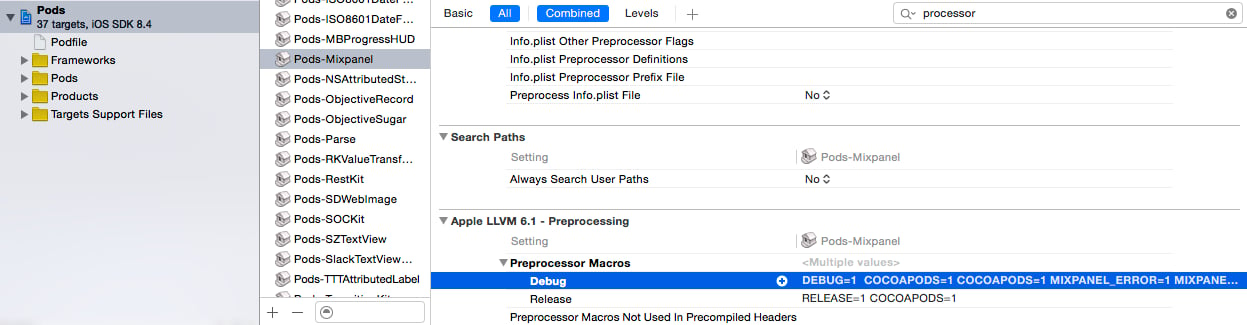 You can also add this to your Podfile to ensure everyone on your team will always have logging enabled:
```ruby Ruby theme={"system"}
post_install do |installer|
installer.pods_project.targets.each do |target|
target.build_configurations.each do |config|
settings = config.build_settings['GCC_PREPROCESSOR_DEFINITIONS']
settings = ['$(inherited)'] if settings.nil?
if target.name == 'Pods-MyProject-Mixpanel'
settings << 'MIXPANEL_DEBUG=1'
settings << 'MIXPANEL_ERROR=1'
end
config.build_settings['GCC_PREPROCESSOR_DEFINITIONS'] = settings
end
end
end
```
Learn more about [debugging](/docs/tracking-best-practices/debugging).
## Privacy-Friendly Tracking
You have control over the data you send to Mixpanel. The Objective-C SDK provide methods to help you protect user data.
Learn more about [Privacy](/docs/privacy/overview).
### Opt Out of Tracking
The Objective-C SDK is initialized with tracking enabled by default. Use the [`optOutTracking`](https://mixpanel.github.io/mixpanel-iphone/Classes/Mixpanel.html#//api/name/optOutTracking) method to opt the user out of data tracking and local storage for the current Mixpanel instance.
**Example Usage**
```objc Objective-C theme={"system"}
Mixpanel *mixpanel = [Mixpanel sharedInstance];
//send "some_event"
[mixpanel track:@"some_event"];
// opt user out of tracking
// SDK is prevented from sending any data
[mixpanel optOutTracking];
// this track call will not work
[mixpanel track:@"some_event"];
```
**Opt Out by Default**
You can initialize the library with users opted out of tracking by default using the [`optOutTrackingDefault`](https://mixpanel.github.io/mixpanel-iphone/Classes/Mixpanel.html#//api/name/sharedInstanceWithToken:trackAutomaticEvents:optOutTrackingByDefault:) configuration. Once the user is ready to be tracked, call [`optInTracking`](https://mixpanel.github.io/mixpanel-iphone/Classes/Mixpanel.html#//api/name/optInTracking) to start tracking.
**Example Usage**
```objc Objective-C theme={"system"}
// create Mixpanel instance with users opt out of tracking by default
// SDK is prevented from sending data
Mixpanel *mixpanel = [Mixpanel sharedInstanceWithToken:@"YOUR_PROJECT_TOKEN"
trackAutomaticEvents:NO optOutTrackingByDefault:YES];
// this track call will not work
[mixpanel track:@"some_event"];
//opt user into tracking
[mixpanel optInTracking];
// send "some_event"
[mixpanel track:@"some_event"];
```
### EU Data Residency
Route data to Mixpanel's EU servers by setting the `serverURL` flag after initializing the Mixpanel instance.
```objc Objective-C theme={"system"}
// set request URL to Mixpanel's EU domain
Mixpanel *mixpanel = [Mixpanel sharedInstance];
self.mixpanel.serverURL = @"https://api-eu.mixpanel.com";
```
### India Data Residency
Route data to Mixpanel's India servers by setting the `serverURL` flag after initializing the Mixpanel instance.
```objc Objective-C theme={"system"}
// set request URL to Mixpanel's India domain
Mixpanel *mixpanel = [Mixpanel sharedInstance];
self.mixpanel.serverURL = @"https://api-in.mixpanel.com";
```
### Disable Geolocation
The Objective-C SDK parse the request IP address to generate geolocation properties for events and profiles. To disable geolocation, set the [`useIPAddressForGeoLocation`](https://mixpanel.github.io/mixpanel-iphone/Classes/Mixpanel.html#//api/name/useIPAddressForGeoLocation) flag to `NO`.
**Example Usage**
```objc Objective-C theme={"system"}
// disable geolocation
[Mixpanel sharedInstance].useIPAddressForGeoLocation = NO;
```
## Legacy Automatically Tracked Events
Mixpanel's mobile SDKs have a legacy feature to automatically collect common mobile events. We don't recommend enabling this, as these events rely on client-side state and can be unreliable.
Ensure autotracked mobile events are disabled by setting `trackAutomaticEvents` to `NO` during initialization.
**Example Usage**
```objc Objective-C theme={"system"}
//initialize Mixpanel with autotrack disabled
[Mixpanel sharedInstanceWithToken:@"YOUR_PROJECT_TOKEN" trackAutomaticEvents:NO];
```
| Raw Name | Display Name | Description |
| ----------------- | --------------------- | ----------------------------------------------------------------------------------------------------------------------------------------------------------------------------------------------------------------------------------------------------------------------------------------------------------------------------------------------------- |
| \$ae\_first\_open | First App Open | Tracks the first time the user has opened the app. This event is retriggered if the user reinstalls the app or clears local storage. A user property First App Open Date (`$ae_first_app_open_date`) is tracked to indicate the date when app was first opened. |
| \$ae\_updated | App Updated | Executes when a user updates the app from the previous version. A Version Updated (`$ae_updated_version`) property is tracked to store the new app version. |
| \$ae\_crashed | App Crashed | Executes when Mixpanel receives either an exception or a signal that indicated the app has crashed. A Crash Reason (`$ae_crashed_reason`) property is tracked to help identify the type of crash. |
| \$ae\_session | App Session | Executes when a user spends more than 10 seconds in the app. A Session Length (`$ae_session_length`) property is tracked to reflect the number of seconds user spent in the session. In addition, there are two user properties tracked: Total App Sessions (`$ae_total_app_sessions`) and Total App Session Length (`$ae_total_app_session_length`). |
| \$ae\_iap | In App Purchase (IAP) | Executes when a user conducts an in-app purchase through your app. Mixpanel provides three properties for this event: Product Name (`$ae_iap_name`), Product Quantity (`$ae_iap_quantity`), and Product Price (`$ae_iap_price`). |
## Release History
[See All Releases](https://github.com/mixpanel/mixpanel-iphone/releases).
You can also add this to your Podfile to ensure everyone on your team will always have logging enabled:
```ruby Ruby theme={"system"}
post_install do |installer|
installer.pods_project.targets.each do |target|
target.build_configurations.each do |config|
settings = config.build_settings['GCC_PREPROCESSOR_DEFINITIONS']
settings = ['$(inherited)'] if settings.nil?
if target.name == 'Pods-MyProject-Mixpanel'
settings << 'MIXPANEL_DEBUG=1'
settings << 'MIXPANEL_ERROR=1'
end
config.build_settings['GCC_PREPROCESSOR_DEFINITIONS'] = settings
end
end
end
```
Learn more about [debugging](/docs/tracking-best-practices/debugging).
## Privacy-Friendly Tracking
You have control over the data you send to Mixpanel. The Objective-C SDK provide methods to help you protect user data.
Learn more about [Privacy](/docs/privacy/overview).
### Opt Out of Tracking
The Objective-C SDK is initialized with tracking enabled by default. Use the [`optOutTracking`](https://mixpanel.github.io/mixpanel-iphone/Classes/Mixpanel.html#//api/name/optOutTracking) method to opt the user out of data tracking and local storage for the current Mixpanel instance.
**Example Usage**
```objc Objective-C theme={"system"}
Mixpanel *mixpanel = [Mixpanel sharedInstance];
//send "some_event"
[mixpanel track:@"some_event"];
// opt user out of tracking
// SDK is prevented from sending any data
[mixpanel optOutTracking];
// this track call will not work
[mixpanel track:@"some_event"];
```
**Opt Out by Default**
You can initialize the library with users opted out of tracking by default using the [`optOutTrackingDefault`](https://mixpanel.github.io/mixpanel-iphone/Classes/Mixpanel.html#//api/name/sharedInstanceWithToken:trackAutomaticEvents:optOutTrackingByDefault:) configuration. Once the user is ready to be tracked, call [`optInTracking`](https://mixpanel.github.io/mixpanel-iphone/Classes/Mixpanel.html#//api/name/optInTracking) to start tracking.
**Example Usage**
```objc Objective-C theme={"system"}
// create Mixpanel instance with users opt out of tracking by default
// SDK is prevented from sending data
Mixpanel *mixpanel = [Mixpanel sharedInstanceWithToken:@"YOUR_PROJECT_TOKEN"
trackAutomaticEvents:NO optOutTrackingByDefault:YES];
// this track call will not work
[mixpanel track:@"some_event"];
//opt user into tracking
[mixpanel optInTracking];
// send "some_event"
[mixpanel track:@"some_event"];
```
### EU Data Residency
Route data to Mixpanel's EU servers by setting the `serverURL` flag after initializing the Mixpanel instance.
```objc Objective-C theme={"system"}
// set request URL to Mixpanel's EU domain
Mixpanel *mixpanel = [Mixpanel sharedInstance];
self.mixpanel.serverURL = @"https://api-eu.mixpanel.com";
```
### India Data Residency
Route data to Mixpanel's India servers by setting the `serverURL` flag after initializing the Mixpanel instance.
```objc Objective-C theme={"system"}
// set request URL to Mixpanel's India domain
Mixpanel *mixpanel = [Mixpanel sharedInstance];
self.mixpanel.serverURL = @"https://api-in.mixpanel.com";
```
### Disable Geolocation
The Objective-C SDK parse the request IP address to generate geolocation properties for events and profiles. To disable geolocation, set the [`useIPAddressForGeoLocation`](https://mixpanel.github.io/mixpanel-iphone/Classes/Mixpanel.html#//api/name/useIPAddressForGeoLocation) flag to `NO`.
**Example Usage**
```objc Objective-C theme={"system"}
// disable geolocation
[Mixpanel sharedInstance].useIPAddressForGeoLocation = NO;
```
## Legacy Automatically Tracked Events
Mixpanel's mobile SDKs have a legacy feature to automatically collect common mobile events. We don't recommend enabling this, as these events rely on client-side state and can be unreliable.
Ensure autotracked mobile events are disabled by setting `trackAutomaticEvents` to `NO` during initialization.
**Example Usage**
```objc Objective-C theme={"system"}
//initialize Mixpanel with autotrack disabled
[Mixpanel sharedInstanceWithToken:@"YOUR_PROJECT_TOKEN" trackAutomaticEvents:NO];
```
| Raw Name | Display Name | Description |
| ----------------- | --------------------- | ----------------------------------------------------------------------------------------------------------------------------------------------------------------------------------------------------------------------------------------------------------------------------------------------------------------------------------------------------- |
| \$ae\_first\_open | First App Open | Tracks the first time the user has opened the app. This event is retriggered if the user reinstalls the app or clears local storage. A user property First App Open Date (`$ae_first_app_open_date`) is tracked to indicate the date when app was first opened. |
| \$ae\_updated | App Updated | Executes when a user updates the app from the previous version. A Version Updated (`$ae_updated_version`) property is tracked to store the new app version. |
| \$ae\_crashed | App Crashed | Executes when Mixpanel receives either an exception or a signal that indicated the app has crashed. A Crash Reason (`$ae_crashed_reason`) property is tracked to help identify the type of crash. |
| \$ae\_session | App Session | Executes when a user spends more than 10 seconds in the app. A Session Length (`$ae_session_length`) property is tracked to reflect the number of seconds user spent in the session. In addition, there are two user properties tracked: Total App Sessions (`$ae_total_app_sessions`) and Total App Session Length (`$ae_total_app_session_length`). |
| \$ae\_iap | In App Purchase (IAP) | Executes when a user conducts an in-app purchase through your app. Mixpanel provides three properties for this event: Product Name (`$ae_iap_name`), Product Quantity (`$ae_iap_quantity`), and Product Price (`$ae_iap_price`). |
## Release History
[See All Releases](https://github.com/mixpanel/mixpanel-iphone/releases).