> ## Documentation Index
> Fetch the complete documentation index at: https://docs.mixpanel.com/llms.txt
> Use this file to discover all available pages before exploring further.
# Migrating Your Feature Flags and Experiments to Mixpanel
This guide walks through migrating your feature flags and experiments hosted in another platform into Mixpanel. It's for teams currently running flags and experiments on a third-party vendor who want to consolidate that work in Mixpanel instead.
By following this guide, your flags and experiments will be set up in Mixpanel, your historical results will carry over, and your application code will be evaluating flags through Mixpanel rather than your old provider.
This guide is a reusable template. The steps below are vendor-agnostic. To migrate from a provider (Statsig, LaunchDarkly, Optimizely, GrowthBook, OpenFeature, or any setup), substitute that vendor's export API in each "Export" step — the Mixpanel side stays the same.
## Migration overview
A complete migration has five parts:
1. **Migrate past experiment exposure events** so your historical results carry over.
2. **Migrate feature gate, experiment, and dynamic config configurations** (both the setup and the reporting).
3. **Complete setup of Feature Flags and Experiments** in the Mixpanel UI.
4. **Recreate critical flags and experiments** in your application code.
5. **Verify migration status**, including number of feature flags migrated and exposure count.
Here's how to work through each step.
## Step 1. Migrate past experiment exposure events
An exposure event records that a user was enrolled in a feature gate, an experiment, or a dynamic config, and was exposed to a specific variant. To keep your historical data, export your existing exposure events from your current vendor and ingest them to Mixpanel as `$experiment_started` events.
Running migrations for experiments mid-flight is a high risk task. As the Mixpanel SDK will randomly assign variant assignments in your app, it is impossible to maintain the same variant assignment in your current set up.
### Export exposure events from your vendor
Most vendors have a dedicated exposure event you can export. You can usually export them directly from the UI or by using the vendor's API. You will need the following fields at minimum:
* The enrollment ID: user ID, device ID, or group ID exposed to the experiment or feature flag
* Timestamp of the exposure
* The experiment or feature flag name
* The assigned variant
Details about Mixpanel's `$experiment_started` event can be found [here](/docs/experiments#implementation-for-experimentation).
#### **Equivalent events**
Each vendor has its own definition of exposure event and they can be mapped to Mixpanel's exposure event depending on the Mixpanel Feature Flag type (feature gate, an experiment, or a dynamic config). Use this table to find the equivalent for your setup:
| Mixpanel Feature Flag Type | [Statsig Equivalent](https://docs.statsig.com/integrations/event_webhook#event-format) | LaunchDarkly Equivalent | [Optimizely Equivalent](https://docs.developers.optimizely.com/experimentation-data/docs/event-api-getting-started#activate-users) | [GrowthBook Equivalent](https://docs.growthbook.io/app/event-forwarder#experiment-view-events) |
| :------------------------- | :------------------------------------------------------------------------------------- | :------------------------------------------------------------------------------------------------------------------------------------------------------------------------------------------------------------------------------------------------------------------------------------------------------------------------------------------------------------- | :--------------------------------------------------------------------------------------------------------------------------------- | :--------------------------------------------------------------------------------------------- |
| Experiment | `statsig::experiment_exposure` | [*Streaming*](https://launchdarkly.com/docs/integrations/data-export/schema-reference#feature-events)
`Feature` event where `reason.inExperiment` = true
[*Warehouse*](https://launchdarkly.com/docs/integrations/data-export/warehouse-schema-reference#evaluation-events)
`evaluation_events` where `experiment_iteration_id` != NULL | `campaign_activated` | `Experiment Viewed` |
| Feature Gate | `statsig::gate_exposure` | *Streaming*
`Feature` event where `reason.inExperiment` is absent/false
*Warehouse*
`evaluation_events` where `experiment_iteration_id` is absent | Feature Rollout | (no gate exposure concept) |
| Dynamic Configuration | `statsig::config_exposure` | *Streaming*
`Feature` event where `reason.inExperiment` is absent/false
*Warehouse*
`evaluation_events` where `experiment_iteration_id` is absent | Flag with Variables | (no config exposure concept) |
### Import events into Mixpanel as `$experiment_started`
Transform each exported exposure row into a Mixpanel `$experiment_started` event and send it through the **Mixpanel Import API**.
Ensure **Experiment name** and **Variant name** are correctly translated. Keep the original exposure timestamp so historical analysis is accurate, and include a unique `$insert_id` so re-runs don't create duplicates.
```javascript theme={"system"}
{
"event": "$experiment_started",
"properties": {
"distinct_id": "alice@example.com", // enrollment ID
"time": 1709275888, // Timestamp of exposure
"$insert_id": "exp_4821_alice_1709275888", // for re-run deduplication
"Experiment name": "checkout_flow_test", // The experiment or feature flag name
"Variant name": "treatment" // The assigned variant
}
}
```
## Step 2. Migrate feature gate, experiment, and dynamic config configurations
Now that you've brought over your historical exposure data, it's time to bring over the configurations themselves. This section guides you in moving configurations for experiment and feature flag **setup**, as well as, experiment **reporting**.
### Export configurations from your vendor
Your vendor may have a UI export, API export, or warehouse export options. Ensure you list and fetch definitions for feature gates, experiments, and dynamic configurations by consulting your vendor's documentation.
### Import the setup via Mixpanel API
Recreate each configuration in Mixpanel using Mixpanel APIs. Create experiments first, then the feature flags that reference them. You can refer to the [Mixpanel Feature Flags](/reference/feature-flags-api) API for more details.
**Tip**: Test by migrating a few low-risk flags to validate the process first.
#### Experiment
You will need to make two API calls:
* **Create Experiment**: POST [`/api/app/workspaces/{workspace_id}/experiments`](/reference/create-experiment).
* This creates the experiment entity.
* **Create Feature Flag**: POST [`/api/app/projects/{project_id}/workspaces/{workspace_id}/feature-flags`](/reference/create-feature-flag-1).
* This creates the **feature flag** that references the experiment.
* For an Experiment, the key is to provide values for`experiment_id`,`is_experiment_active`, and ensure the control and treatment values in the `ruleset.variants.value` are sent as strings.
#### Feature Gate
* **Create Feature Flag**: POST [`/api/app/projects/{project_id}/workspaces/{workspace_id}/feature-flags`](/reference/create-feature-flag-1).
* For a Feature Gate, ensure you specify the control and treatment values in the `ruleset.variants.value` as a boolean value.
#### Dynamic Config
* **Create Feature Flag**: POST [`/api/app/projects/{project_id}/workspaces/{workspace_id}/feature-flags`](/reference/create-feature-flag-1).
* For a Dynamic Config, the key is to specify the control and treatment values in the `ruleset.variants.value` as an object.
## Step 3. Complete setup of Feature Flags and Experiments in the Mixpanel UI
Now that you've recreated your flags and experiments base configurations through the Mixpanel API, complete the rest of the detailed setup via Mixpanel UI.
### Feature Flag setup
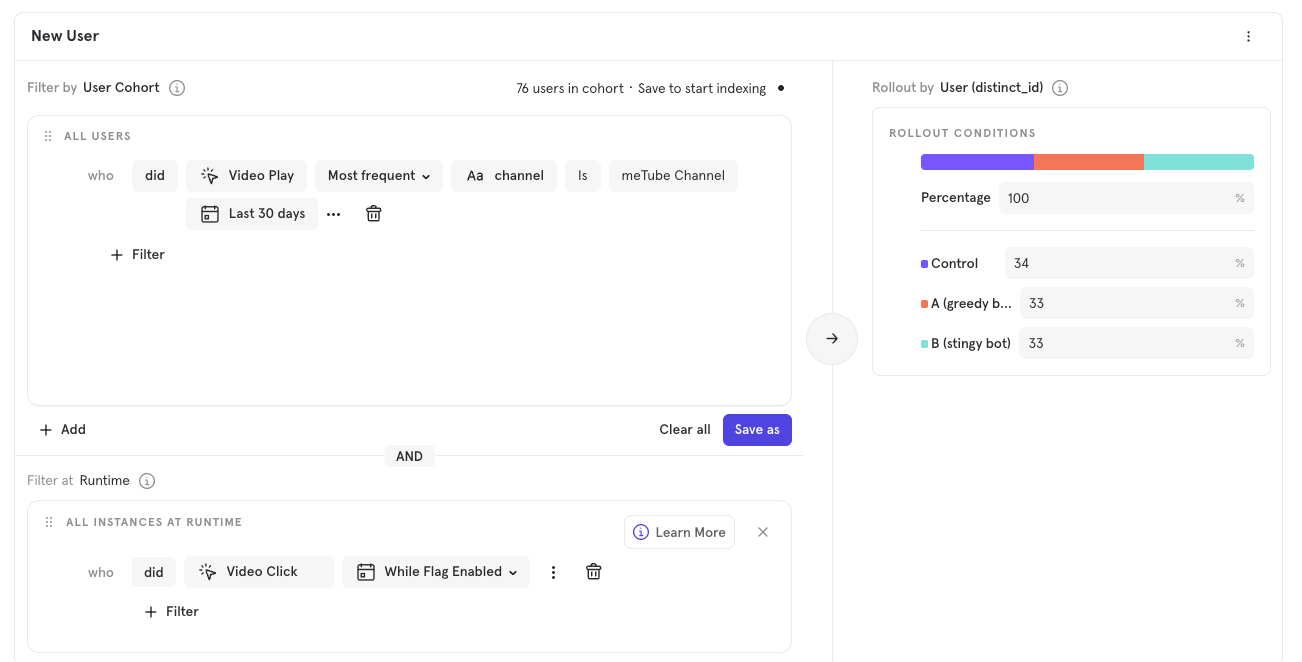
There are custom configurations that require additional effort to set up in Mixpanel, such as user targeting, rollout conditions, and runtime evaluation. Set these up in Mixpanel directly under the [Feature Flags](/docs/featureflags) menu by searching for the name of the feature flag that you have created via the Mixpanel API.
 ### Experiment setup
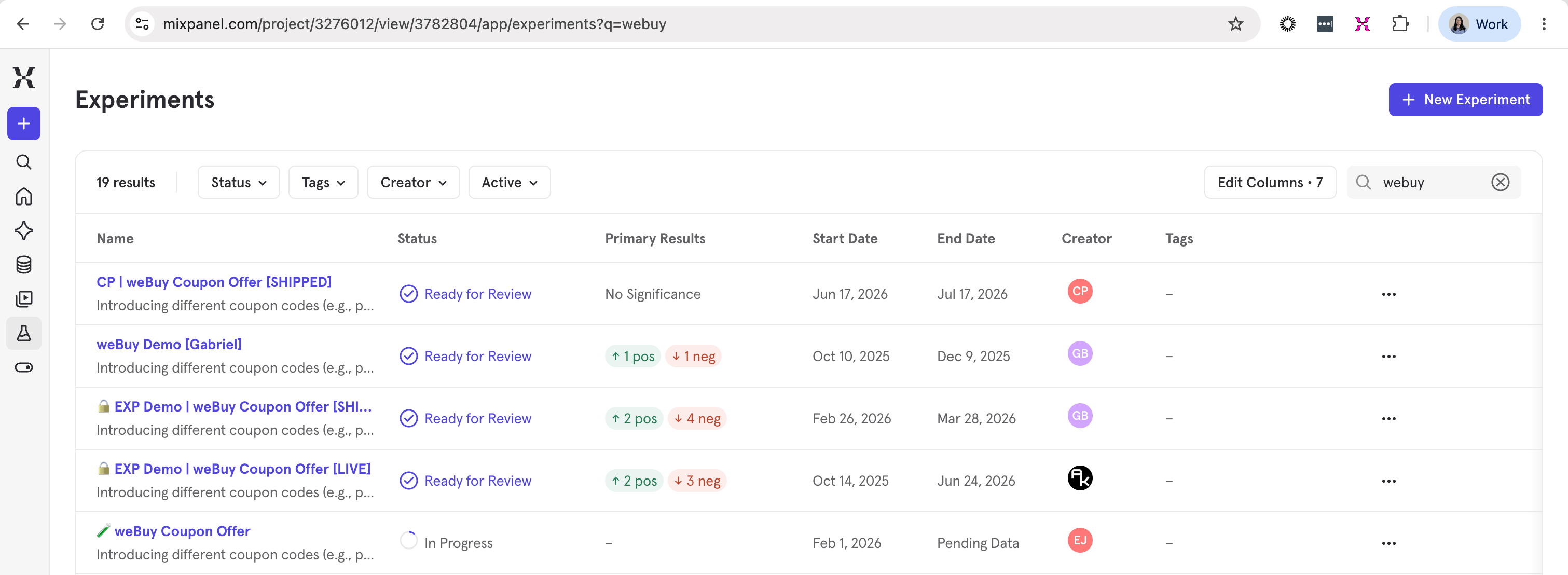
This step is only relevant if you have imported experiments into Mixpanel. A corresponding [Mixpanel Experiment](/docs/experiments#monitor-your-experiment) report will be created for every experiment you've imported. You will need to continue populating this experiment with the right configuration and metrics. Go to [Experiments](/docs/experiments) menu, and search for your experiment by name.
### Experiment setup
This step is only relevant if you have imported experiments into Mixpanel. A corresponding [Mixpanel Experiment](/docs/experiments#monitor-your-experiment) report will be created for every experiment you've imported. You will need to continue populating this experiment with the right configuration and metrics. Go to [Experiments](/docs/experiments) menu, and search for your experiment by name.
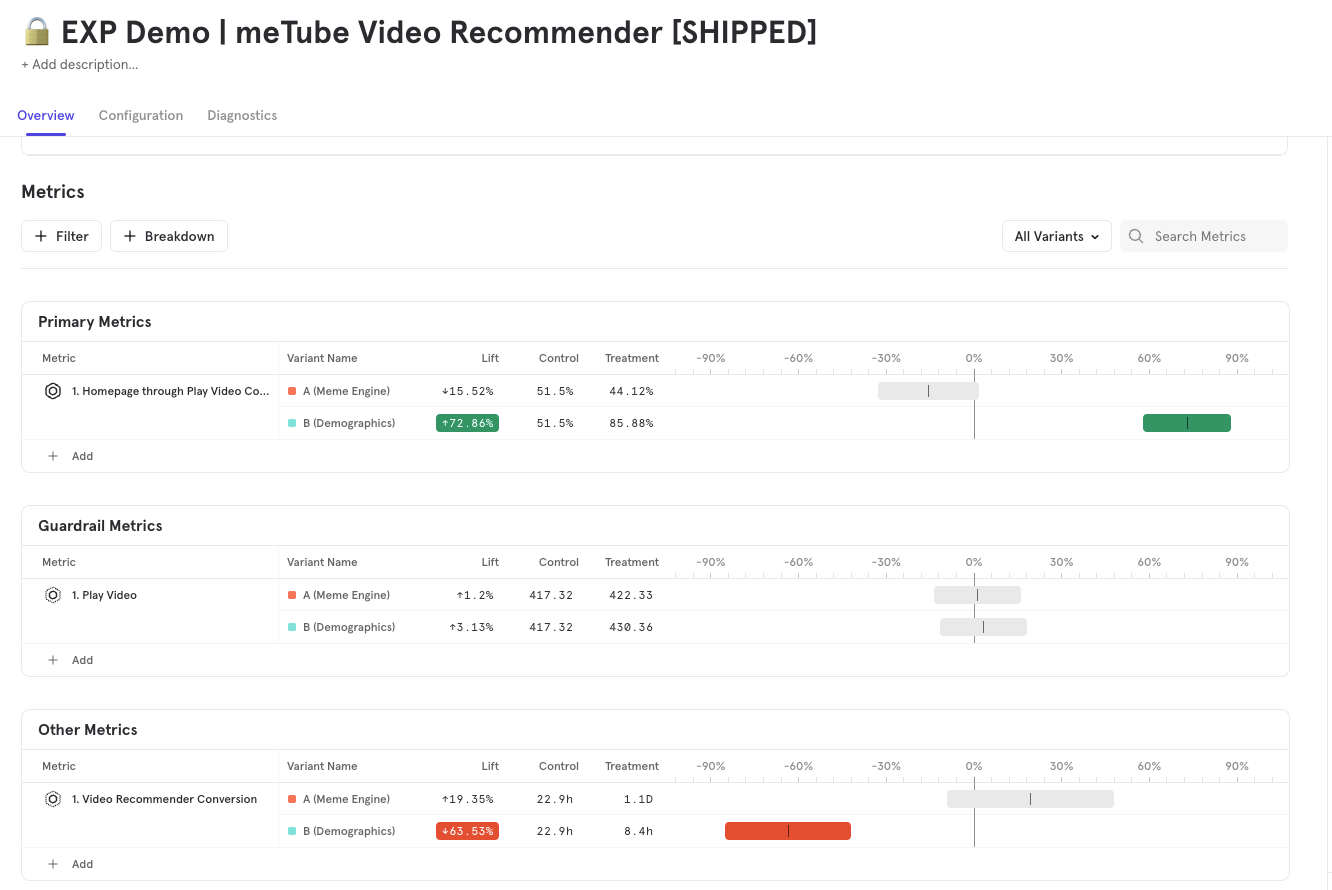
 Map each of your vendor's experiment metrics to a Mixpanel metric so the same success criteria are measured.
 ## Step 4. Recreate critical flags and experiments in your code
With your feature flag configurations now migrated to Mixpanel, update your application code to use Mixpanel methods for flag evaluation and exposure. How much code changes depends on how your code calls your flags today.
In the case of live experiments, migration will result in users getting reassigned to a different variant mid-experiment. We recommend completing any existing experiments and importing the historical exposure events into Mixpanel, then launching the equivalent experiment fresh in Mixpanel post-cutover.
1. **If your code uses OpenFeature**: Swap the provider — replace your current provider with the Mixpanel provider and leave your existing evaluation calls unchanged, as long as your flag keys are carried over identically.
2. **If your code uses your vendor's SDK directly**: Replace those evaluation calls with the equivalent Mixpanel SDK calls for your language (for example, a boolean gate check becomes a Mixpanel boolean flag evaluation; a dynamic config read becomes a Mixpanel variant/JSON lookup).
If you are currently using LLMs, we also recommend exploring this migration approach with the [Mixpanel MCP server](/docs/mcp). The MCP server can read all the flags and experiments in your project, and will be a good assistant in making code changes.
```javascript theme={"system"}
// The following is for client side JS SDK experiments implementation
// Step 1: Initialize the JS SDK
mixpanel.init("YOUR_PROJECT_TOKEN", {
flags: {
persistence: {
// Configure a variantLookupPolicy in the flags init options
variantLookupPolicy: "networkFirst",
},
},
});
// Step 2: Check the variant value when you want to trigger the experiment
// The async get_variant_value waits for the call to succeed and
// falls back to the persisted value if it exists.
const variant_value = await mixpanel.flags.get_variant_value("my-feature-flag", "control");
```
```javascript theme={"system"}
// The following is for server side Node.js SDK experiments implementation
const Mixpanel = require('mixpanel');
const mixpanel = Mixpanel.init('YOUR_PROJECT_TOKEN', {
// This experiment setup is with local evaluation, suited for low latency.
// The SDK will poll Mixpanel servers for feature flag configurations.
// Assignment of user contexts to variants will be done locally within the SDK.
local_flags_config: {
api_host: 'api.mixpanel.com',
enable_polling: true,
polling_interval_in_seconds: 60
}
});
// If enable_polling is set to false, this will fetch definitions only once for the lifetime of the SDK.
await mixpanel.local_flags.startPollingForDefinitions();
// This should be the 'key' of the feature flag from Mixpanel's UI.
const flagKey = 'sample-flag';
// This is the fallback variant to return if the user context is not in a rollout group for the flag.
const fallbackValue = 'control';
// Current user context for evaluation.
// At minimum, this needs to include the user's distinct_id.
// If any of your feature flags use a Variant Assignment Key other than 'distinct_id', this should also include those keys for evaluation. For example, 'company_id' below.
// If any of your feature flags use runtime targeting, this should also include 'custom_properties' for evaluation.
const userContext = {
distinct_id: '1234',
custom_properties: {
platform: 'node'
}
};
// Gets the assigned variant for the flag for the given user context.
// This will return the fallback_variant if the user context is not in an assignment group for the flag.
const variantValue = mixpanel.local_flags.getVariantValue(flagKey, fallbackValue, userContext);
// Call trackExposureEvent when the user actually sees the feature.
mixpanel.flags.trackExposureEvent('test', variant);
```
3. **Add a fallback during cutover (recommended)**: Wrap your Mixpanel flag calls so that if a value can't be retrieved, the code falls back to the same value as configured in your previous provider. This lets you run both systems side-by-side and confirm parity with no risk.
4. **Switch over and clean up**: Once you've verified the Mixpanel flags behave correctly in production, route fully to Mixpanel, then remove the fallback and the old provider's code. Keep a thin wrapper around flag evaluation as a facade so future changes happen in one place.
## Step 5. Verify migration status
Ensure you run a parity check. Things to verify include:
1. Number of feature flags migrated.
2. Feature flag exposure count — for number of users that were included in feature flag, as well as total number of exposure events.
3. Variant splits in feature flag setup — number of variants and rollout ratio match.
4. User variant match — QA on individual user levels for variant assignment.
### The result
The result is a clean, reviewed migration of your feature flags and experiments into Mixpanel: configurations recreated, historical results preserved, and your release workflow intact. Your Mixpanel team will partner with you through each step.
For the full reference on how flags and experiments work in Mixpanel - including targeting, rollout groups, and variant management - see [Feature Flags](/docs/featureflags) and [Experiments](/docs/experiments).
## Step 4. Recreate critical flags and experiments in your code
With your feature flag configurations now migrated to Mixpanel, update your application code to use Mixpanel methods for flag evaluation and exposure. How much code changes depends on how your code calls your flags today.
In the case of live experiments, migration will result in users getting reassigned to a different variant mid-experiment. We recommend completing any existing experiments and importing the historical exposure events into Mixpanel, then launching the equivalent experiment fresh in Mixpanel post-cutover.
1. **If your code uses OpenFeature**: Swap the provider — replace your current provider with the Mixpanel provider and leave your existing evaluation calls unchanged, as long as your flag keys are carried over identically.
2. **If your code uses your vendor's SDK directly**: Replace those evaluation calls with the equivalent Mixpanel SDK calls for your language (for example, a boolean gate check becomes a Mixpanel boolean flag evaluation; a dynamic config read becomes a Mixpanel variant/JSON lookup).
If you are currently using LLMs, we also recommend exploring this migration approach with the [Mixpanel MCP server](/docs/mcp). The MCP server can read all the flags and experiments in your project, and will be a good assistant in making code changes.
```javascript theme={"system"}
// The following is for client side JS SDK experiments implementation
// Step 1: Initialize the JS SDK
mixpanel.init("YOUR_PROJECT_TOKEN", {
flags: {
persistence: {
// Configure a variantLookupPolicy in the flags init options
variantLookupPolicy: "networkFirst",
},
},
});
// Step 2: Check the variant value when you want to trigger the experiment
// The async get_variant_value waits for the call to succeed and
// falls back to the persisted value if it exists.
const variant_value = await mixpanel.flags.get_variant_value("my-feature-flag", "control");
```
```javascript theme={"system"}
// The following is for server side Node.js SDK experiments implementation
const Mixpanel = require('mixpanel');
const mixpanel = Mixpanel.init('YOUR_PROJECT_TOKEN', {
// This experiment setup is with local evaluation, suited for low latency.
// The SDK will poll Mixpanel servers for feature flag configurations.
// Assignment of user contexts to variants will be done locally within the SDK.
local_flags_config: {
api_host: 'api.mixpanel.com',
enable_polling: true,
polling_interval_in_seconds: 60
}
});
// If enable_polling is set to false, this will fetch definitions only once for the lifetime of the SDK.
await mixpanel.local_flags.startPollingForDefinitions();
// This should be the 'key' of the feature flag from Mixpanel's UI.
const flagKey = 'sample-flag';
// This is the fallback variant to return if the user context is not in a rollout group for the flag.
const fallbackValue = 'control';
// Current user context for evaluation.
// At minimum, this needs to include the user's distinct_id.
// If any of your feature flags use a Variant Assignment Key other than 'distinct_id', this should also include those keys for evaluation. For example, 'company_id' below.
// If any of your feature flags use runtime targeting, this should also include 'custom_properties' for evaluation.
const userContext = {
distinct_id: '1234',
custom_properties: {
platform: 'node'
}
};
// Gets the assigned variant for the flag for the given user context.
// This will return the fallback_variant if the user context is not in an assignment group for the flag.
const variantValue = mixpanel.local_flags.getVariantValue(flagKey, fallbackValue, userContext);
// Call trackExposureEvent when the user actually sees the feature.
mixpanel.flags.trackExposureEvent('test', variant);
```
3. **Add a fallback during cutover (recommended)**: Wrap your Mixpanel flag calls so that if a value can't be retrieved, the code falls back to the same value as configured in your previous provider. This lets you run both systems side-by-side and confirm parity with no risk.
4. **Switch over and clean up**: Once you've verified the Mixpanel flags behave correctly in production, route fully to Mixpanel, then remove the fallback and the old provider's code. Keep a thin wrapper around flag evaluation as a facade so future changes happen in one place.
## Step 5. Verify migration status
Ensure you run a parity check. Things to verify include:
1. Number of feature flags migrated.
2. Feature flag exposure count — for number of users that were included in feature flag, as well as total number of exposure events.
3. Variant splits in feature flag setup — number of variants and rollout ratio match.
4. User variant match — QA on individual user levels for variant assignment.
### The result
The result is a clean, reviewed migration of your feature flags and experiments into Mixpanel: configurations recreated, historical results preserved, and your release workflow intact. Your Mixpanel team will partner with you through each step.
For the full reference on how flags and experiments work in Mixpanel - including targeting, rollout groups, and variant management - see [Feature Flags](/docs/featureflags) and [Experiments](/docs/experiments).