

Why run web experiments in Mixpanel
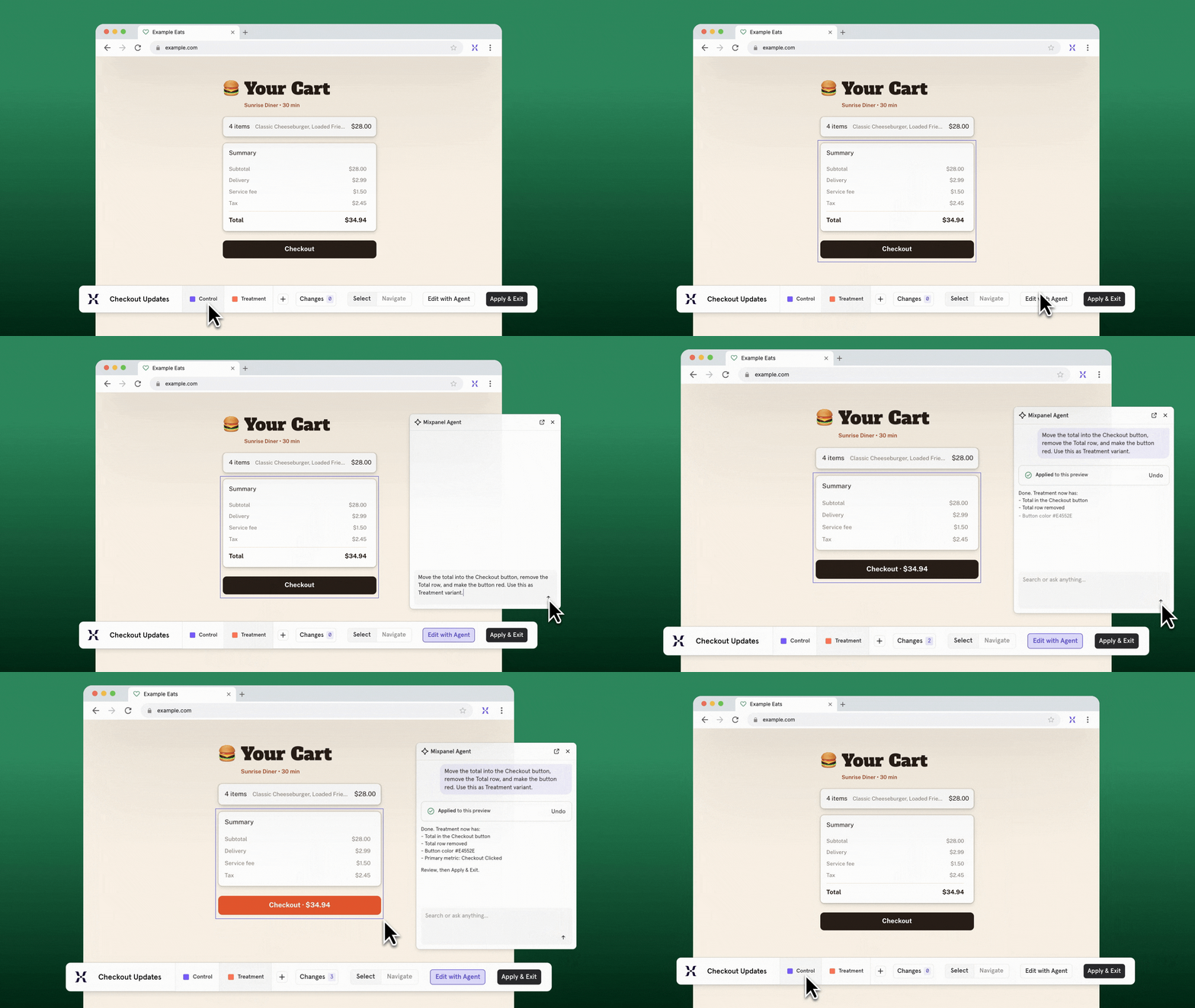
Testing changes to your website usually means waiting on a developer, adding a separate testing tool, or both. When results live in that separate tool, you end up with two sets of numbers that don’t quite match. Web experiments keep everything in Mixpanel: building the change, choosing who sees it, and reading the result.Build it yourself
Change copy, colors, and styling by clicking, or tell Mixpanel Agent what you want. No developer ticket for every test.
Use what you already track
The events and cohorts already in Mixpanel decide who sees a test and what counts as a win.
Learn in one place
Results sit next to the rest of your data, so there’s no second set of numbers to reconcile.
Setup has two parts. Someone on your web team makes a one-time change to add Mixpanel’s code to your site, or to swap it in for your current testing tool’s code. Then anyone who builds web experiments installs the Mixpanel Chrome extension. See the Web Experiments docs for details.
Five habits of reliable web experiments
Once setup is done, these five practices take you from your first idea to a decision you can stand behind.Pick changes the editor handles well
When you create an experiment in Mixpanel, you choose one of two types.- A web experiment is built in the editor, right on your live site. No code changes needed, so anyone on your team with access can build one.
- A feature experiment is built in your site’s code, so each test needs a code change.

Web experiment: Built in the editor
- Headlines and button copy
- Colors and styling
- Hiding a section

Feature experiment: Built in code
- Adding something new to the page
- Changing how something works
- Anything that depends on data
- Pages that update as people click around
Start with one small change on a busy page
Your first test does two jobs: It answers a question, and it shows you how web experiments behave on your site. Keeping it small helps with both. Change one thing. If you rewrite the headline, change copy, and recolor the button all in a single experiment, and then your results move, you won’t know which change made the difference. One may have helped while another hurt. Making one change at a time gives you an answer you can explain and build on. Pick a page lots of people visit. The more visitors a page gets, the sooner you reach a clear answer. A quiet page can leave a test running for weeks without telling you much. Choose a page you know well. You’ll spot anything that looks off right away, and a simple copy change on a familiar page is low risk if something goes wrong.Know what you’re measuring before you build
Decide what success looks like before you open the editor. If you wait until results come in, it’s easy to pick whichever number looks best, and then the test hasn’t really told you anything. Write down what you expect to happen and which number will show it. Choose from what you already track in Mixpanel, so that you measure the test against the same numbers your team already reports. Add anything you don’t want the change to hurt, so a win in one place doesn’t hide a loss somewhere else. See how to choose metrics. If your change is meant for certain visitors, show it only to them. You can use groups you’ve already saved in Mixpanel, called cohorts, without importing a list from somewhere else.Check it the way visitors will see it
A few minutes of checking keeps two things from happening: a test that runs for weeks without anyone seeing your change, or a broken page in front of real visitors.1
Read through your list of changes
Every edit, including anything Mixpanel Agent made, shows up in one list. Make sure each one is something you meant to do.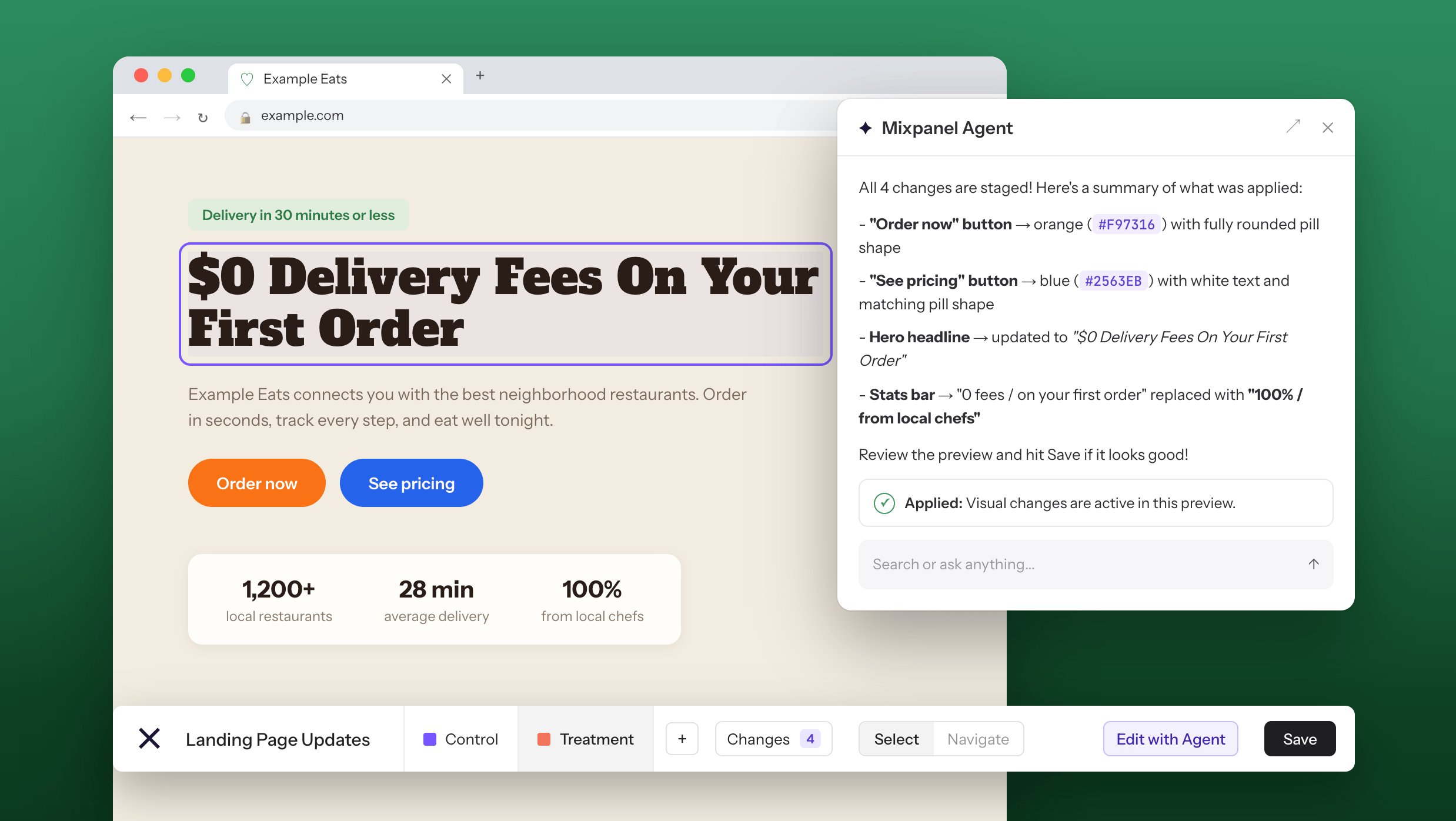
2
Turn on traffic
New versions start with no traffic, so nobody sees them until you set how many visitors get each one in Mixpanel.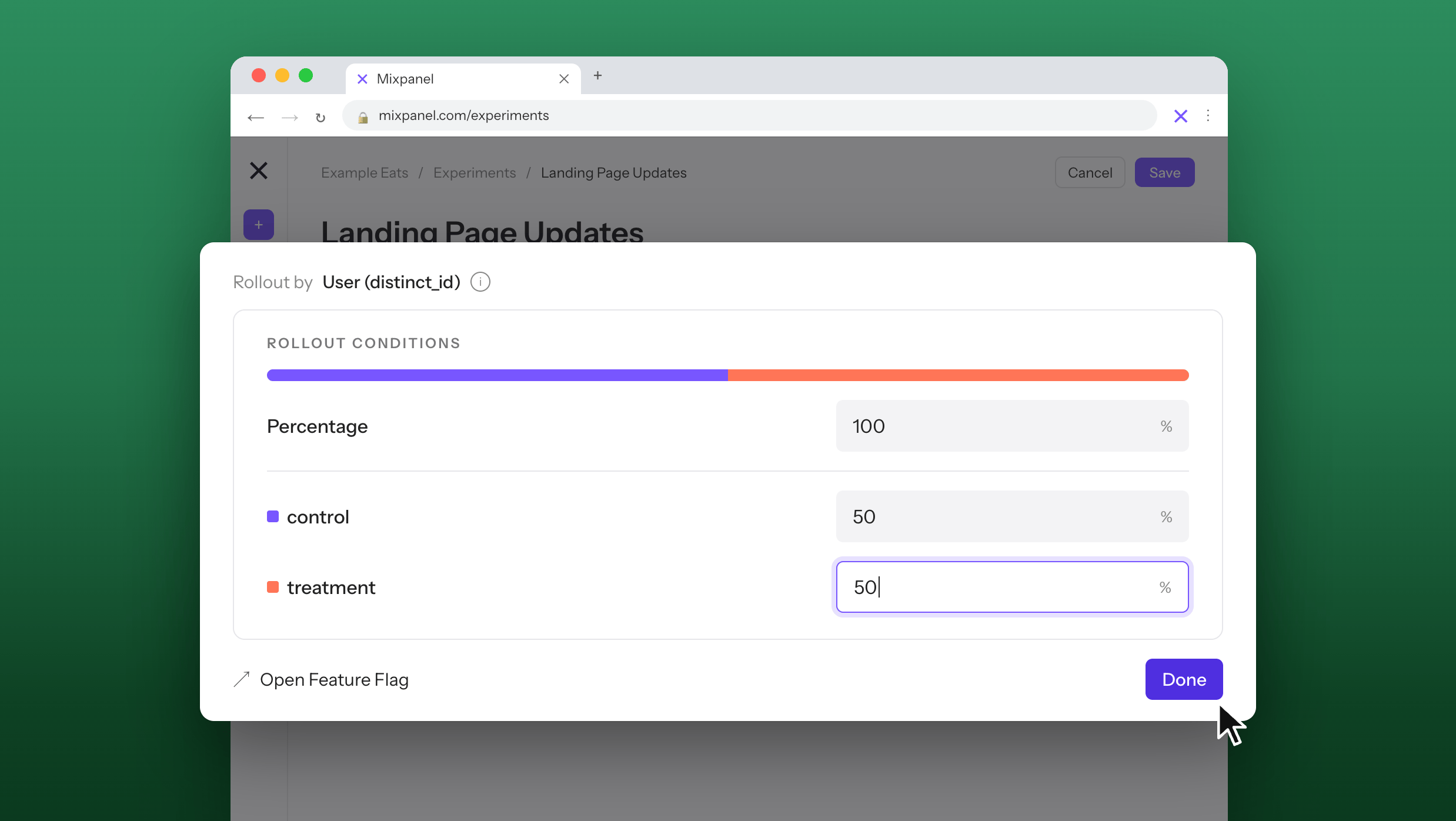
3
Check for other tests on the same page
If another web experiment targets the same page, Mixpanel shows you a warning but still lets you launch. Whether that’s OK is your call. Tests on the same page can get in each other’s way and make it harder to tell which change made the difference.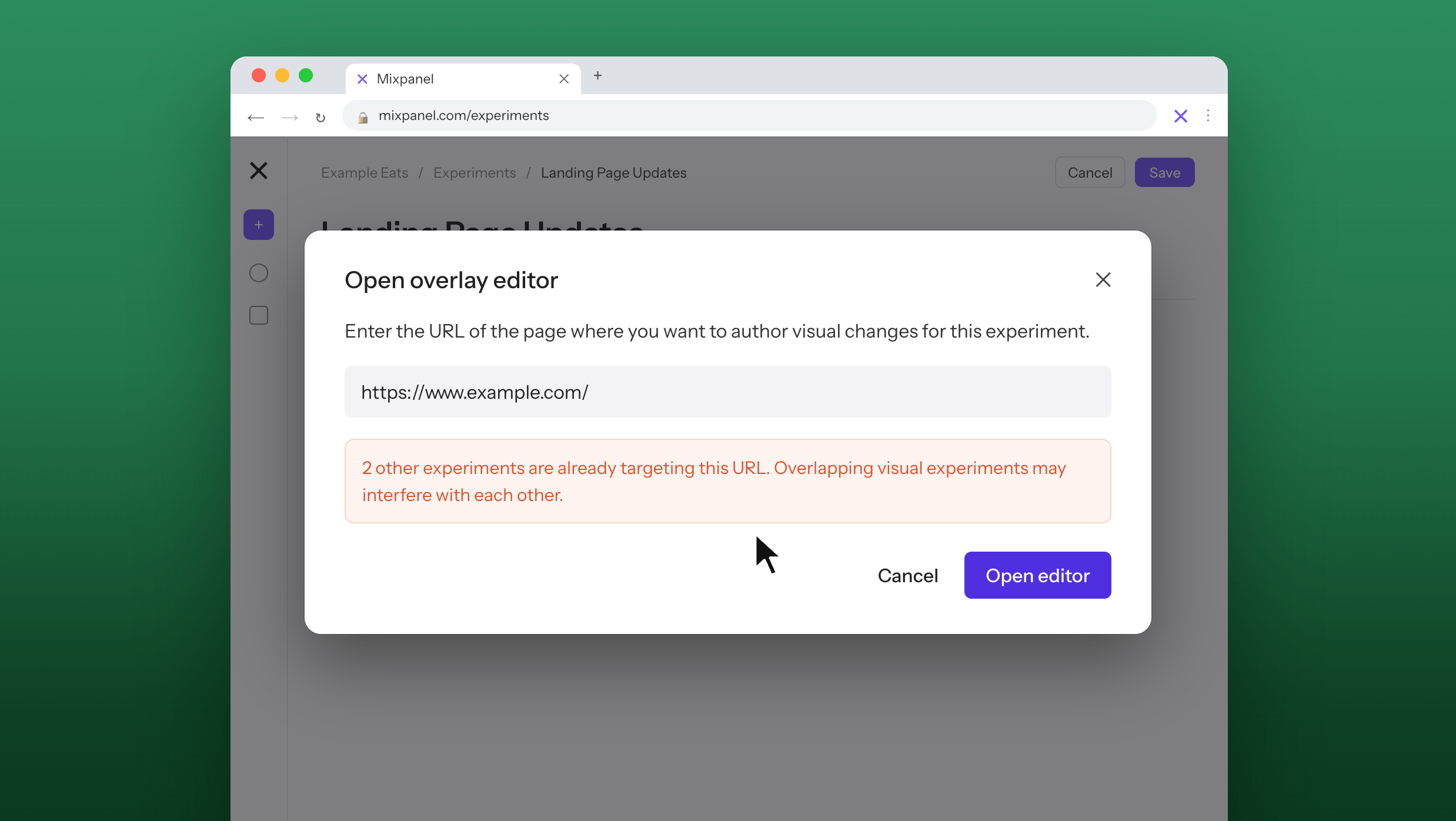
4
Confirm the page address
Your test shows on pages with the same origin and path as the saved address. Query strings, hash fragments, and trailing slashes are ignored. Check the URL-targeting rules before launching.
5
Tell your web team it's going live
If something looks off, pause the test in Mixpanel and your site goes back to normal.
Let it run, then decide
Once your test is live, leave it alone. If you edit a version halfway through, early visitors and later visitors saw different things, and your results no longer describe either one. To try something new, start a new test. When the test is done, roll out the winner only if the result is clear, big enough to matter to your business, and nothing you care about went down. A small or unclear difference may just be chance. See how to read your results.Try it: Test a new button label on your pricing page
Here’s how the habits come together on a typical first test: one change, on a page lots of people visit, measured against something your team already records.1
Write down what you expect
Say the button on your most popular plan reads “Start free trial.” Your idea is that “Try it free for 14 days” will get more clicks, because it tells people exactly what they’re signing up for.Write it as a prediction: If the button says “Try it free for 14 days,” more visitors will start a trial, because they know what they’re getting. Your success number is trial sign-ups, which Mixpanel already tracks for you.For more on this step, see plan your experiment.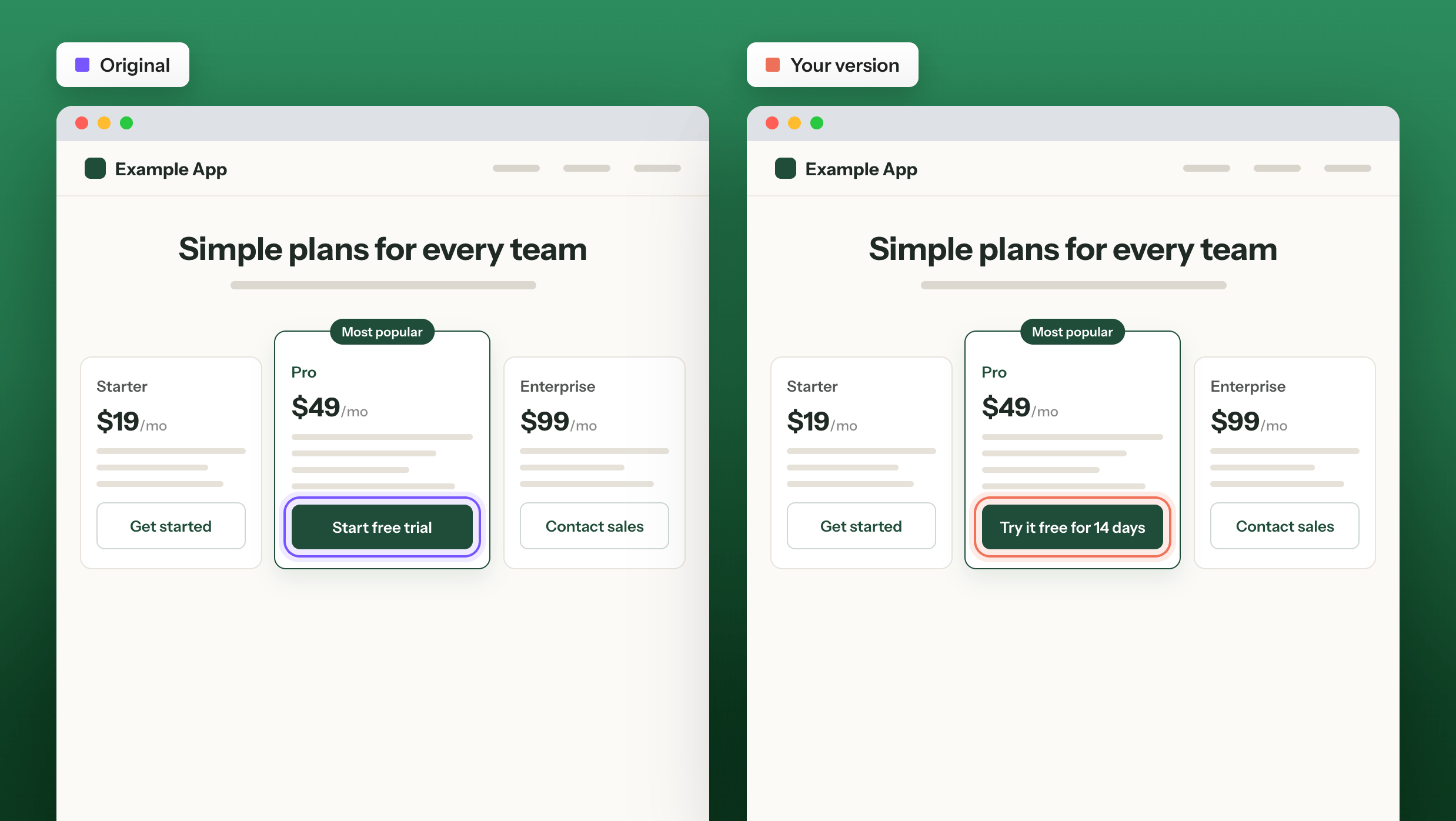
2
Create the experiment
Create a new web experiment and enter your pricing page’s address. Add trial sign-ups as your success metric, then set how long the test runs.
3
Change the button
Open the editor, click the button, and type the new label. Or ask Mixpanel Agent: “Change the button on the Pro plan to say Try it free for 14 days.” Then check your list of changes. You should see one edit and nothing else.
4
Check it and launch
Split traffic so half your visitors see each version. Run through the checks in Check it the way visitors will see it, then launch.
5
Read the result and decide
When the test is ready to review, open the results. If trial sign-ups are clearly up and nothing else you care about went down, roll out the new label. If there’s no clear difference, you’ve still learned something: The button wording may not be what’s holding people back, so your next test could try the headline instead. See how to read your results.
Next step
Set up your first web experiment
Pick a headline or button on your busiest page and follow the setup steps in the Web Experiments docs.