

The audit log is available on all plans. Free and Growth plans retain logs for 90 days. Enterprise plans retain logs for 2 years. See our pricing page for more details.
Accessing the Audit Log
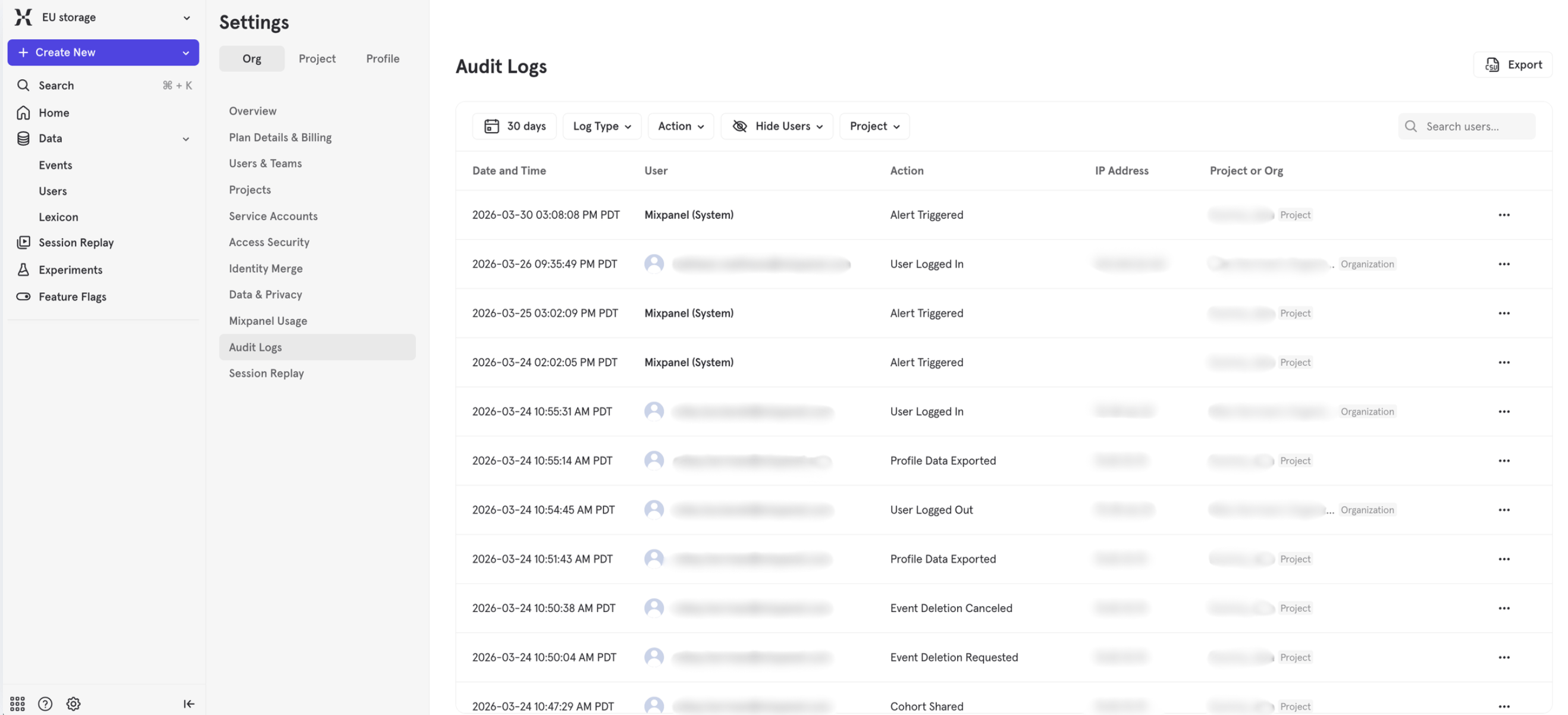
You can access the audit log at two levels:- Organization-level logs — Found in Organization Settings. Accessible to organization admins and owners, these log all events across the organization, including user authentication, service account management, and more.
- Project-level logs — Found in Project Settings. Accessible to project admins and owners, these logs include project-specific events like report creation and data exports.
- Navigate to Organization Settings or Project Settings by clicking the gear icon in the bottom left navigation > Settings.
- Select Audit Log from the sidebar menu.
- View the activity log showing recent events, who performed them, and when they occurred.
Tracked Events
See Audit Log Reference for a complete list of all tracked events, including descriptions and availability dates.MCP Activity
Beta. The MCP Audit Log is currently available to a limited set of customers during Beta. If you’d like to participate, request access here.
What Gets Logged
Every MCP tool that changes something records an entry. That covers all of Mixpanel’s write tools — boards, cohorts, experiments, feature flags, metrics, lookup tables, custom properties, Lexicon metadata, tags, and business context. Two things are deliberately not logged:- Read-only tool calls. Running a query, reading a report, or listing cohorts through MCP produces no audit entry, consistent with how the Mixpanel UI treats the same actions.
- Failed tool calls. Only changes that actually took effect are recorded.
Identifying MCP Activity
In the audit log UI, MCP entries carry an Origin of MCP, and the Origin filter narrows the table to a single source. In exports and the audit log API, the same information is theservice field, and MCP entries carry the value mcp.
Entries are attributed to the account the assistant is connected as. If that is a service account shared by a team, the entry identifies the service account rather than the person who initiated the action.
For a clue about which AI client made a change, read the http_user_agent field on the MCP tool call entry — for example, claude-code/2.1.281 (claude-desktop, agent-sdk/0.3.281). The value is client-supplied, so treat it as a hint rather than proof of identity.
How Many Entries an Action Produces
A single MCP action usually produces more than one audit entry:- One MCP tool call entry — event type
mcp_tool_call.performed— recording which tool was run and the arguments it was given. - One detailed entry per object that changed, including its before and after state.
board.created entry, and ten bookmark.created entries.
Objects that Mixpanel does not audit in their own right — tags, metrics, custom properties, lookup tables, and business context — produce only the tool call entry, with no before/after state.
Retention
MCP tool call entries are retained for 90 days on all plans, including Enterprise, rather than the standard retention described above. The detailed entries are unaffected: a board, cohort, experiment, or feature flag change follows your plan’s standard retention regardless of whether it came from MCP.Things to Know
- The IP address is not the user’s. On an MCP tool call entry, the recorded IP address belongs to the server making the tool call (typically your AI provider’s, such as Anthropic’s or OpenAI’s), not the device of the person using the assistant. Use the user field, not the IP address, to identify who performed an MCP action. The detailed entries have no IP address at all.
- MCP entries can take several minutes to appear. If a recent action is missing, wait and refresh before treating it as unlogged.
- Very large arguments are dropped. If a tool call’s arguments exceed 64 KB, the MCP tool call entry records none of them and sets
arguments_truncatedto true. The detailed entries still carry the full before/after state. - Connecting and disconnecting an MCP client is not yet recorded. Only the actions taken through a connection are logged.
Get-Audit-Log tool — see Querying the Audit Log on the MCP server page.
Exporting the Audit Log
You can export the audit log to CSV or NDJSON (newline-delimited JSON) for further analysis or archival. The export contains the raw data for each event. CSV is convenient for spreadsheets and quick analysis. NDJSON preserves the full nested structure of each event, which suits programmatic processing or ingestion into log pipelines.- Navigate to the audit log page in Organization Settings or Project Settings.
- Click the Export button and choose your format—CSV or NDJSON—from the dropdown to download the current view of the audit log.
- The export includes all visible events within the selected time range.
Limitations
-
Retention periods vary by plan:
- Free & Growth plans: 90 days
- Enterprise plans: 2 years
- MCP tool call entries: 90 days on all plans
- Organization-only events (service account management, login/logout, two-factor auth) are only visible in Organization Settings, not Project Settings.
- Read-only actions are not logged, whether taken in the Mixpanel UI or through MCP. The audit log records changes, not views or queries.
- Not all object types are audited. Changes to some object types — including tags, metrics, custom properties, lookup tables, and business context — are recorded when made through MCP, but not when made in the Mixpanel UI.