

Overview
Mixpanel provides a hosted Model Context Protocol (MCP) server that gives AI assistants direct access to your Mixpanel data. Once connected, you can query events, funnels, flows, retention, session replays, and more using natural language — no dashboard navigation required. A typical workflow looks like:- Discover: Find your projects, events, and properties
- Query: Run insights, funnels, flows, or retention analyses
- Create: Build dashboards, organize Lexicon, or manage data quality issues
- Iterate: Refine with follow-up questions in the same conversation
Available Tools
Beta. Some tools above are still in Beta:
- Experiments and Feature Flags. These tools are in open Beta and are available to all users. Audience targeting and cohort editing are not yet supported — use the Mixpanel UI instead.
- Audit Log. The
Get-Audit-Logtool is currently available to a limited set of customers during Beta. If you’d like to participate, request access here.
MCP Server URLs
Permissions & Access
New free and growth accounts (created after August 1, 2026): MCP is enabled by default — no admin action required. Organization admins can disable it in Settings → Org → Overview if needed. Free plans can be subject to Query API access limits, please refer to our pricing page for more information.All other accounts: An organization admin must enable MCP in Settings → Org → Overview before anyone can connect.Changes can take up to 15 minutes to take effect.
Verified Mode. If an admin has enabled Verified Mode in Project Settings, MCP query results still include all requested entities — Verified Mode does not remove or exclude data. Entities that haven’t been verified in Lexicon are flagged as unverified, and results prefer verified equivalents where they exist.
Connecting to the MCP Server
Mixpanel’s MCP server supports two authentication methods:- OAuth — Users sign in through a browser with their Mixpanel credentials. Best for interactive use in AI assistants like Claude, ChatGPT, or Cursor.
- Service Accounts (Beta) — A static credential header with no browser login required. Best for CI/CD pipelines, automated agents, and shared team setups.
Connecting with OAuth
Claude
Add Mixpanel to Claude and complete the Mixpanel OAuth flow. For EU or IN regions, use Settings → Connectors → Add Custom Connector instead, and enter your MCP Server URL.Claude Code
Claude Code MCP docs/mcp inside Claude Code and completing the Mixpanel OAuth flow in your browser.
This page covers the Mixpanel MCP server, which gives assistants live access to your project data. Mixpanel also hosts a separate MCP server for the documentation itself at
https://docs.mixpanel.com/mcp. See Docs for AI Agents.ChatGPT
Add Mixpanel to ChatGPT and complete the Mixpanel OAuth flow. Note: If your workspace is in the EU or IN region, or you want to publish a custom plugin to your workspace for teammates to use, you must first enable Developer Mode. Go to Settings → Security and login, then enable Developer Mode. Once Developer Mode is enabled, add a new plugin.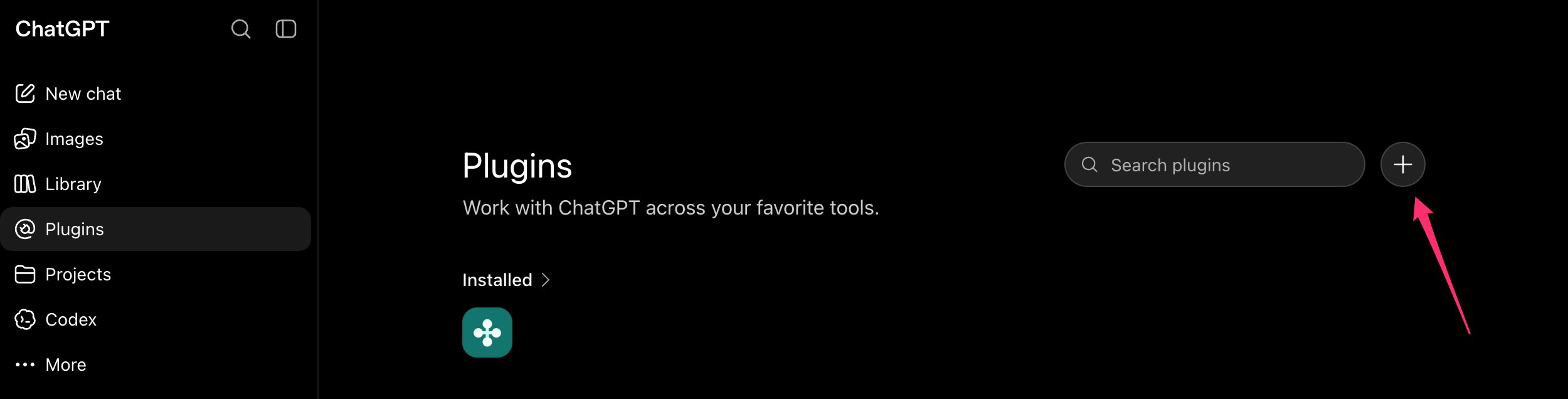
- Go to Plugins and add a new plugin — set the MCP Server URL to your regional endpoint and Authentication to OAuth
- Complete the Mixpanel OAuth flow
- Optionally publish the connector to your workspace so teammates can use it
Codex
- Go to Settings → MCP Servers → + Add Server
- Provide a name (e.g. Mixpanel) and select Streamable HTTP
- Enter your MCP Server URL and click Save
Codex CLI
Add the following to~/.codex/config.toml (use the EU or IN URL if needed):
Notion
- Create a new Agent from the Agents section in the Notion sidebar
- In the Agent’s Settings, go to Tools and Access → + Add Connection
- Select Mixpanel and complete the OAuth flow
Gemini CLI
~/.gemini/settings.json manually and add:
Cursor
- Go to Settings → Tools & MCP → New MCP Server to open
~/.cursor/mcp.json - Add the following (use the EU or IN URL if needed):
- Save the file — Cursor will prompt you to authorize with Mixpanel on first connect
Microsoft Copilot (JSON-configured clients)
Any client that supports the MCP JSON config format, including Microsoft Copilot, can connect using the same JSON snippet from the Cursor section above. The first time it connects it will prompt you to authorize with Mixpanel.Connecting with Service Accounts
Service accounts are non-human Mixpanel users designed for scripts, back-end services, and automated workflows. They authenticate via a static header — no browser-based login is required. Use service accounts when you need a headless MCP connection, such as CI/CD pipelines, automated agents, or shared team setups. The service account’s project permissions apply: it can only access projects it has been added to.Prerequisites
- Create a service account in your Organization settings or Project settings. You need Owner or Admin permissions to do this.
- Save the username and secret — you won’t be able to view the secret again after creation.
- Ensure the service account has access to the projects you want to query via MCP.
- MCP must be enabled by an org admin in Settings → Org → Overview (free and growth accounts created after August 1, 2026 have it enabled by default).
Generating the Authorization Header
Encode the service account credentials as a base64 string and construct the authorization header:my-sa.abc123.mp-service-account and your secret is my-secret, run:
Authorization: Bearer Basic bXktc2EuYWJjMTIzLm1wLXNlcnZpY2UtYWNjb3VudDpteS1zZWNyZXQ=
Claude
Claude Desktop MCP docs Open your config file via Settings → Developer → Edit Config and add the following (use the EU or IN URL if needed):Claude Code
Claude Code MCP docs.mcp.json file using an environment variable:
MIXPANEL_SA_TOKEN to your base64-encoded credentials before starting Claude Code.
Codex
- Go to Settings → MCP Servers → + Add Server
- Provide a name (e.g. Mixpanel) and select Streamable HTTP
- Enter your MCP Server URL
- Add the authorization header and click Save
Codex CLI
Add the following to~/.codex/config.toml (use the EU or IN URL if needed):
Notion
Service accounts are not supported through the Notion agent connector. Use Cursor or another client that supports custom headers instead.Gemini CLI
~/.gemini/settings.json manually and add (use the EU or IN URL if needed):
Cursor
Cursor MCP docs- Go to Settings → Tools & MCP → New MCP Server to open
~/.cursor/mcp.json - Add the following (use the EU or IN URL if needed):
- Set the
MIXPANEL_SA_TOKENenvironment variable to your base64-encoded credentials
Microsoft Copilot (JSON-configured clients)
Any client that supports the MCP JSON config format, including Microsoft Copilot, can connect using the same JSON snippet from the Cursor section above — adding theheaders object with the authorization header.
Claude Code Plugin
The Mixpanel plugin for Claude Code adds a set of skills — guided workflows for the analytics work Mixpanel customers do most. The skills work through whichever engine you set up: the MCP server (any region) or themixpanel-headless Python SDK.
Install the plugin, then run the install skill once per project to set up an engine and region:
Included Skills
Claude invokes skills automatically based on your request, or you can invoke one directly with/mixpanel:skill-name (for example, /mixpanel:deep-research).
The plugin’s skills are open source at github.com/mixpanel/ai-plugins. When the engine is the MCP server, the same Permissions & Access rules apply — MCP must be enabled for your organization, and Claude can only see projects your Mixpanel user can access.
Example Queries
Once connected, try asking your AI assistant: Understand your data- “What projects do I have access to?”
- “What are the most fired events this week?”
- “Which properties on
checkout_completedare marked as PII?”
- “How many sign ups did we have in February?”
- “What’s our signup-to-purchase conversion rate this month vs last month?”
- “Show 7-day retention for users who completed onboarding in Q1”
- “Which acquisition channels have the best 30-day retention?”
- “Create a board of purchase metrics”
- “Build a weekly growth dashboard with signups, activations, and churn”
- “Add descriptions to any events that don’t have one”
- “Tag all checkout-related events with ‘Checkout’”
- “Hide any events that haven’t fired in the last 90 days”
- “Find all properties that look like PII but aren’t flagged yet”
- “Show me all open data quality issues for the Signup event”
- “Dismiss all issues for events we deprecated last quarter”
- “Create an experiment to test whether showing a progress indicator during onboarding increases activation rate”
- “Create a feature flag for our new AI-powered search”
- “How did our checkout experiment perform? Did it reach significance?”
- “This user reported a bug — what happened in their last 3 sessions?”
- “Walk me through what [user ID] did before they churned”
Get-Audit-Log tool)
- “What changed in this project last week?”
- “Who deleted a board yesterday?”
- “What has [user email] changed in the last 24 hours?”
Security Considerations
When connected, the AI assistant can both read and write to Mixpanel on your behalf. Your Mixpanel data is also sent to whichever AI provider you’re using (Claude, ChatGPT, etc.), so review that provider’s data handling policies before connecting. Access controls- MCP must be enabled by an org admin in Settings → Org → Overview (free and growth accounts created after August 1, 2026 have it on by default; admins can still disable it)
- Users can only access projects they already have permission to view in Mixpanel
- All existing roles and project-level permissions remain in effect
- Every change an assistant makes is recorded in your audit log, attributed to the account it is connected as
- Check applicable compliance requirements (GDPR, CCPA, etc.) before connecting to projects with personal data
- If using a shared AI environment (e.g., a team workspace), be aware that conversation history may be visible to others
Audit Log
Beta. The MCP Audit Log is currently available to a limited set of customers during Beta. If you’d like to participate, request access here.
MCP Activity Is Logged
Changes an assistant makes through MCP are recorded in the same audit log as changes made in the Mixpanel UI, attributed to the account the assistant is connected as and carrying an Origin of MCP — theservice field in exports and the API. Read-only and failed tool calls are not logged.
See MCP Activity for what each tool call records, how many entries an action produces, and retention.
Querying the Audit Log
TheGet-Audit-Log tool lets you ask about your audit history conversationally, instead of filtering the audit log page by hand — “what changed in this project last week?”, “who deleted a board yesterday?”
Get-Audit-Log requires organization admin or owner access, the same access as the organization audit log page. Every other role, including project owners who are not organization admins, gets a permission error.
Troubleshooting
- “MCP access is not enabled for this project”: Ask your org admin to enable MCP in Settings → Org → Overview.
- “Missing scope” error: Your cached auth token was created with an outdated scope list. Delete the
.mcp-authfolder in the directory where you ran the authorization command, then re-authorize. - Authorization fails: Ensure your Mixpanel account has access to at least one project and that MCP is enabled at the org level.
- Desktop app doesn’t pick up config changes: Restart the application after editing the config file.
Get-Audit-Logis missing or returns a permission error: The tool is in Beta and requires organization admin or owner access. If your organization is in the Beta and you have the right role, reconnect the Mixpanel connector to pick up the tool — in Claude Code run/mcp, and in other clients disconnect and reconnect.- A recent MCP action isn’t in the audit log: Entries can take several minutes to appear. Note that read-only and failed tool calls are never logged.
Rate Limits
- A maximum of 600 MCP requests/hour per user
Limitations
The following capabilities are not currently supported through the MCP server. Use the Mixpanel UI for these analyses instead.- Cohort filters and breakdowns in
Run-Query: Queries run withRun-Querycannot filter or break down results by cohort. - SCD fields: MCP tools do not currently support SCD (Slowly Changing Dimension / Profile Property History) fields. Queries run through MCP cannot break down or filter by profile-history properties.
Building Custom Integrations (OAuth)
If you’re building a third-party MCP client or custom integration, use the following OAuth configuration.OAuth Discovery
Mixpanel’s MCP server supports OAuth discovery via two well-known endpoints, following RFC 8414 and RFC 9728: Protected Resource Metadata (RFC 9728): Discover which authorization servers can issue tokens for this resource:Dynamic Client Registration
Authorization Code Flow with PKCE
Mixpanel uses Authorization Code + PKCE (S256):- Authorization endpoint:
https://{mixpanel_domain}/oauth/authorize - Token endpoint:
https://{mixpanel_domain}/oauth/token/ - Grant types:
authorization_code,refresh_token - Code challenge method:
S256 - Token endpoint auth methods:
none,client_secret_basic,client_secret_post
Required OAuth Scopes
Mandatory:To request a specific subset of scopes, pass
--static-oauth-client-metadata '{ "scope": "..." }' to npx mcp-remote. Otherwise all available scopes are requested automatically.