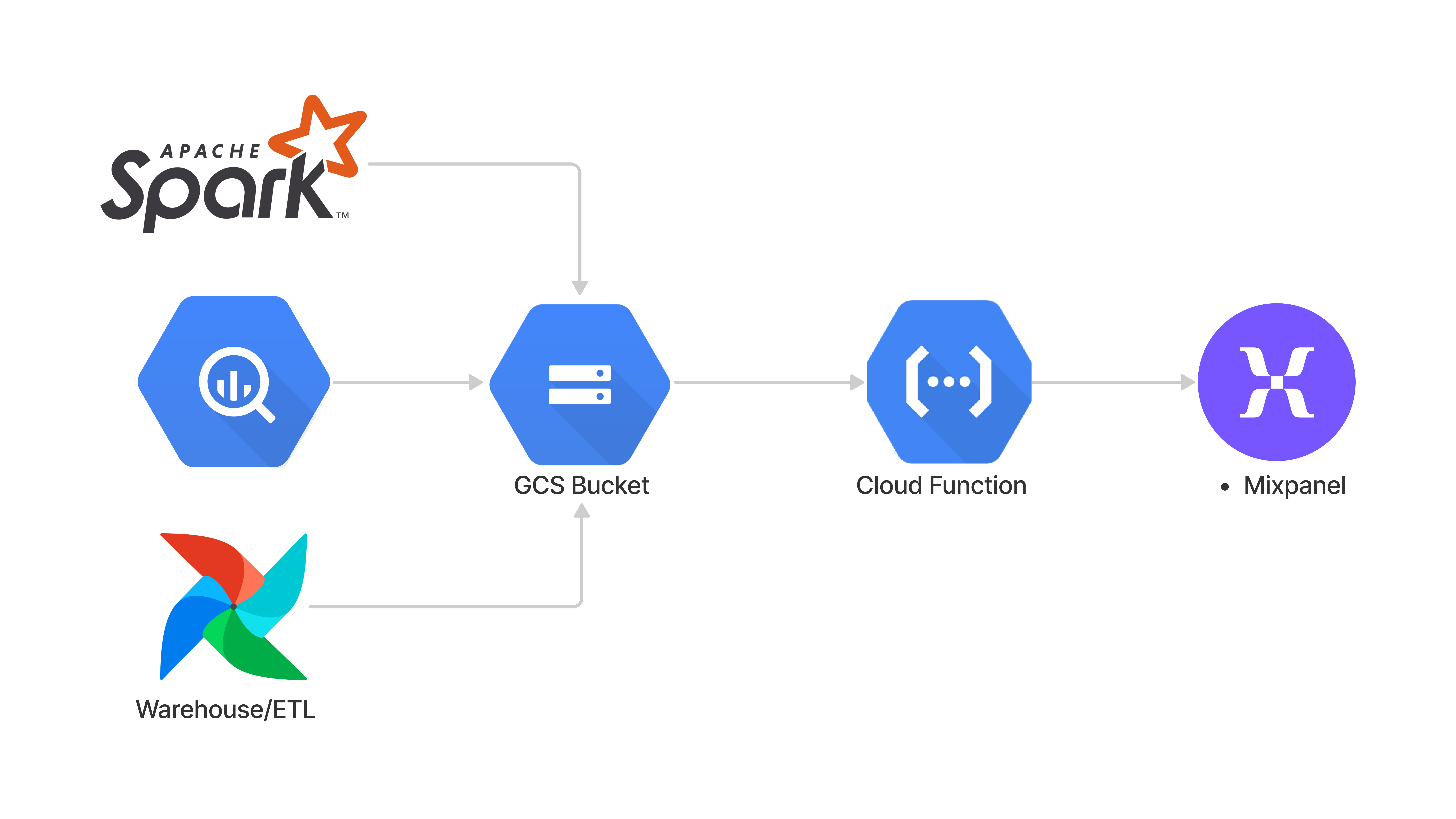
Step 1: Create a GCS Bucket
Create a dedicated Cloud Storage bucket for this integration. We recommend includingmixpanel-import in the name to make it explicit and avoid any accidental data sharing.
You can create the bucket in any region, though we recommend us-central for highest throughput.
Step 2: Setup Import Config
Step 2a: Setup the Cloud Function
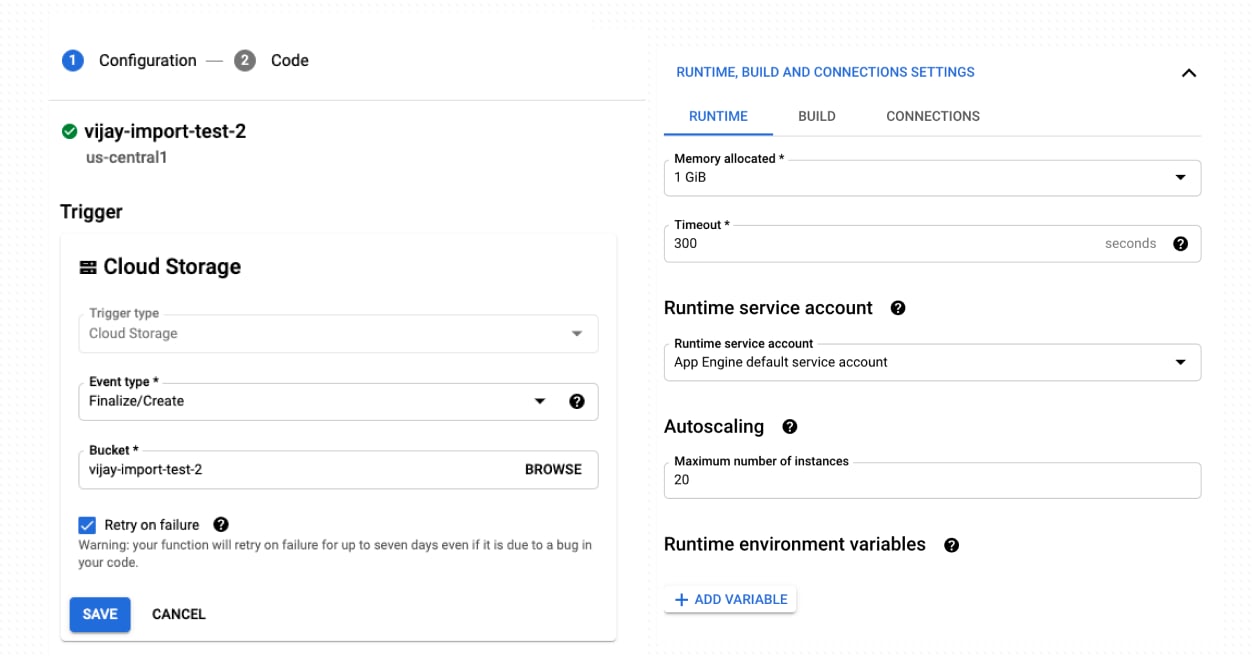
Create a new Cloud Function.- Set the trigger to
Cloud Storage, the Event Type toFinalize/Createand the bucket name to the bucket created in step 2. This means that any object uploaded to this bucket will trigger an invocation of this Cloud Function. - Set Memory to 1GiB, Timeout to 300, and Instances to 20
Step 2b: Write the Cloud Function
Switch the runtime toPython3.9 and change the entrypoint from hello_gcs to main. Paste the code below for main.py and requirements.txt.
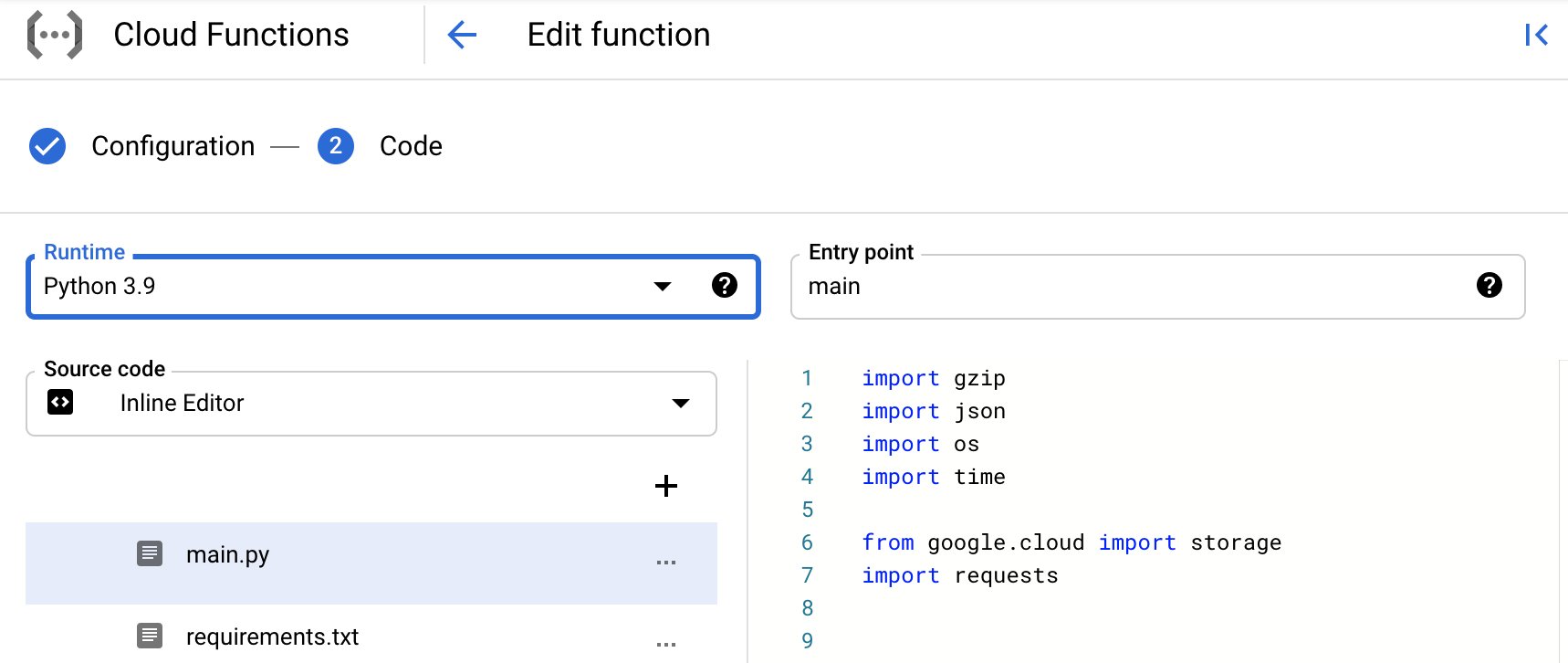
main.py
requirements.txt
Deploy to deploy the function. At this point, any file you upload to the bucket will trigger an invocation of the function and an import into Mixpanel. Let’s test it out!
Step 3: Test with sample data and watch the logs
Let’s test the connection with some sample events. Run the following to copy them to your bucket, which will trigger the import:gsutil cp gs://mixpanel-sample-data/10-events.json gs://<YOUR-BUCKET>/
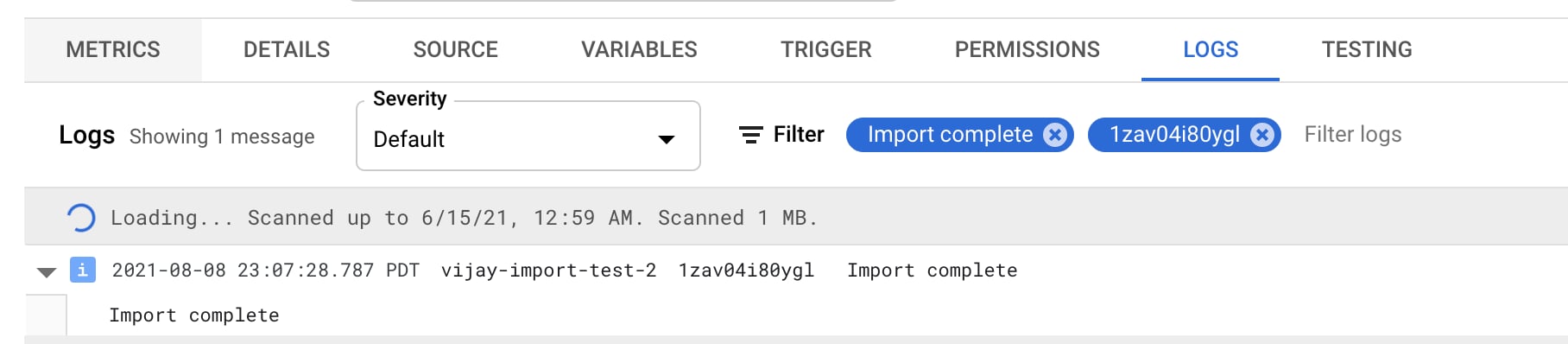
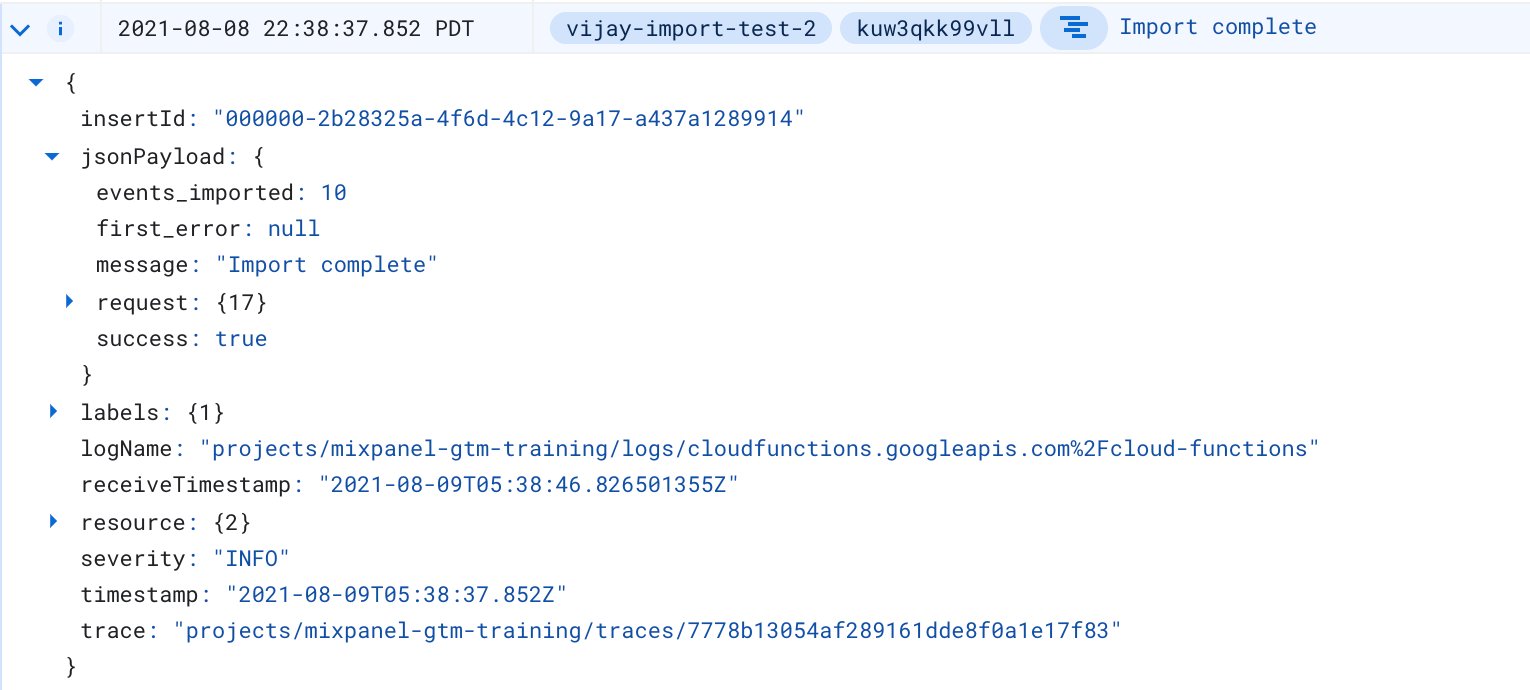
Monitor the logs of your Cloud Function; you should see an Import Complete log line within a minute.
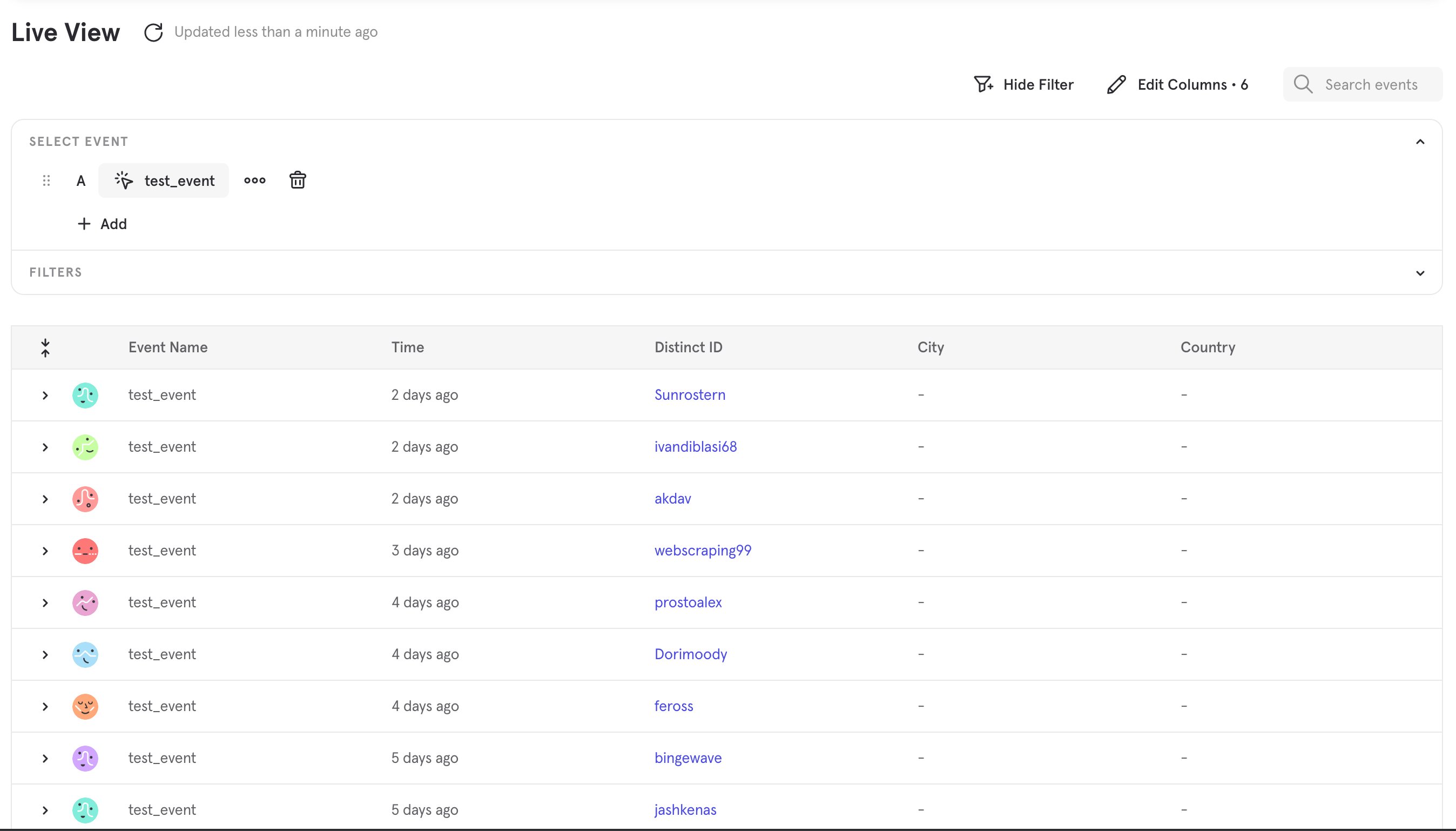
test_event in the event picker, and you should see the events you just imported.