

Customers on an Enterprise or Growth plan can access Data Pipeline as an add-on package. See our pricing page for more details.
- Configuring your destination to accept data writes from Mixpanel.
- Creating data pipelines through the Destinations page in the UI.
Step 1: Configuring Your Destination
The configuration process varies depending on the type of destination you choose: Cloud Storage or Data Warehouse.Cloud Storage
JSON pipelines export data as JSON files to a cloud storage bucket, providing a straightforward method for data handling. For specific configuration instructions, see our guides for each storage destination: Data is exported to the following structured paths in your bucket:- Events:
<BUCKET_NAME>/<MIXPANEL_PROJECT_ID>/mp_master_event/<YEAR>/<MONTH>/<DAY>/ - User profiles:
<BUCKET_NAME>/<MIXPANEL_PROJECT_ID>/mp_people_data/ - Identity mappings:
<BUCKET_NAME>/<MIXPANEL_PROJECT_ID>/mp_identity_mappings_data/
Data Warehouse
JSON Pipelines also facilitate data export into tables, creating schemas that are inferred from your event data. For detailed setup guides per destination, see:Step 2: Creating the Pipeline
To create and manage a Data Pipeline, you must have an admin or owner project role. Learn more about Roles and Permissions.
1
Click the settings button and select Destinations
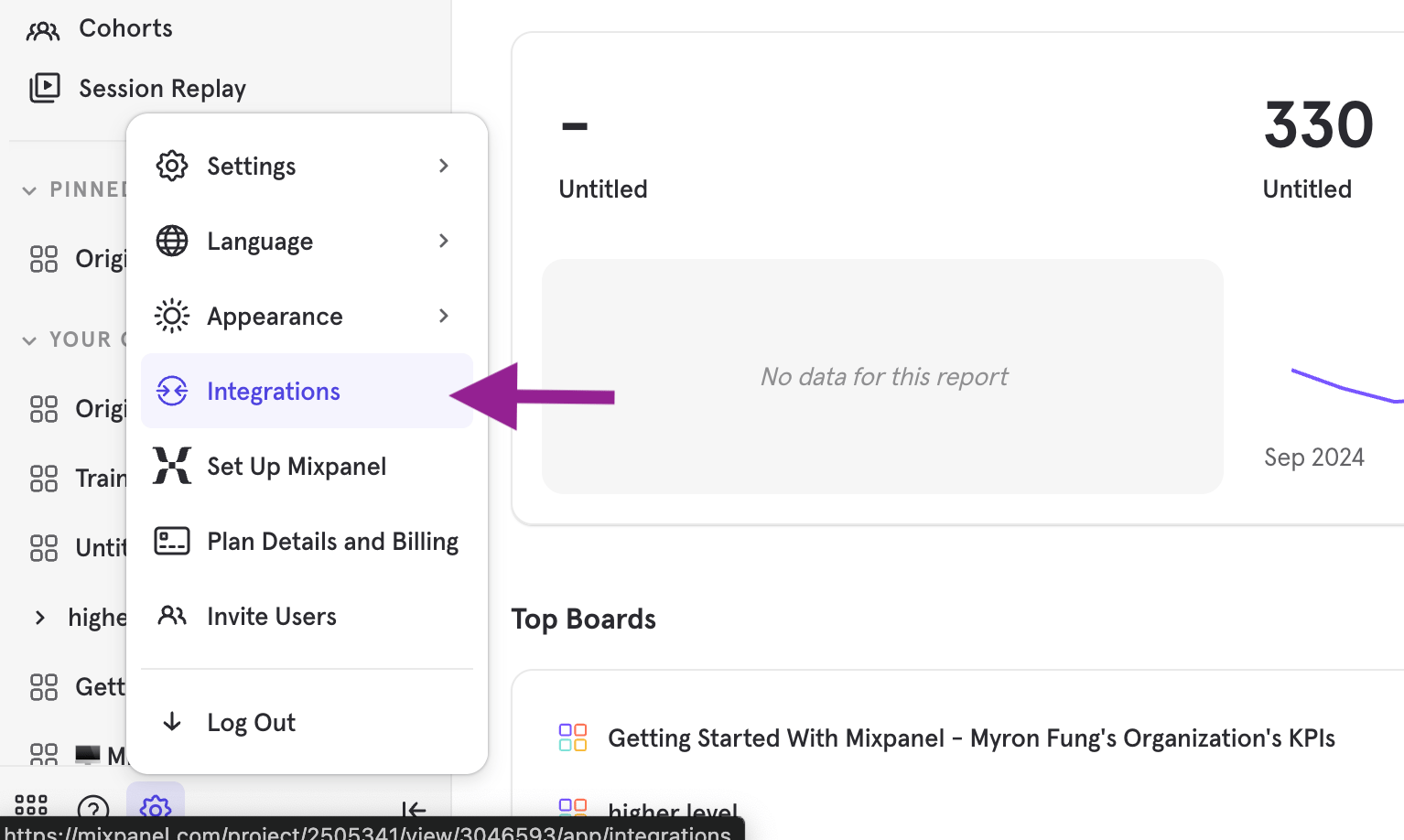
2
Select the provider of your warehouse destination, and click "+ Create Pipeline"
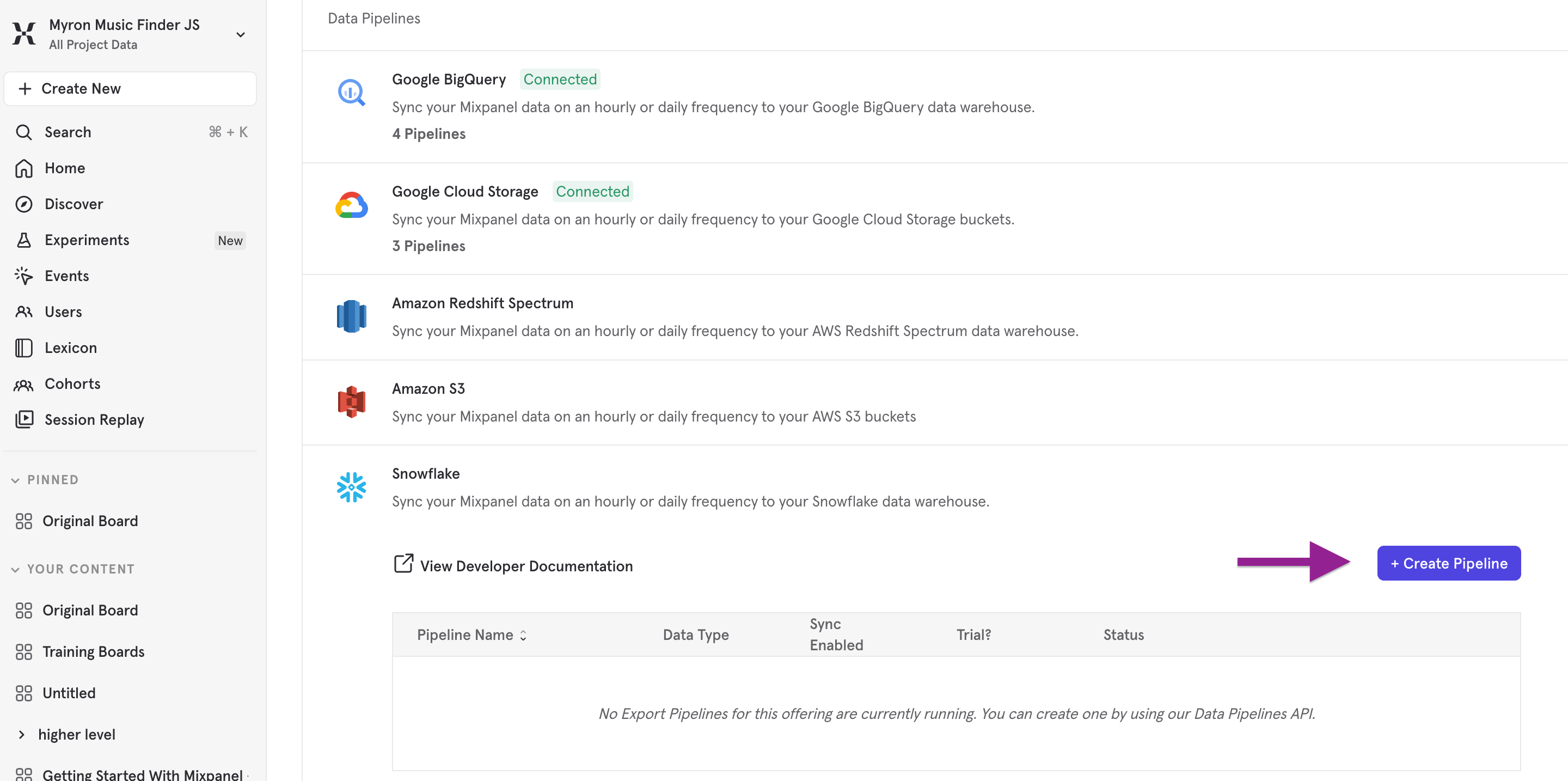
3
Provide the details of your destination to create the pipeline
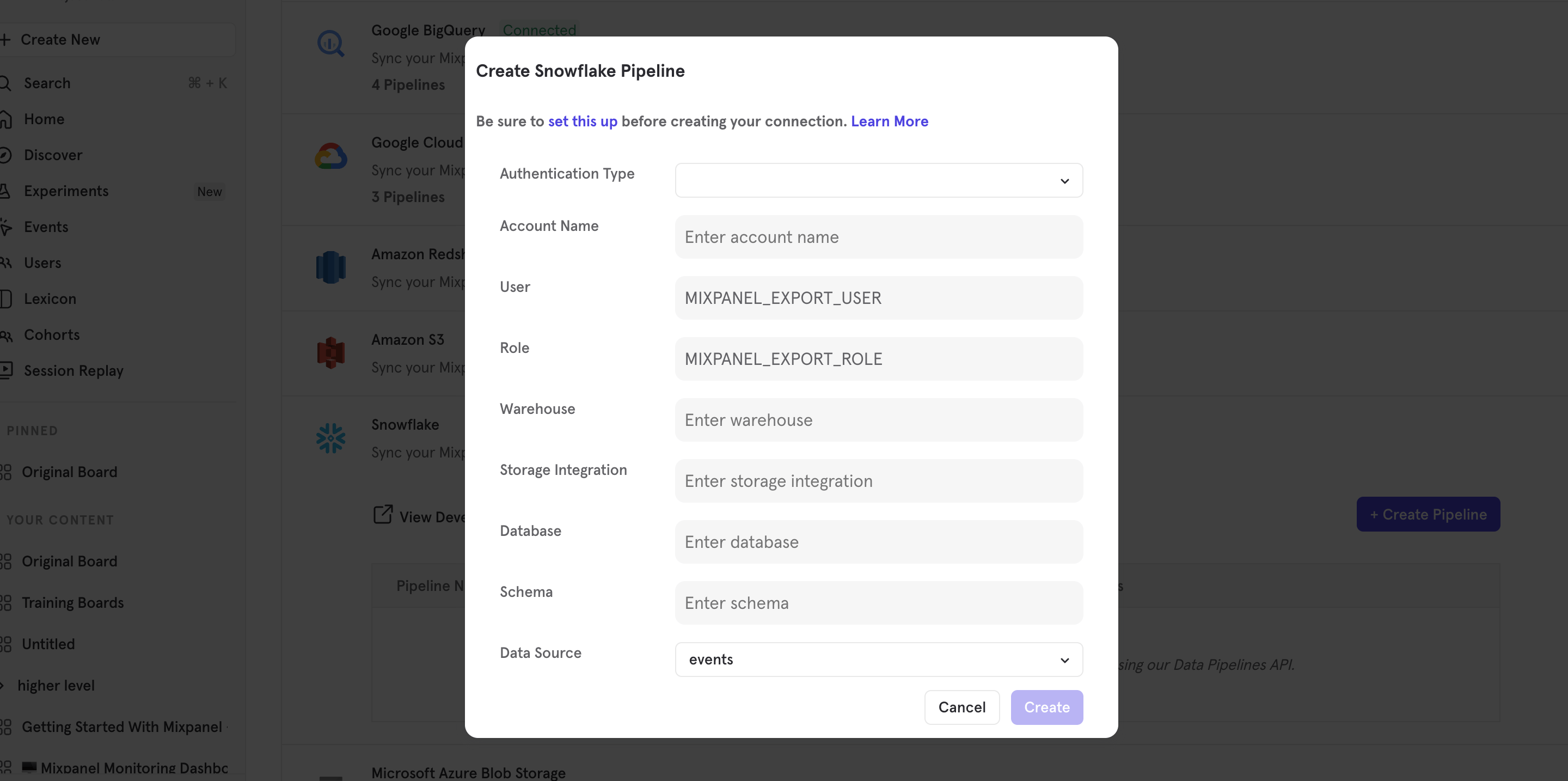
FAQ
Managing Existing Pipelines
To delete, pause, or unpause a JSON pipeline:- Go to the Destinations page
- Find the pipeline you want to manage
- Click the 3-dot menu on the right side of the pipeline
- Select Delete Pipeline, Pause Pipeline, or Unpause Pipeline as needed
Backfilling Historical Data
You can schedule an initial backfill when creating a pipeline. This ensures that historical data is also exported to the data warehouse. Note that thefrom_date value must be within 6 months in the past.
The completion time for a backfill depends on the number of days and the amount of data in the project. Larger backfills can take up to multiple weeks.
Viewing Pipeline Configuration
To check a pipeline’s configuration:- Go to the Destinations page
-
Either:
- Click on the pipeline name to view the configuration at the top of the page, or
- Click the 3-dot menu and select View Configuration
Why does the number of events in Mixpanel not match the number of exported events to my destination?
Discrepancies between the event counts in Mixpanel and those exported to your destination can occur for several reasons:- Data Sync: If Events Data Sync is not enabled or is unsupported for your pipeline, this could prevent some data from being exported.
- Data Delay: Late-arriving data may take up to one day to sync from Mixpanel to your destination, leading to temporary discrepancies.
- Hidden Events: Mixpanel exports all events, including those hidden in the Mixpanel UI via Lexicon. To reconcile differences in counts, check if the events in your destination include those hidden in the Mixpanel UI.
- Timezone Differences: Data is exported to your warehouse in UTC, whereas data displayed in Mixpanel is in your project’s timezone.
What timezone is the data exported in?
The data is exported in UTC timezone. You’ll need to convert it to your project’s timezone when running queries in your warehouse. Please refer to this page for some common SQL queries.How can I count events exported by Mixpanel in the warehouse?
Counting events can be slightly different for each warehouse, since we use different partitioning methods. Here are examples for BigQuery and Snowflake.How does the free trial work?
Mixpanel offers a 30-day free trial of the Data Pipelines, allowing you to create one pipeline per data source for each project. Trial limitations:- Exports are scheduled daily only.
- Data synchronization feature is not available.
- Only one pipeline can be created per data source per project.
- Backfilled data is limited to one day before the creation date of the pipeline.