

Plan Availability
Session Replay is available for customers on Free, Growth, and Enterprise plans. Customers must be on the latest Mixpanel plans to access free replays. Free replays reset monthly, and do not rollover to subsequent months.Implementation
Session Replay is supported on four primary platforms: Web, iOS, Android, and React Native. You can use Session Replay with CDPs (e.g., Segment and mParticle) on both Web and Mobile. We also support Electron desktop apps. See our developer guides on implementing Session Replay for these platforms below:Web
iOS
Android
React Native
UI Controls
UI Controls is currently available for Web, iOS, and Android. Support for React Native and Flutter is coming soon.
Prerequisites
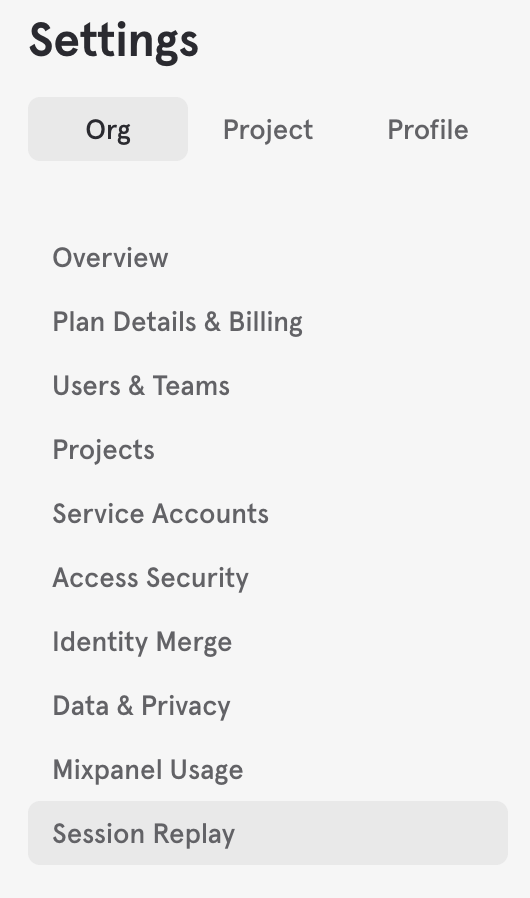
To use UI Controls, your project must meet the following requirements:- Paid Session Replay Add-On: UI Controls is available exclusively to customers who have purchased additional Session Replays beyond the free Replay allowance.
- Remote configuration enabled in your SDK: Your SDK must have remote configuration enabled so it can receive sampling updates from the UI. See the platform-specific guides for setup instructions:
Baseline Sampling Rate
Set a global sampling rate that applies to all SDK initializations. This is the default capture rate before any conditional rules are applied. For example, you might set a baseline of 1% to capture a small portion of all traffic.
Conditional Rules
Layer rules on top of the baseline rate using any event, property, or URL you’re already tracking. Conditional rules are additive only: if a session isn’t being captured, a matching rule can start capturing it; if a session is already being captured, rules have no additional effect. For example, you can sample 1% of all sessions globally, but capture 100% of SDK initializations wherecheckout_error fires or where users land on your pricing page.
URL-based rules are evaluated using page view events (
$mp_web_page_view) emitted while heatmap capture is active. These page views are exempt from event and MTU billing, so adding URL conditions does not increase your billable event volume. See Heatmaps for Web for related click-exemption rules.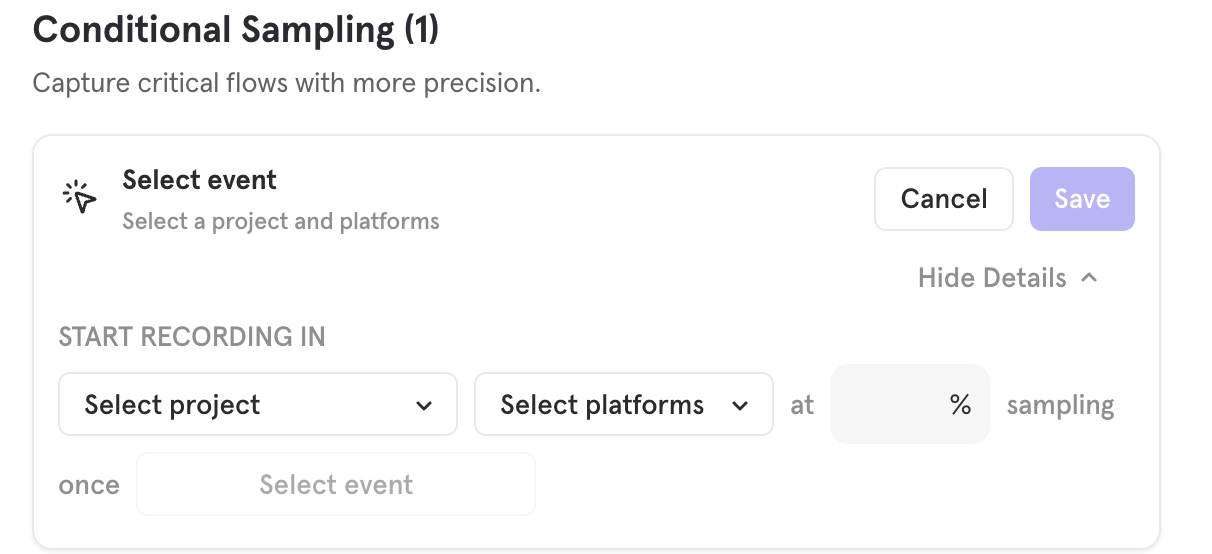
Entry Points
By default, replays are stored for 30 days after the time of ingestion. Once a replay is expired, there is no way to view that replay. Enterprise plan customers with the paid session replay add-on can customize this retention period between 7 days and 360 days. For more information, reach out to your Account Manager or our sales team.
- From the Session Replay home
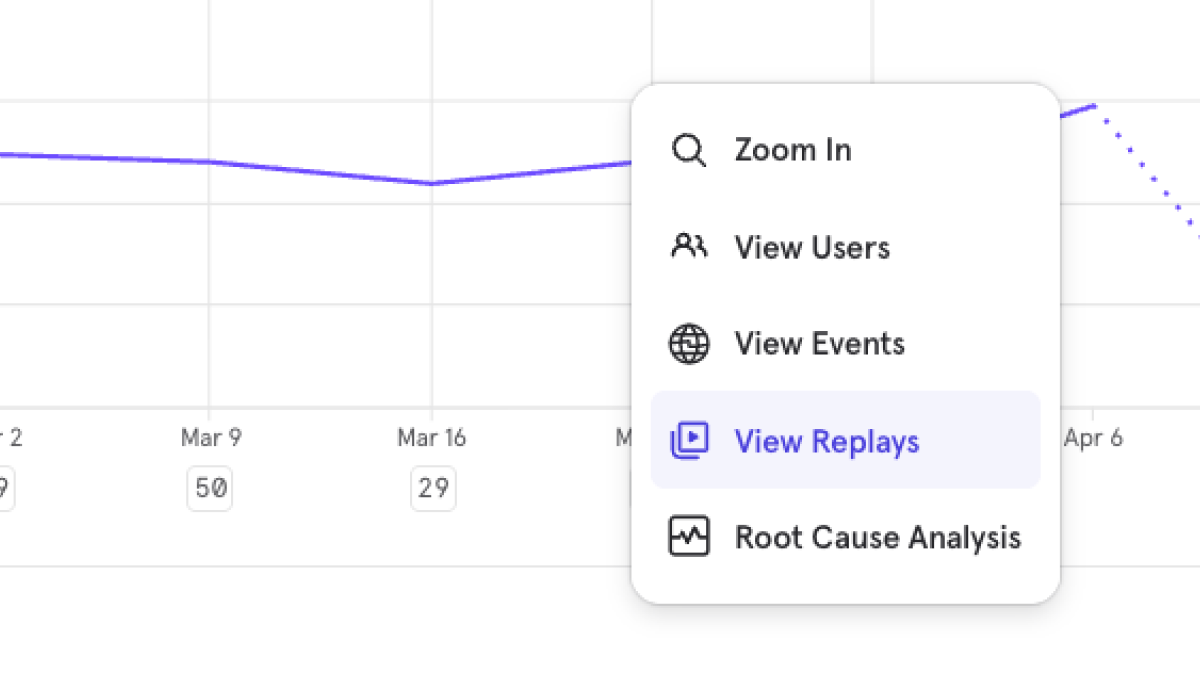
- From Mixpanel reports
- From User profile pages
From the Session Replay Home
Select Session Replay from the side navigation in your Mixpanel project. Here, you’ll see your most recent replays and can easily filter them by events, properties, or custom time ranges to focus on the replays that matter most to you. Pro tip: when getting started with implementing Session Replay, you can use this view to check if replays are coming in as expected.From Mixpanel Reports
Reports entry point is currently supported for Event, Funnel, and User Profile metrics only.
From User Profile Page
In any user’s profile page, Click the “View Replays” button to watch replays from that user. From here, you will be taken to our Replay Player.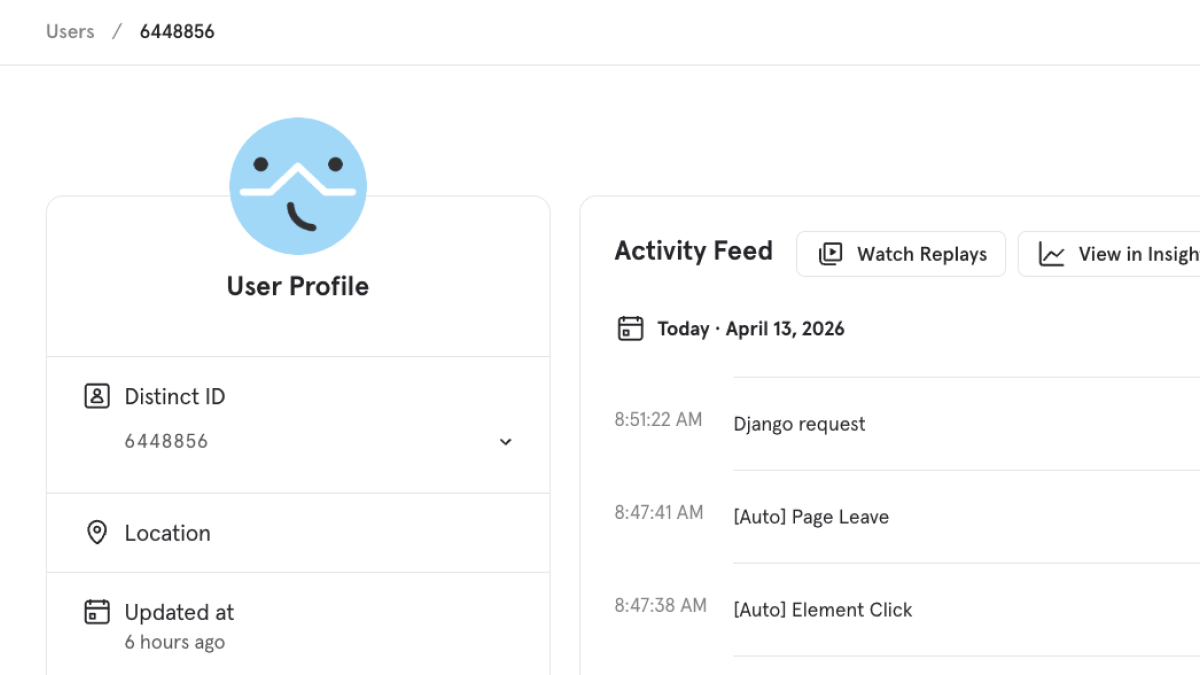
Watching Replays
Replay Feed
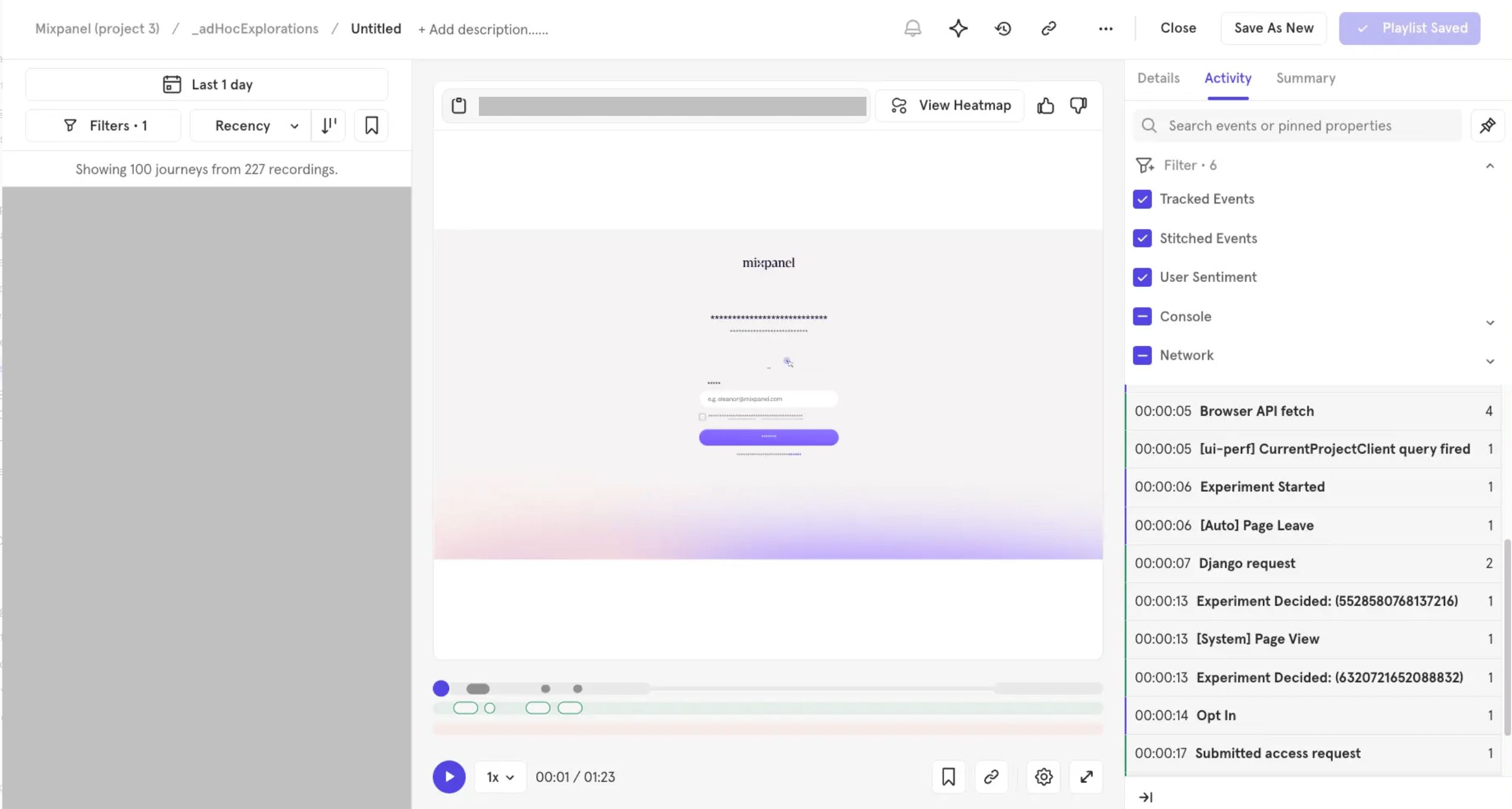
The Replay Feed on the left side of the player lets you browse and find replays. It works out of the box with the Mixpanel events and properties you already track (including server-side events) — no extra setup required. Each cell represents a single user journey: a group of replays for a specific user that happened within ~30 minutes of each other. A single journey can contain several replays. The replay feed allows you to:- Filter by any event, property, or time period
- Search by user name/email, replay date, user ID, or event name
- Sort by recency, activity, or duration
- Hover over replay cells to reveal more details
Player Area
The Player Area is the central area where you watch replays. It includes the following controls:- Expand the player to full-screen
- Copy a URL (with or without a timestamp) to share with your teammates
- Change the playback speed
- Automatically skip periods of the replay where user is inactive
- See events in the replay timeline
- Jump to different parts of the replay by clicking in the timeline
- Bookmark a replay to save it for later
- Enable server-side stitching (revealing replays and events for the same user that were not captured with the same SDK that captured the replay. This is particularly useful for discovering replays, as well as moments of those replays where important events you track server-side or via data warehouse occur, like purchase events or sign-up events.)
Details Panel
The Details Panel on the right side of the player provides deeper context about the selected replay. It contains three tabs: Details, Activity Feed, and AI Summary.Details
The Details tab shows metadata and properties for the selected replay, including user information, session properties, and device details.Activity Feed
The Activity Feed tab shows a chronological feed of all events that occurred during the session, including Mixpanel track events, console logs, and network calls. You can search and filter events by type, and click any event to see its details and jump the replay to that moment.Console Logs
Console logs, warnings, and errors are captured during a session and displayed in the Activity Feed timeline. Use the filters to toggle visibility of Errors, Warnings, and Logs. Click any console event to view the full message and stack trace (when available). Console recording is enabled by default. To configure, see the JavaScript SDK guide.Network Calls
Network calls made during a session are captured and displayed in the Activity Feed. Use the filters to toggle visibility of Fetch, XHR, and Other request types. Click any network event to inspect headers, request payload, and response details, along with status codes and duration.Network recording is disabled by default and requires SDK configuration. Request and response headers and bodies also require additional setup. See the Network Recording guide for instructions.
AI Summary
The AI Summary tab provides an AI-generated summary of the session, highlighting key moments and summarizing user behavior so you can quickly understand what happened without watching the entire replay. Summaries are powered by your governed event data for accuracy.Magic Playlists
Magic Playlists allow you to save playlists of replays based on events or properties, making it easy to revisit groups of replays that matter to you over time. A playlist stores your filter criteria (events, recording properties, date range, sort order) and can also hold up to 200 individually bookmarked replays. Key capabilities include:- Dynamic playlists: Create playlists based on your Mixpanel events and properties that automatically update as new replays meet your criteria
- Bookmarked replays: Pin specific replays to a playlist so you can easily return to them later
- AI-powered insights: Get AI text summaries that identify key patterns and insights across numerous replays at once
AI summaries for Magic Playlists are currently in beta and publicly available for all customers using Magic Playlists.
Creating a Playlist
- Access Session Replay from the side navigation in your Mixpanel project
- Apply filters based on events, properties, or custom time ranges
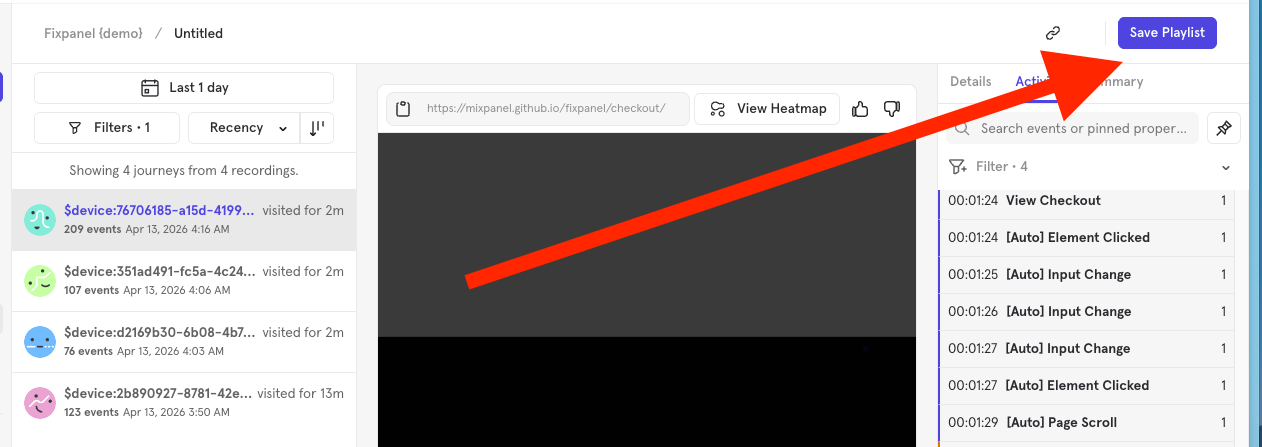
- Click Save Playlist in the header and add a name
- Click Save
Bookmarking Replays
Bookmarking pins a specific replay to the current playlist. You can bookmark replays in two ways:- From the player: Use the bookmark icon in the player’s top control bar to toggle bookmark status
- From the playlist row: Click the bookmark badge on any replay row
Viewing Bookmarked Replays
Use the bookmark filter toggle in the playlist header to show only bookmarked replays. When this filter is active, other filters are disabled. Bookmarked replays appear in a dedicated section at the top of the playlist. Expired bookmarked replays appear in a separate Expired Journeys section. You can remove expired bookmarks, but expired replay content can no longer be played. Bookmark lookback searches up to 365 days.Best Practices
Session Replay is a powerful way to understand and debug user behavior by showing exactly what users see on their screens. This visibility is core to its value—but also introduces inherent privacy and security risks, especially when sensitive information appears in the UI. Mobile platforms add some unique challenges:- SDKs are installed directly on end-user devices, making them harder to roll back or patch quickly.
- Android’s fragmented ecosystem demands broader testing across different devices and OS versions.
Key Considerations
To ensure successful implementation, we recommend:
- Defensive programming, including safe initialization, graceful error handling (try/catch), and sensible fallback behavior
- Thorough QA, including testing across device types and sensitive screens
- Staged roll out, using feature flags to safely test and enable or disable Session Replay as needed
Performance Considerations
Our Session Replay SDKs are designed with performance in mind, utilizing optimized capture algorithms that reduce CPU and memory usage. However, as with any SDK integration, there may still be some risk of performance impacts. We recommend thorough testing and monitoring your app’s performance during initial deployment.FAQ
What happens when I reach my Session Replay limit?
Enterprise Customers who have purchased the Session Replay add-on will be billed for replays ingested beyond the purchased amount at your per-unit rate. Growth plan customers who have purchased the Session Replay add-on and exceed their purchased quantity will be unable to view new replays once they reach the data allowance, unless they upgrade. Customers using Session Replay without purchasing the add-on (e.g., those using complimentary replays included with the Free, Growth, or Enterprise plans) will be unable to view new replays once they reach the data allowance, unless they upgrade. We will send email notifications to organization Owners and Billing Admins as your projects approaches the data allowance of your subscription plan. Mixpanel reserves the right to stop ingesting replays once a customer collects replays beyond their purchased/allocated amount. To minimize disruption to your team, we recommend monitoring your data usage in the organization settings and working with your Account Manager (if applicable) to ensure you have the right plan for your needs.How soon are Replays available for viewing after a session begins?
Replays are available for viewing in Mixpanel ~1 minute after the recording is captured.What defines a single replay?
A replay is a continuous recording of a single user’s activity. On the web, a replay ends after 30 minutes of inactivity (a new replay begins automatically when the user is active again) or once it reaches a maximum length of 24 hours, whichever comes first. Both thresholds are configurable via therecord_idle_timeout_ms (default 30 minutes) and record_max_ms (default 24 hours) JavaScript init options. On the web, a replay is scoped to a single browser tab or window. Recording continues across page loads and navigations within that same tab (SDK v2.61.0+), but each additional tab or window is recorded as its own replay, as is activity in a different browser or on a different device. A single user’s activity across multiple tabs, browsers, or devices is therefore captured as multiple replays, not one.
On our mobile SDKs (iOS, Android, and React Native), you control capture with a sampling rate and by starting or stopping recording manually, just as you can on the web. A replay ends when the user leaves the app.
How long are replays stored?
By default, replays are stored for 30 days after the time of ingestion. Once a replay is expired, there is no way to view that replay. Enterprise plan customers with the paid session replay add-on can customize this retention period between 7 days and 360 days. For more information, reach out to your Account Manager or our sales team.Purchasing a custom retention period does not change your retention period automatically. Once the entitlement is provisioned, an org Owner or Admin needs to set the desired retention period from the Session Replay settings in the UI.
Why does it say the player failed to load?
To maintain a high level of security, Mixpanel runs your session replays in an isolated domain through an iframe. Occasionally, this domain may be blocked by an ad blocker or specific browser settings. We recommend disabling any ad blockers, or whitelisting the Mixpanel domain. For extensions like uBlock, go to “My Filters” in the extension settings and add the following custom filter:Why can’t I see the “View Replays” button in the UI?
You will not see the “View Replays” button if your organization is on an older plan. You will need to update to the latest plan to use Session Replay (see here for details).Can I use Session Replay with a CDP?
You can use Session Replay with CDPs (e.g., Segment and mParticle) on both web and mobile.How does Session Replay work differently on web versus mobile?
Session Replay works differently on web versus mobile in Mixpanel:- Web: Captures DOM changes to reconstruct user interactions, tracking elements, clicks, and navigation. This provides an event-based replay of user activity.
- Mobile: Captures actual screen pixels since native apps don’t use a DOM. This visual approach records all on-screen activity as it appears to users, including scrolls, carousels, and auto-scrolling elements.
How can I estimate how many Replays I will generate?
If you already use Mixpanel, the Session Start events are a way to estimate the rough amount of replays you might expect. This is especially true if you use timeout-based query sessions. However, because our sessions are defined at query time, we cannot guarantee these metrics will be directly correlated. When you enable Session Replay, use the above proxy metric to determine a starting sampling percentage, which will determine how many replays will be sent. You can always adjust this as you go to calibrate to the right level.Am I able to sample our Session Replay collection rate?
Yes, you can configure the percentage of total replays that our SDK will capture as a sampling rate or manually trigger/end replay capture.Can I record cross-origin iframes within my page?
Yes, Session Replay supports recording cross-origin iframes embedded within your page (Web only, SDK v2.77.0+). Both the parent page and child iframe must have the Mixpanel SDK initialized withrecord_allowed_iframe_origins configured to include each other’s origins. For detailed setup instructions, see Cross-Origin Iframe Recording.