Overview
Export Mixpanel cohorts to Chameleon to create custom segments that you can apply in your Chameleon tours, surveys, and launchers. Manage the Chameleon integration from the Mixpanel Destinations page. Chameleon also supports an integration to send messaging interactions to Mixpanel - for more details, see Chameleon’s Mixpanel integration.Permissions
You must be a Mixpanel project admin to enable the Chameleon integration.Enable the Integration
Follow these steps to enable the integration with Chameleon:- Navigate to Data in the nav bar, then select Destinations.
- Click Add Destination, select Chameleon, and click Connect.
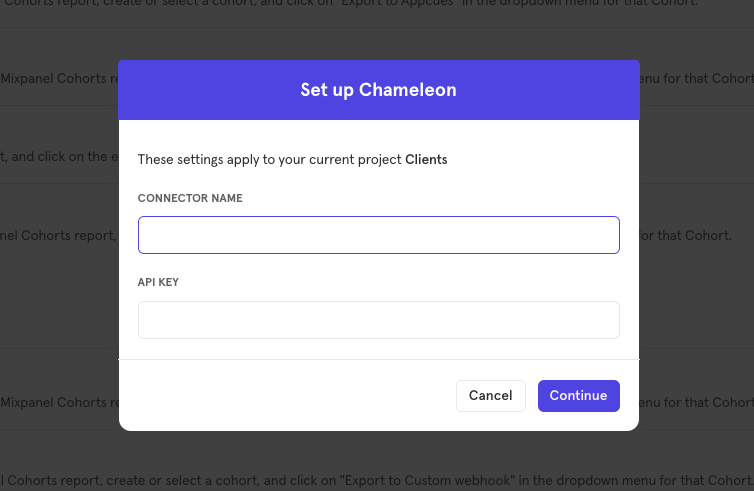
- The connection uses one credential to authorize, “API Key”. Supply an API key generated from the Mixpanel-specific integration page within your Chameleon dashboard to establish the connection.
- The Chameleon integration will show a Connected tag in the UI once the connection establishes.
Matching Users Between Chameleon and Mixpanel
Mixpanel only exports identified user profiles to match to Chameleon - users without user profile properties (i.e. anonymous users) will not export. The integration requires that you use the same system of identifiers for both tools, meaning the value you pass tomixpanel.identify("internal_user_id") will have the same value as you pass to chmln.identify("internal_user_id"). Chameleon will attempt to match users from inbound cohorts based on their Mixpanel distinct_id.
Export a Cohort
- From the Destinations page (recommended)
- From Lexicon
- Navigate to Data in the nav bar, then select Destinations.
- Find the Chameleon destination in the list and click on it.
- Click the Syncs tab, then click Add Cohort Sync.
- Select the cohort you want to export and configure the sync (one-time or dynamic). Click Start Sync.
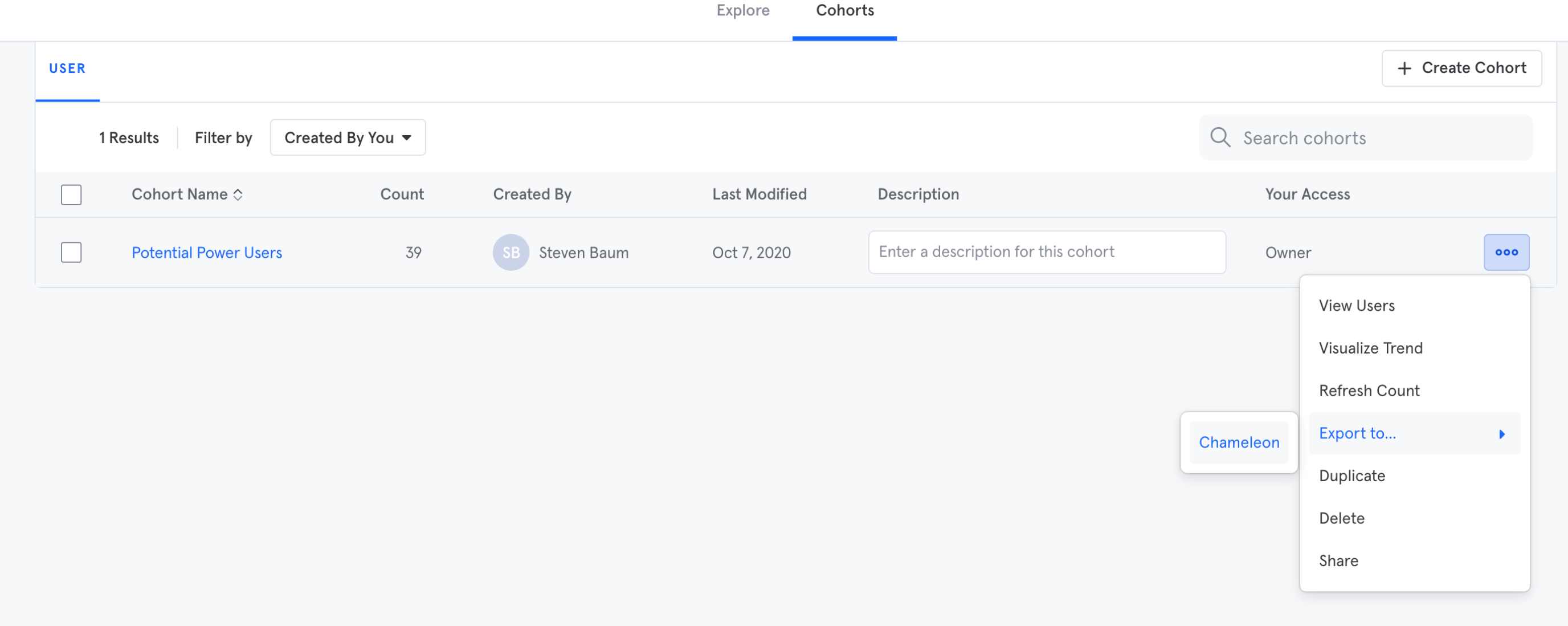
Sync Types
This integration supports two types of exports: one-time export and dynamic sync. When you generate a one-time export or dynamic sync, it overwrites the previous export with an updated export that reflects users who qualify for the cohort at the time of export.One-Time Export
In a one-time export, Mixpanel sends Chameleon a static export of users who currently qualify for the cohort. The cohort data will not be updated in Chameleon after a one-time export.Dynamic Sync
In dynamic sync, Mixpanel initiates sync between a cohort and Chameleon every two hours. The exported cohort will be updated every day to reflect the most recent list of users in a cohort.Ideal vs. Non-Recommended Use Cases
Because Dynamic syncs send cohorts at two-hour intervals, it is recommended to avoid using this integration for any tours requiring immediate display and instead use Chameleon’s native targeting (for example, onboarding guides that require user detection as soon as someone signs up). More ideal use cases are instead around tours and surveys where the tour isn’t tied to a real-time lifecycle moment (for example, getting easy in-product feedback after engaging with a particular feature, or directing a power user to a new product improvement for a feature they have a history of using).Select the Segment in Chameleon
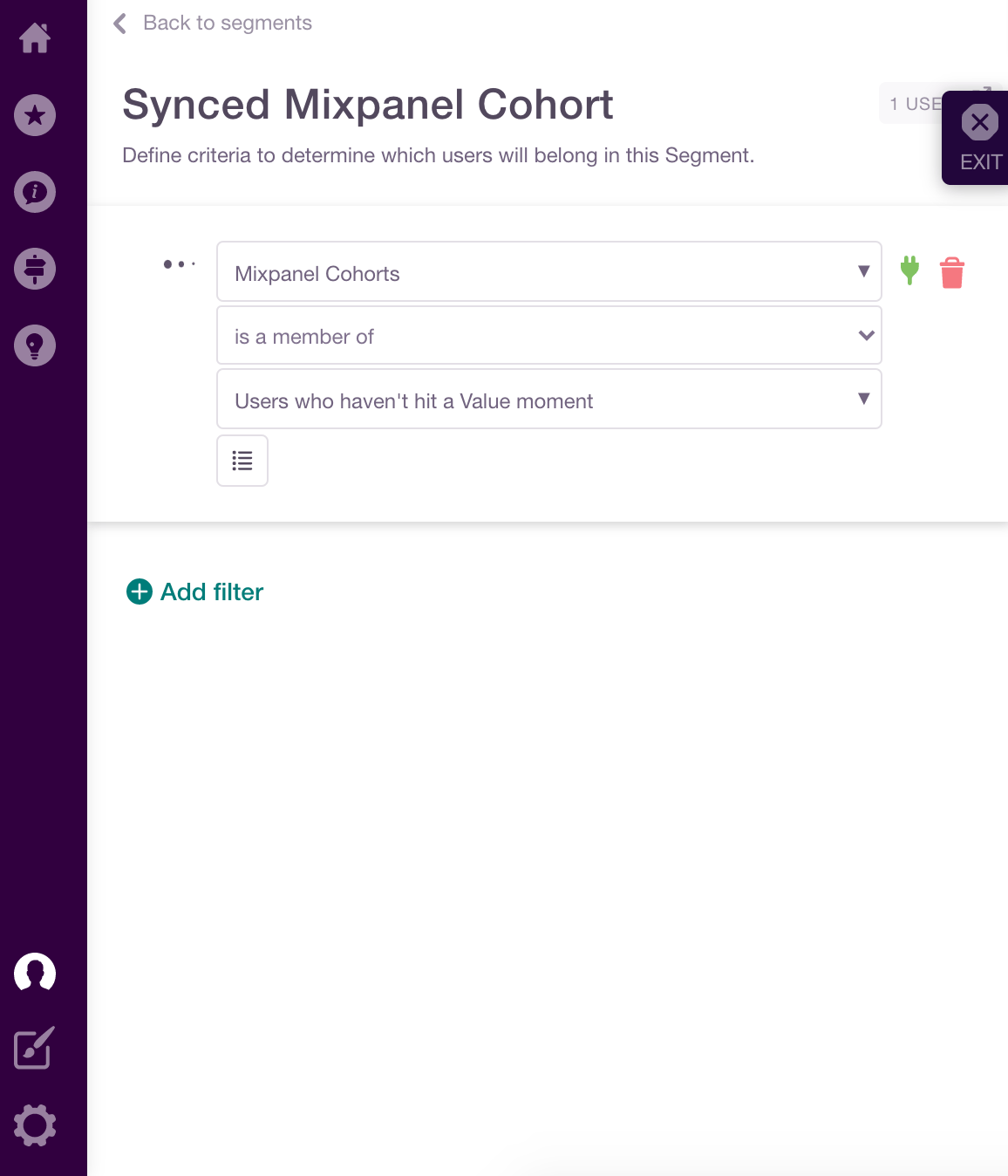
Once the export completes, you will see a Segment reflecting the set of users from your Mixpanel cohort in the Chameleon Segment tab (via the builder), selecting for “Mixpanel Cohorts” as the Segment filter (e.g. “Users who haven’t hit a Value Moment”):