

How Mixpanel Pricing Works
Events
An event is a data point that represents an interaction between a user and your product. Events can be a wide range of interactions. Here are some examples:- Social: Post Created, Friend Added
- E-Commerce: Added to Cart, Purchase Completed
- Media: Video Watched, Article Read
- SaaS: Document Created, Call Started
Computed Monthly Across Projects
Event-based pricing calculates the amount you are charged based on the number of events across all projects in your organization. Certain events and API updates are non-qualifying and excluded from the Monthly Events calculation:- Identify (
$identify) - Create Alias (
$create_alias) - Merge (
$merge) - Opt In (
$opt_in) - Session Recording Checkpoint (
$mp_session_record) - User profile creation/updates
Plan Differences
There are three event-based billing plans to choose from: Free, Growth, and Enterprise. Growth and Enterprise plans have optional add-ons for Group Analytics (recommended for B2B) and Data Pipelines (exports your events to a data warehouse or cloud storage bucket). Refer to our pricing page for more information on the benefits and features of each plan. The high-level differences between the three are:- Free: Mixpanel is usage-based, and you can use it for free for as long as you want, no trial needed. If you are new to Mixpanel and want to test it out, we encourage you to use our free plan and upgrade once you have an estimate of your project’s volume. Limited to a maximum of 5 saved reports per user account and 1M total events. You can create cohorts but not save them, and features like lookup tables, custom properties, or permissions are not included.
- Growth: The typical Growth plan customer is a small team using Mixpanel (fewer than 50 employees). Growth plans purchased after February 2025 include the first 1M events free.
- Enterprise: Designed for large teams that require access controls and permissions, data governance features, dedicated onboarding support, and account management. Some exclusive reports for Enterprise are Signal and Impact, with features like Data Views and sensitive data classification.
Choosing the Right Plan
How do I estimate how much Mixpanel will cost?
If you’re already using another tool, you might have the exact numbers you need. However, if you aren’t using another tool, the best way to estimate costs is to sign up and use our generous free plan. After a week, you’ll get a good estimate of your projected volume on your “Plan Details & Billing” page (see below).View Events Usage
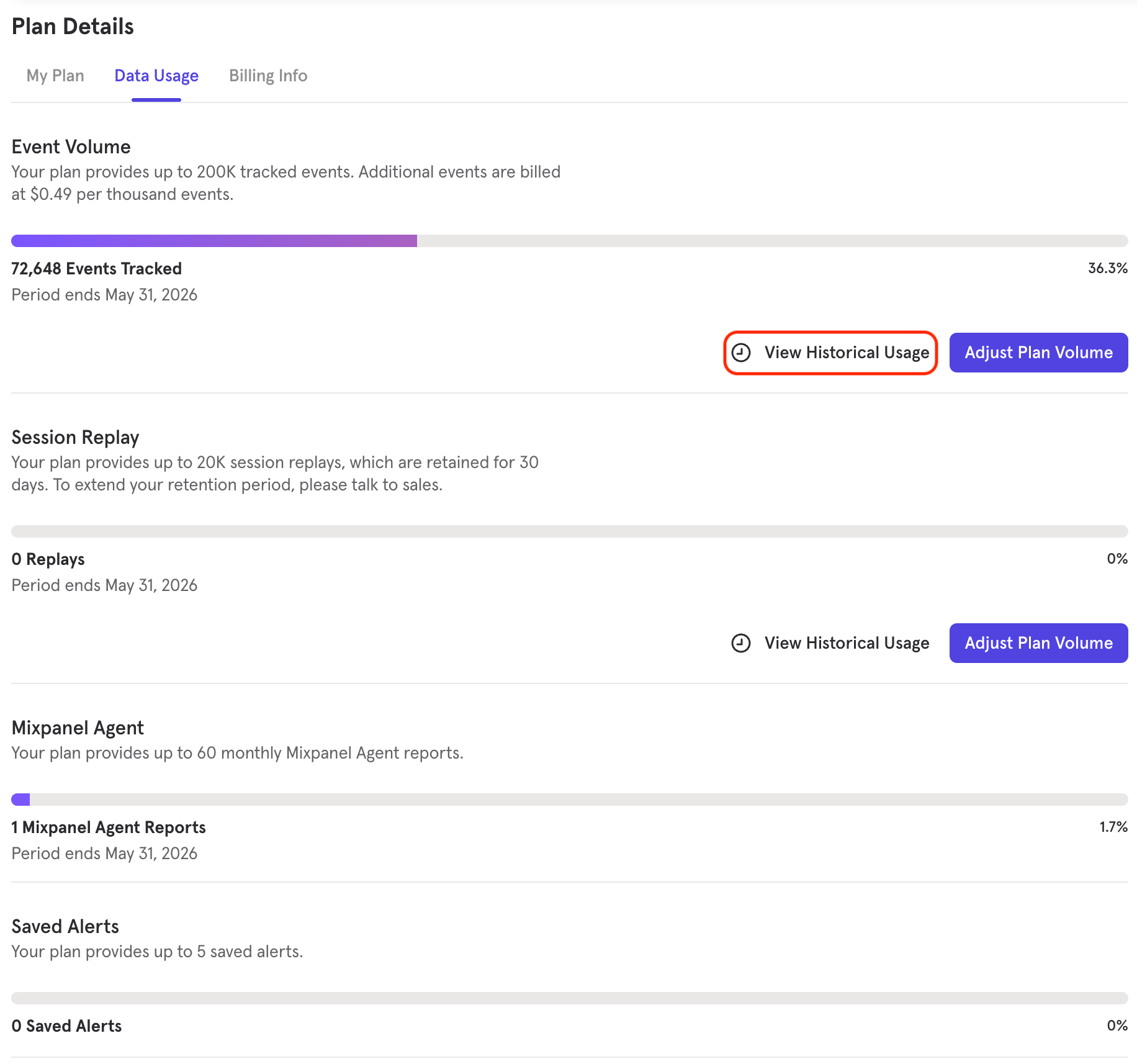
If you are currently tracking data and have either the “Owner” or “Billing Admin” organization role, you can see your events’ consumption in your organization’s Settings screen. To do so, click on the gear icon in the lower left corner of Mixpanel, “Organization Settings”, and then the “Plan Details & Billing” tab. From here, you can quickly view this billing period’s usage on the right side of the screen as well as the historical one by accessing the “Data Usage” tab and clicking the “View Historical Usage” button: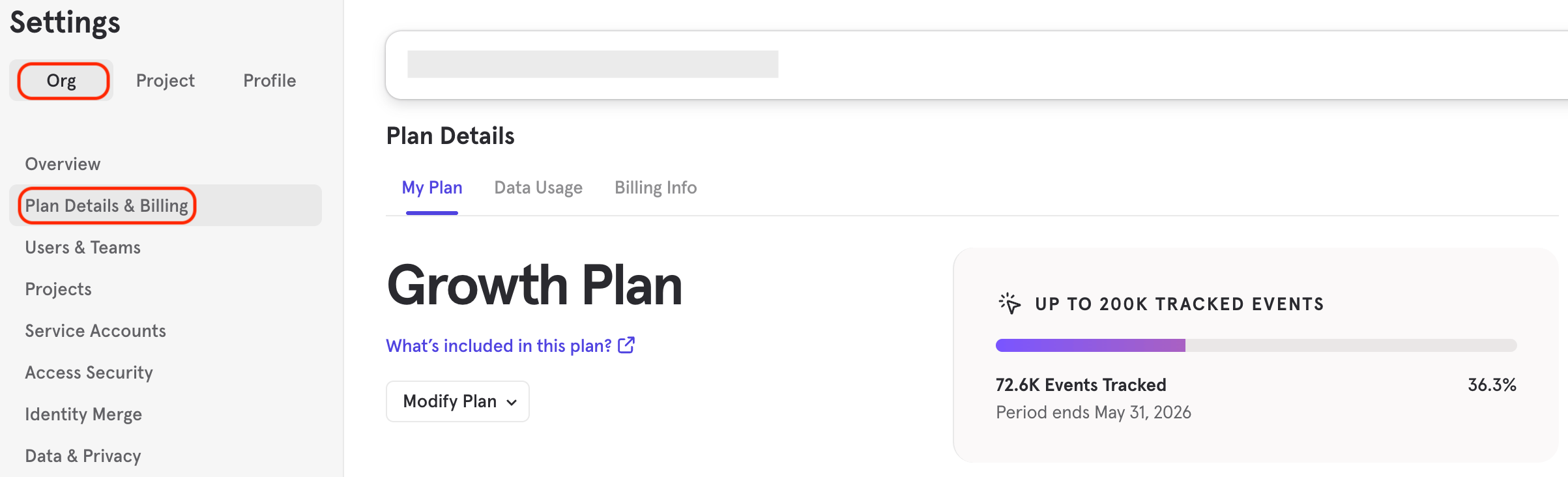
Group Analytics Add-On
The Group Analytics add-on enables behavioral analysis at the business or group level, as opposed to the individual level. Check here for the technical documentation for Group Analytics, keeping in mind that implementing this feature is not trivial and includes sending your events with the key of the group they belong to. Group Analytics can’t be implemented retroactively for already ingested events. This is a recommended feature for all B2B products that want answers to questions such as:- What companies are engaging the most with a product?
- In instances with more than one user per account, such as a video streaming service, how are events triggered at an account level?
- What groups convert through a funnel to a goal event (as opposed to what individual users convert)?
Data Pipelines Add-On
The Data Pipelines Add-On exports the events in your Mixpanel project to a cloud storage bucket or data warehouse of your choice. It’s useful if you want to analyze Mixpanel events using SQL in your own environment. We offer a 30-day free trial of this feature; see the FAQ on how to enable it.Metric Tree Add-on
The Metric Tree Add-On enables you to map your growth strategy quantitatively and measurably, and understand the logical relationship between your input metrics and output business outcomes. It is a collaborative space for you and your team to identify opportunities, have prioritization and trade-off discussions across Exec to ICs, and eventually take data-backed decisions. You can read more about the functionality of Metric Trees here.Billing & Payment
Mixpanel runs on a subscription service in which your card is charged at the beginning of every month or every year (depending on the plan you purchased) to cover reporting services for that period of time.This can only be done by “Owner” and “Billing Admin” users. Learn more about Roles and Permissions.If you don’t see these sections, please contact your organization’s owner or billing admin. If there isn’t one, please contact the Support team.
Update billing information
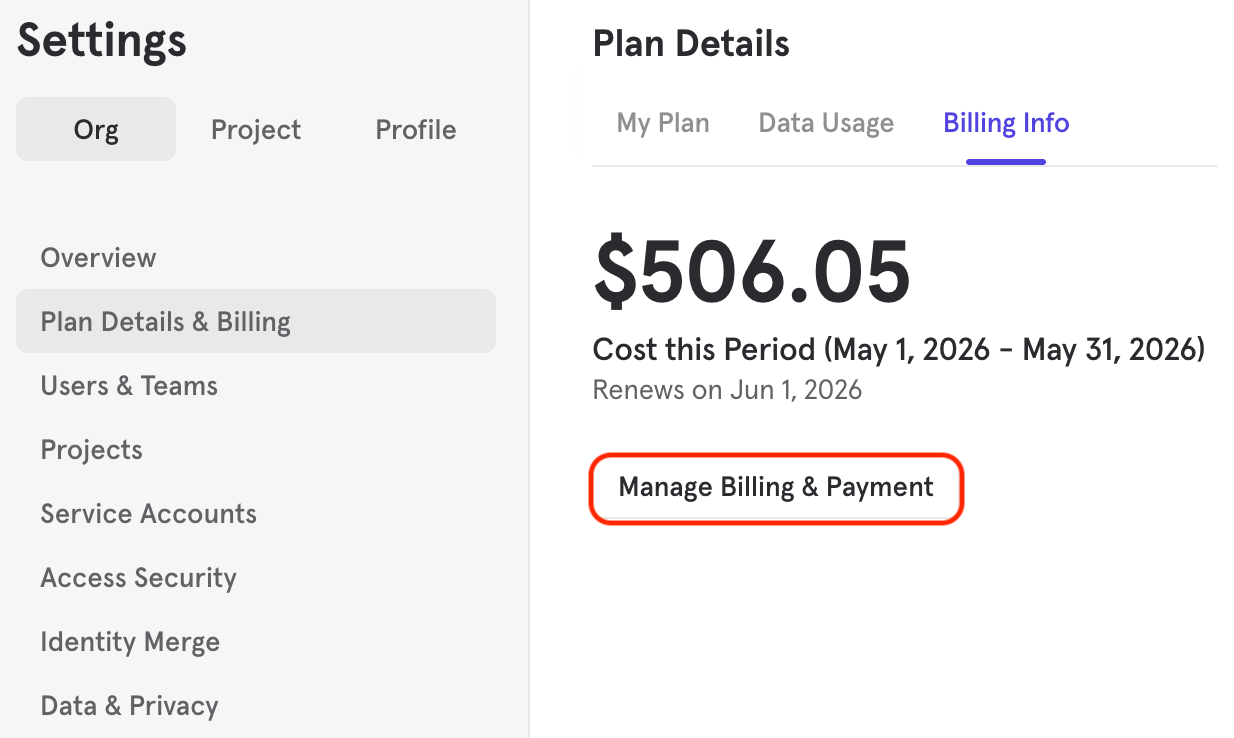
To update your credit card or download invoices, please follow these steps:- Click the gear icon at the lower-left corner of the purple menu at Mixpanel and then the “Organization Settings” option.
- Then, select the “Plan Details & Billing” tab, and click “Manage Billing & Payment”.
Troubleshoot payment issues
If you received an email or in-app notification that your payment didn’t go through, don’t worry! It’s quick and easy to get back up and running.- Click on “Update the Payment Method” in the notification to be taken to your organization’s “Billing & Payment” section.
- Edit the credit card details by clicking the “pencil” icon:
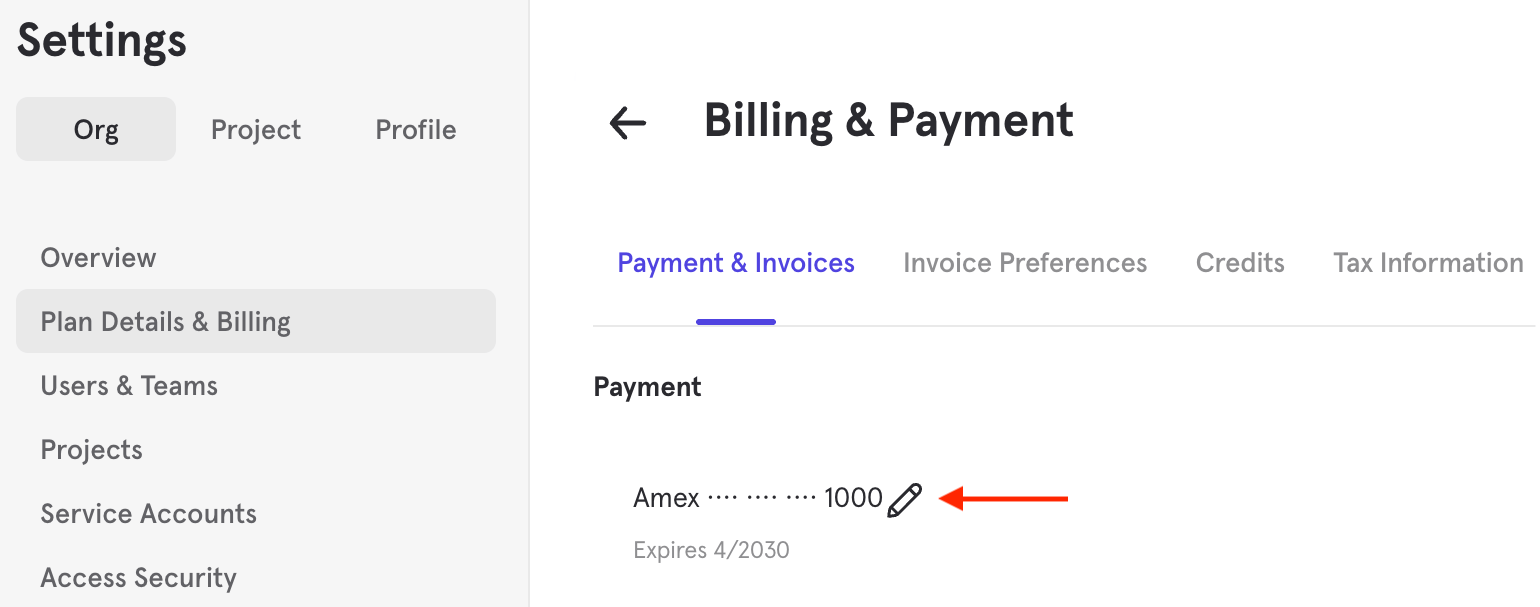
- Lastly, click on the “Rerun Payment” button on the right side.
Downgrade your plan to Free
You can only edit or downgrade your plan if you have “Owner” or “Billing Admin” permissions over your Mixpanel organization.
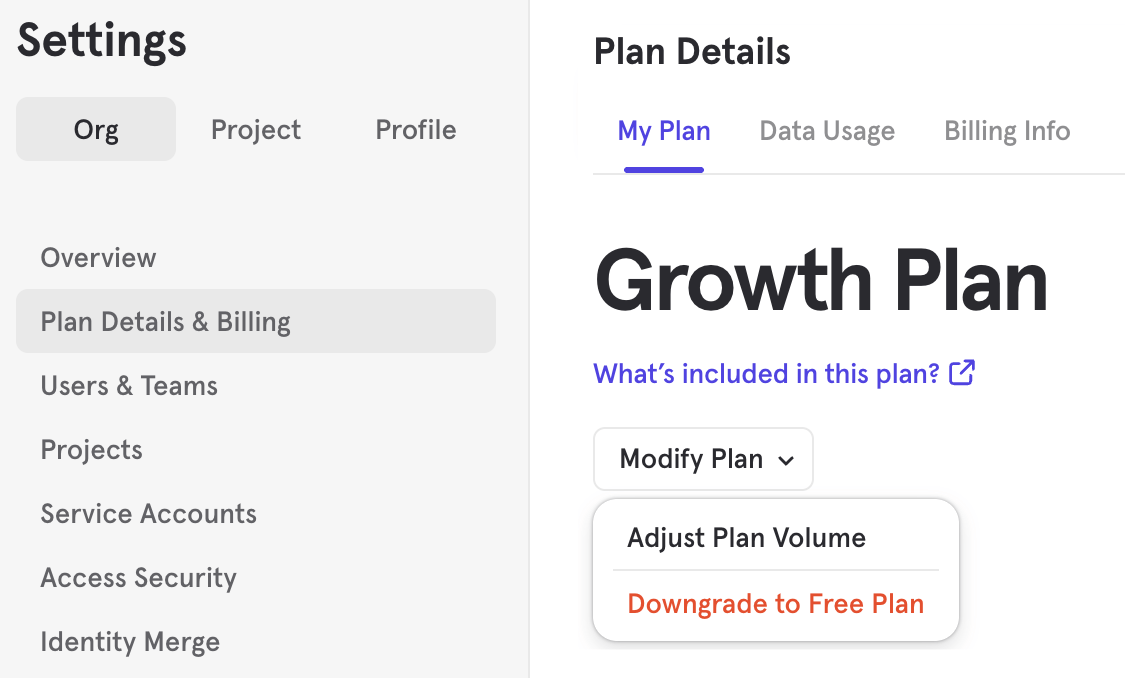
- In your organization’s “Plan Details & Billing” tab, click “Modify Plan”, and then “Downgrade to Free Plan”.
- A pop-up window will appear, informing you that your account will remain active and be automatically moved to a Free plan after your current monthly/annual subscription ends.
- After clicking the “Submit” button, a Downgrade Request Email is sent to all organization owners as proof of your request, and a copy of it goes to Mixpanel’s Billing Team for processing.
FAQs
How do I reduce my Mixpanel bill?
The best way to reduce your bill is to send fewer events to Mixpanel. Check your project’s Lexicon for events you are not querying, or for events with few queries and a high volume not providing value. You can also check the top events contributing towards your event count by creating a monthly Insights report querying “All Events” with a breakdown by “Event Name” (example). Hiding events in Lexicon won’t stop their ingestion. Dropping an event in Lexicon will only block its ingestion from the moment it was dropped, not removing it retroactively.What if I go over my event plan allowance? Do you stop tracking my events?
If you go over your plan’s events, Mixpanel won’t stop collecting your data:- If you’re using a Free plan, Mixpanel limits your platform access once you reach 1M monthly events, but doesn’t charge overages. Once you hit the limit, you will be blocked from viewing your reports until you either upgrade to a Growth plan that supports your current usage or wait until the following month, when your allowance automatically resets.
- If you’re using a Growth plan, the additional cost will be charged at the beginning of the next month based on your À La Carte rate, which you can find in the “Plan Details & Billing” section in your Organization Settings. On the contrary, if you want to avoid paying for overages, you can either downgrade your paid plan to the Free one or upgrade to one that covers your additional usage before the end of the billing cycle - the more events your plan includes, the less you pay per event.
Alerts for Additional Data Charges
Organization owners and billing admins are sent an alert email if their paid account reaches the following percentages of their plan volume: 85%, 100%, 110%, 120%, 200%, 300%, and 400%. If an account reaches two or more of these thresholds, it is possible to receive multiple alerts in one month. Additionally, email addresses that are CC’d on invoice receipts will also be CC’d on alert emails.Can I set a billing limit?
While it’s not possible to set a billing limit at this moment, read this article to learn how to create a report and get warning alerts when you’re close to exceeding your plan limit.I’m on a Growth plan and paying for less than 1M monthly events. How do I switch to the more recent one?
The easiest way to switch is to go to Mixpanel’s pricing page and select “Make the Switch” on the Growth plan card. From there, you can move to the latest plan. If you are unable to adjust your plan, reach out to our Support team.Why can I only select a volume of 1M monthly events on monthly Growth plans, but not annual ones?
Our latest pricing plans include the first 1M events free each month. We require a larger pre-committed volume (more than 1M monthly events) in order to purchase an annual plan. Annual plans still include the first 1M events free each month.I signed up for the 1 million event Growth plan. What happens if I go over that amount?
The first 1 million events ingested are free! If you go over 1 million events, each event ingested will be charged at the additional data rate seen in the “Plan Details & Billing” section in your Organization Settings. If you’re only on a 1M monthly events plan, the additional data rate is $.00028 per event. Purchasing higher volumes upfront will lower that additional data rate, as we include volume discounts in our pricing. If you have the Data Pipeline or Group Analytics add-ons, you will also be charged 20% for Data Pipelines and/or 40% for Group Analytics based on the additional data ingested. As an example:- You signed up for the 1 million monthly event Growth plan with Group Analytics
- If you send 1.1 million events in a month, you’ll be charged for the 100,000 events over the plan at the additional data rate, along with 40% of the calculated overage for the Group Analytics add-on.