

Organizations on a paid event-based plan receive Warehouse Connector as a free add-on when they update or renew their plan. Learn more on our pricing page.
- What percentage of our Enterprise revenue uses the features we shipped last year?
- Did our app redesign reduce support tickets?
- Which account demographics have the best retention?
- We spent $50,000 on a marketing campaign, did the users we acquired stick around a month later?
Getting Started
To set up Warehouse Connectors, you must have an admin or owner project role. Learn more about Roles and Permissions.
Step 1: Connect a warehouse
Navigate to Project Settings → Warehouse Sources. Select your warehouse and follow the per-connector setup instructions:BigQuery
Snowflake
Databricks
Redshift
Postgres
Step 2: Load a warehouse table
Navigate to Project Settings → Warehouse Data and click +Event Table. Select a table or view representing an event from your warehouse and tell Mixpanel about the table. Once satisfied with the preview, click Run, and we’ll establish the sync. The initial load may take a few minutes depending on the size of the table; we show you progress as it’s happening. 🎉 Congrats, you’ve loaded your first warehouse table into Mixpanel! From this point onward, the table will be kept in sync with Mixpanel. You can now use this event throughout Mixpanel’s interface.Table Types
Mixpanel’s Data Model consists of 4 types: Events, User Profiles, Group Profiles, and Lookup Tables. Each has properties, which are arbitrary JSON. Warehouse Connectors lets you turn any table or view in your warehouse into one of these 4 types of tables, provided they match the required schema.Events
An event is something that happens at a point in time. It’s akin to a “fact” in dimensional modeling or a log in a database. Events have properties, which describe the event. Learn more about Events. Here’s an example table that illustrates what can be loaded as events in Mixpanel. The most important fields are the timestamp (when) and the user ID (who) — everything else is optional.
Here are more details about the schema we expect for events:
User Profiles
A User Profile is a table that describes your users. It’s akin to a “dimension” in dimensional modeling or a relational table in a database. Learn more about User Profiles. Here’s an example table that illustrates what can be loaded as user profiles in Mixpanel. The only important column is the User ID, which is the primary key of the table.
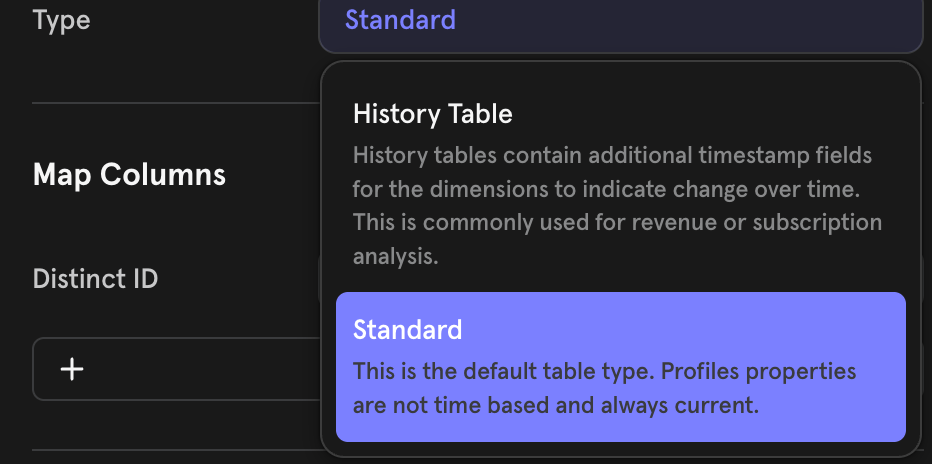
While Profiles typically only store the state of a user as of now, Profile History enables storing the state of a user over time. The distinction between the value a property of the profile has now vs the value it had at the time of an event allows you to do very powerful analysis.
Profile History tables
Profile History tables are only available to organizations on an Enterprise plan.
plan row with a start time of January 1 (plan1) and another starting June 1 (plan2), events between January 1 and June 1 resolve to plan1, and events on or after June 1 resolve to plan2. For more on how historical profile data is modeled and queried, see User Profiles.
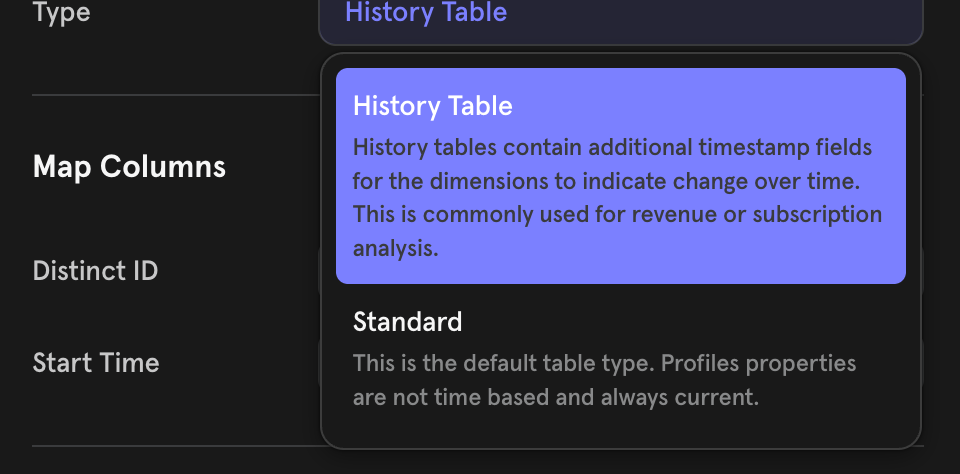

- The source table for user/group history is expected to be modeled as an SCD (Slowly Changing Dimension) Type 2 table. This means that the table must maintain all the history over time that you want to use for analysis.
- History tables are supported only with Mirror Sync mode. Follow these docs to set up your source table to be mirror-compatible.
-
The table should have a Timestamp/Date type column signifying the time that the properties on the row become active. This column will need to be supplied as
Start Timein the sync configuration. -
The following data types are NOT supported:
- Lists (eg, Snowflake’s ARRAY)
- Objects (e,g Snowflake’s OBJECT)
Group Profiles
A Group Profile is a table that describes an entity (most often an Account, if you’re a B2B company). They are functionally identical to User Profiles, just used for other non-User entities. Group Profiles are only available if you have the Group Analytics add-on. Learn more about Group Analytics. Here’s an example table that illustrates what can be loaded as group profiles in Mixpanel. The only important column is the Group Key, which is the primary key of the table.
Group Profile History value and setup are similar to the User Profile History section elaborated above
Generally, group profile history values can only be used for queries within that same group. To power user-mode queries that use a group profile history property, the latest value of the ingested property will be used instead. Following ingestion, there may be a delay before the latest value is available in queries.
Lookup Tables
A Lookup Table is useful for enriching Mixpanel properties (e.g., content, SKUs, currencies) with additional metadata. Learn more about Lookup Tables. Note the limits of lookup tables. Here is an example table that illustrates what can be loaded as a lookup table in Mixpanel. The only important column is the ID, which is the primary key of the table that is eventually mapped to a Mixpanel propertySync Modes
Warehouse Connectors regularly check warehouse tables for changes to load into Mixpanel. The Sync Mode determines which changes Mixpanel will reflect.- Mirror will keep Mixpanel perfectly in sync with the data in the warehouse. This includes syncing new data, modifying historical data, and deleting data that was removed from the warehouse. Mirror is supported for Snowflake, BigQuery, Databricks, and Redshift.
- Append will load new rows in the warehouse into Mixpanel, but will ignore modifications to existing rows or rows that were deleted from the warehouse. We recommend using Mirror over Append for supported warehouses.
- Full will reload the entire table to Mixpanel each time it runs rather than tracking changes between runs. Full syncs are only supported for Lookup Tables, User Profiles, and Group Profiles.
- One-Time will load the data from your warehouse into Mixpanel once with no ability to send incremental changes later. This is only recommended where the warehouse is being used as a temporary copy of the data being moved to Mixpanel from some other source, and the warehouse copy will not be updated later.
Mirror
Mirror syncs work by having the warehouse compute which rows have been inserted, modified, or deleted and sending this list of changes to Mixpanel. Change tracking is configured differently depending on the source warehouse. Mirror is supported for Snowflake, Databricks, BigQuery, and Redshift sources.For User tables, Mirror Sync is available only when you select the Profile History table type. Mirror Sync is not available for the Standard table type.
Append
Append syncs require an Insert Time column in your table. Mixpanel remembers the maximum Insert Time it saw in the previous run of the sync and looks for only rows that have an Insert Time greater than that. This is useful and efficient for append-only tables (usually events) that have a column indicating when the data was appended. Each time an Append sync runs, it will query the source table with aWHERE <insert_time_column> > <previous_max_insert_time> clause. This means that records added with an append time value before the <previous_max_insert_time> from the previous run can be missed (not imported) as they would be considered already ingested. The <insert_time_column> value should always reflect when the value was made available for Mixpanel to query and ingest.
Considerations when using Append with large BigQuery tables:
In an un-partitioned BigQuery table, the <insert_time_column> filtering results in a full scan of all data in the source table each time the sync runs. To minimize BigQuery costs we recommend partitioning the source table by the <insert_time_column>. Doing so will ensure that each incremental sync run only scans the most recent partitions.
To understand the potential savings, consider a 100 GB source table with 100 days of data (approximately 1 GB of data per day):
- If this table is not partitioned and is synced daily, the Append sync will scan the whole table (100 GB of data) each time it runs, or 3,000 GB of data per month.
- If this table is partitioned by day and is synced daily with an Append sync, the Append sync only scans the current day and the previous day’s partitions (2 GB of data) each time it runs, or 60 GB of data per day, a 50x improvement over the un-partitioned table.
Full
Full syncs periodically make a snapshot of the source table and sync it entirely to Mixpanel. If a row has new properties in your warehouse, the corresponding profile in Mixpanel will be overridden with those new properties. This mode is available for all tables except events.Sync Frequency
Mixpanel offers a variety of sync frequency options to cater to different data integration needs. These options allow you to choose how often your data is synchronized from your data warehouse to Mixpanel, ensuring your data is up-to-date and accurate.Standard Sync Frequency Options
GA4 tables support only a daily sync frequency.
- Hourly: Data is synchronized every hour, providing near real-time updates to your Mixpanel project.
- Daily: Data synchronization occurs once a day, ideal for daily reporting and analytics.
- Weekly: Data is synchronized once a week, suitable for less frequent reporting needs.
Advanced Sync Frequency Option: Trigger via API
For more advanced synchronization needs, Mixpanel offers the ability to trigger syncs via API. This option generates a PUT URL that customers can use in their code to orchestrate Mixpanel sync jobs with other jobs, such as Fivetran pipelines or dbt jobs. By using this API trigger option, you can ensure 100% accuracy by aligning Mixpanel syncs with other critical data operations. To use the API trigger option:- Select Advanced>Trigger Via API under Sync Frequency in the table sync creation UI.
- After creating the sync, we will generate a PUT URL for you.
- Integrate this URL into your existing workflows or scripts.
- Authenticate the request with a Mixpanel Service Account. More information on setting up and using Mixpanel Service Accounts.
- Trigger the sync job programmatically, ensuring it runs in coordination with other data processes.
FAQ
What tables are valuable to load into Mixpanel?
Anything that is event-based (has a user_id and timestamp) and that you want to analyze in Mixpanel. Examples, by data source are:- CRM: Opportunity Created, Opportunity Closed
- Support: Ticket Created, Ticket Closed
- Billing: Subscription Created, Subscription Upgraded, Subscription Canceled, Payment Made
- Application Database: Sign-up, Purchased Item, Invited Teammate
How fast do syncs transfer data?
Syncs have a throughput of ~30K events+updates/second or ~100M events+updates/hour.What is the best way to start bringing in event data?
We recommend starting with a subset of data in a materialized view to test the import process. This allows you to ensure that relevant columns are correctly formatted and the data appears as expected in Mixpanel. Once the data is imported, run a few reports to verify that you can accurately gain insight into your team’s KPIs with the way your data is formatted. After validating your use case, navigate to the imported table and select “Delete Import” to hard delete the subset data. This step ensures that you can then import the entire table without worrying about duplicate data.I already track data to Mixpanel via SDK or CDP, can I still use Warehouse Connectors?
Yes! You can send some events (eg, web and app data) directly via our SDKs and send other data (eg, user profiles from CRM or logs from your backend) from your warehouse and analyze them together in Mixpanel. Please do note that warehouse connectors enforce strict_mode validation by default, and any events and historical profiles with time set in the future will be dropped. We will reject events with time values that are before 1971-01-01 or more than 1 hour in the future as measured on our servers. We recommend that the customer filter such events and refresh such events when they are no longer set in the future.How do I filter for events coming to Mixpanel via Warehouse Connector Sync in my reports?
We add a couple of hidden properties,$warehouse_import_id and $warehouse_type, on every event ingested through warehouse connectors. You can add filters and breakdowns on that property in any Mixpanel report. You can find the Warehouse import ID of a sync in the Sync History tab shown as Mixpanel Import ID.
Does Mixpanel automatically flatten nested data from warehouse tables?
Automatic flattening is only available for GA4 tables. For other tables, you’ll need to manually flatten the data via queries before import.What should I do if my BigQuery import query is too large or takes too long?
Consider breaking the data into smaller chunks if you’re working with large datasets. You can do this by creating views in BigQuery that only include the data you want to import — for example, limiting it to the past 6 months or 1 year. Note: The 20-hour query limit is a Mixpanel restriction, not a BigQuery one, to help keep the system stable for all users.Why is mirror mode required for profile history syncs?
Mirror mode allows Mixpanel to detect changes in your data warehouse and update historical profile data in Mixpanel accordingly. This is essential for maintaining an accurate history of user profiles. When you use the Mirror mode, Mixpanel data automatically syncs with your warehouse by accurately reflecting all changes, including additions, updates, or deletions. You can learn more about the Mirror mode and its benefits in this blog postWhy am I seeing events in my project with the name of my profile table?
Events with the same name as the table/view used for historical profile imports are auto-generated by the WH import process. These are hidden by default and are not meant to be queried directly. Billing for historical imports is done using mirror pricing (link to question below).Billing FAQ
What actions impact billing for warehouse connectors?
Billing varies by operation type and connector mode. The tables below explain how each action affects your monthly event volume: Billing for Event Syncs:
If you’re planning on backfilling a significant amount of historical events and need help understanding how it will impact your costs, please reach out to your Mixpanel account manager or contact support.
The above table applies if your account uses ingestion time billing. If your account is on legacy event timestamp billing:
- Event inserts are billed only if the event timestamp is in the current billing month. Events with timestamps in previous months are not billed.
- Updates and deletes are always billed at ingestion time, regardless of the event timestamp on the original event. More details on ingestion time vs. event timestamp billing can be found in this section.
- Update the value of property d, or
- Add a new property or column e with a non-NULL value
Append mode if you create a new sync. But for an ongoing sync, you cannot backfill for older days within the existing sync once the insert_time has moved past.
Billing for User/Group Profiles Syncs
You can monitor these different operations in your billing page, where they’ll appear as separate line items: Events - Updates, Events - Deletes, User - Updates, and User - Deletes.
Billing for historical table imports:
Historical tables can be imported only in mirror mode. Mirror-mode pricing updates apply to all rows imported for profile history tables. This means:
- Historical profile updates DO count towards billing. Imports through standard profile tables do not.
- Every row counts as a mirror event and is billed as such.
- If you update/delete existing rows in your table, mirror billing will be applied, including for backfills.
When should I use Mirror vs. Append mode?
Use Mirror mode when:- You want to maintain a replica of your warehouse data in Mixpanel
- You want to automatically sync updates and deletes from your warehouse
- You need to track the history of user profile changes over time (with History mode)
- You only need to add new data without updating existing records
- You have a workflow that frequently drops and recreates tables
What will be the cost impact of this on my DWH?
The DWH cost of using a warehouse connector will vary based on the source warehouse and sync type used. Our connectors use warehouse-specific change tracking to compute modified rows in the warehouse and send only changed data to Mixpanel. There are 3 aspects of DWH cost: network egress, storage, and compute.- Network Egress: All data is transferred using gzip compression. Assuming an egress rate of $0.08 per GB and 100 compressed bytes per event, this is a cost of less than $0.01 per million events. Mirror and Append syncs will only transfer new or modified rows each time they run. Full syncs will transfer all rows every time they run. We recommend using Full syncs only for small tables and running them less frequently.
-
Storage: Append and Full syncs do not store any additional data in your warehouse, so there are no extra storage costs. Mirror tracks changes using warehouse-specific functionality that can affect warehouse storage costs:
- Snowflake: Mirror uses Snowflake Streams. Snowflake Streams will retain historical data until it is consumed from the stream. As long as the warehouse connector runs regularly, data will be consumed regularly and only retained between runs.
- BigQuery: Mirror uses table snapshots. Mirror keeps one snapshot per table to track the contents of the table from the last run. BigQuery table snapshots have no cost when they are first created, as they share the underlying storage with the source table. However, as the source table changes, the cost of storing changes is attributed to the table snapshot. Each time the connector runs, the current snapshot is replaced with a new snapshot of the latest state of the table. The storage cost is the amount of changes being tracked between the snapshot and source table between runs.
- Databricks: Mirror uses Databricks Change Data Feed and all the changes are retained in Databricks for the delta.logRetentionDuration. Configure that window accordingly to keep storage costs low.
-
Compute:
- Mirror on Snowflake: Snowflake Streams natively track changes; the compute cost of querying for these changes is normally proportional to the amount of changed data.
- Mirror on BigQuery: Each time the connector runs, it checksums all rows in the source table and compares them to a table snapshot from the previous run. For large tables, we highly recommend partitioning the source table. When the source table is partitioned, the connector will skip checksumming any partitions that have not been modified since the last run. For more details, see the BigQuery-specific instructions in Mirror Mode.
- Mirror on Databricks: Databricks Change Data Feed natively tracks changes to the tables or views, and the compute cost of querying these changes is normally proportional to the amount of changed data. Mixpanel recommends using a smaller compute cluster and setting Auto Terminate after 10 minutes of idle time on the compute cluster.
- Append: All Append syncs run a query filtered on
insert_time_column > [last-run-time]; the compute cost is the cost of this query. Partitioning or clustering based oninsert_time_columnwill greatly improve the performance of this query. - Full: Full syncs are always a full table scan of the source table to export it.