

How Mixpanel Pricing Works
Events
An event is a data point that represents an interaction between a user and your product. Events can be a wide range of interactions. Here are some examples:- Social: Post Created, Friend Added
- E-Commerce: Added to Cart, Purchase Completed
- Media: Video Watched, Article Read
- SaaS: Document Created, Call Started
Computed Monthly Across Projects
Event-based pricing calculates the amount you are charged based on the number of events across all projects in your organization. Certain events and API updates are non-qualifying and excluded from the Monthly Events calculation:- Identify (
$identify) - Create Alias (
$create_alias) - Merge (
$merge) - Opt In (
$opt_in) - Session Recording Checkpoint (
$mp_session_record) - User profile creation/updates
Plan Differences
There are three event-based billing plans to choose from: Free, Growth, and Enterprise. Optional add-ons are also available, including Group Analytics (recommended for B2B), Data Pipelines (exports your events to a data warehouse or cloud storage bucket), and Metric Trees. Refer to our pricing page for more information on the benefits and features of each plan, and for current add-on pricing and plan availability. The high-level differences between the three are:- Free: Mixpanel is usage-based, and you can use it for free as long as you stay within the plan’s limits; no trial needed. If you are new to Mixpanel and want to test it out, we encourage you to use our free plan and upgrade once you have an estimate of your project’s volume. Includes unlimited saved reports and a monthly event allowance. Some features are limited or unavailable on the Free plan; see our pricing page for current limits and a full feature comparison.
- Growth: The typical Growth plan customer is a small team using Mixpanel (fewer than 50 employees). Growth plans purchased after February 2025 include a monthly allowance of free events; see our pricing page for the current amount.
- Enterprise: Designed for large teams that need advanced data governance, dedicated onboarding support, and account management. Enterprise also unlocks additional advanced analysis features; see our pricing page for a full feature comparison.
Choosing the Right Plan
How do I estimate how much Mixpanel will cost?
If you’re already using another tool, you might have the exact numbers you need. However, if you aren’t using another tool, the best way to estimate costs is to sign up and use our generous free plan. After a week, you’ll get a good estimate of your projected volume on your “Plan Details & Billing” page (see below).View Events Usage
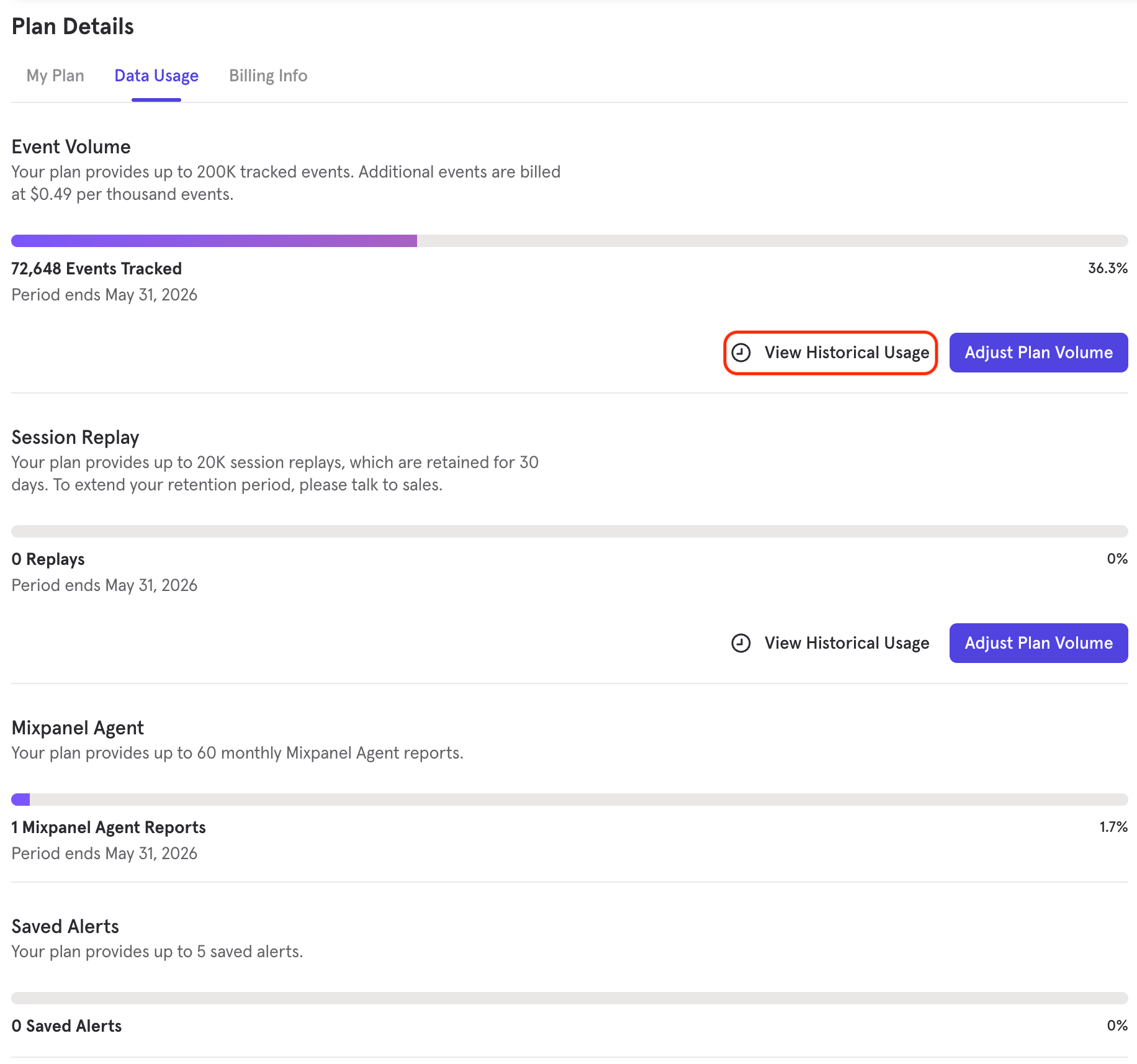
If you are currently tracking data and have either the “Owner” or “Billing Admin” organization role, you can see your events’ consumption in your organization’s Settings screen. To do so, click on the gear icon in the lower left corner of Mixpanel, “Organization Settings”, and then the “Plan Details & Billing” tab. From here, you can quickly view this billing period’s usage on the right side of the screen as well as the historical one by accessing the “Data Usage” tab and clicking the “View Historical Usage” button: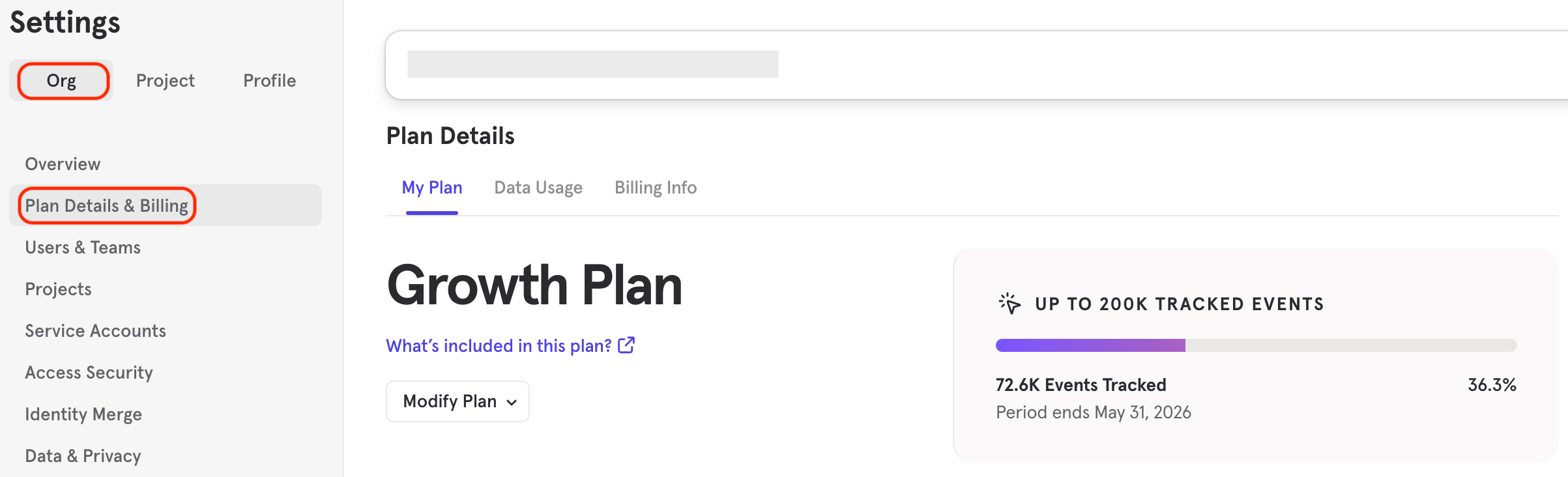
Group Analytics Add-On
The Group Analytics add-on enables behavioral analysis at the business or group level, as opposed to the individual level. Please view the technical documentation for Group Analytics first, keeping in mind that implementing this feature is not trivial and includes sending your events with the key of the group they belong to. Group Analytics can’t be implemented retroactively for already ingested events. This is a recommended feature for all B2B products that want answers to questions such as:- What companies are engaging the most with a product?
- In instances with more than one user per account, such as a video streaming service, how are events triggered at an account level?
- What groups convert through a funnel to a goal event (as opposed to what individual users convert)?
Data Pipelines Add-On
The Data Pipelines Add-On exports the events in your Mixpanel project to a cloud storage bucket or data warehouse of your choice. It’s useful if you want to analyze Mixpanel events using SQL in your own environment. We offer a 30-day free trial of this feature; see the FAQ on how to enable it. For current add-on plan availability, see our pricing page.Metric Tree Add-on
The Metric Tree Add-On enables you to map your growth strategy quantitatively and measurably, and understand the logical relationship between your input metrics and output business outcomes. It is a collaborative space for you and your team to identify opportunities, have prioritization and trade-off discussions across Exec to ICs, and eventually take data-backed decisions. You can read more about the functionality of Metric Trees here. For current add-on plan availability, see our pricing page.Billing & Payment
Mixpanel runs on a subscription service in which your card is charged at the beginning of every month or every year (depending on the plan you purchased) to cover reporting services for that period of time.This can only be done by “Owner” and “Billing Admin” users. Learn more about Roles and Permissions.If you don’t see these sections, please contact your organization’s owner or billing admin. If there isn’t one, please contact the Support team.
Update billing information
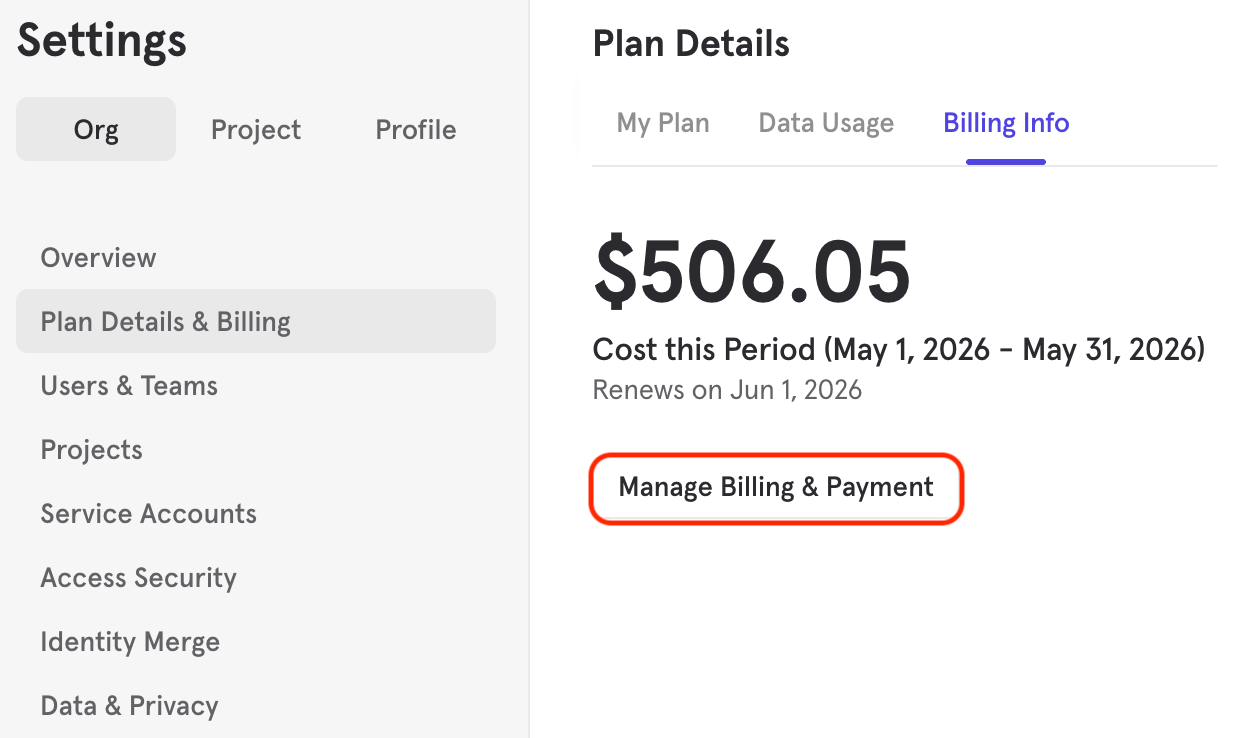
To update your credit card or download invoices, please follow these steps:- Click the gear icon at the lower-left corner of the purple menu at Mixpanel and then the “Organization Settings” option.
- Then, select the “Plan Details & Billing” tab, and click “Manage Billing & Payment”.
Troubleshoot payment issues
If you received an email or in-app notification that your payment didn’t go through, don’t worry! It’s quick and easy to get back up and running.- Click on “Update the Payment Method” in the notification to be taken to your organization’s “Billing & Payment” section.
- Edit the credit card details by clicking the “pencil” icon:
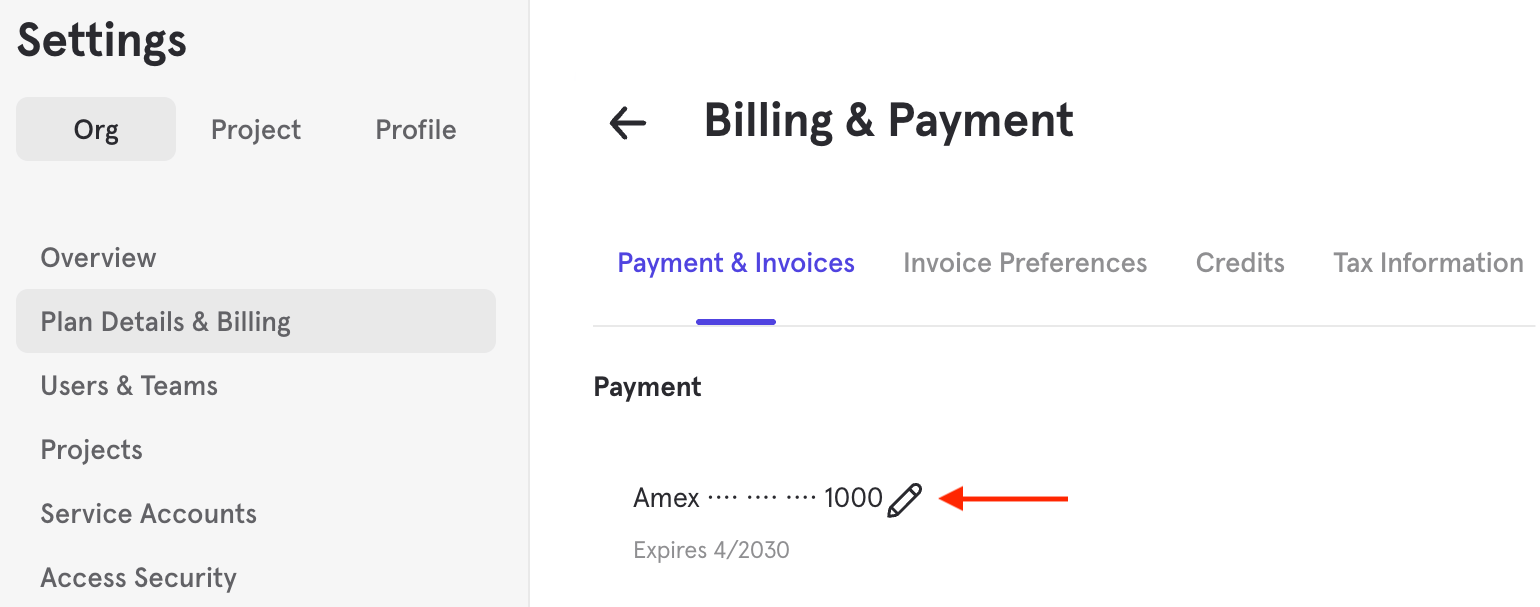
- Lastly, click on the “Rerun Payment” button on the right side.
Downgrade your plan to Free
You can only edit or downgrade your plan if you have “Owner” or “Billing Admin” permissions over your Mixpanel organization.
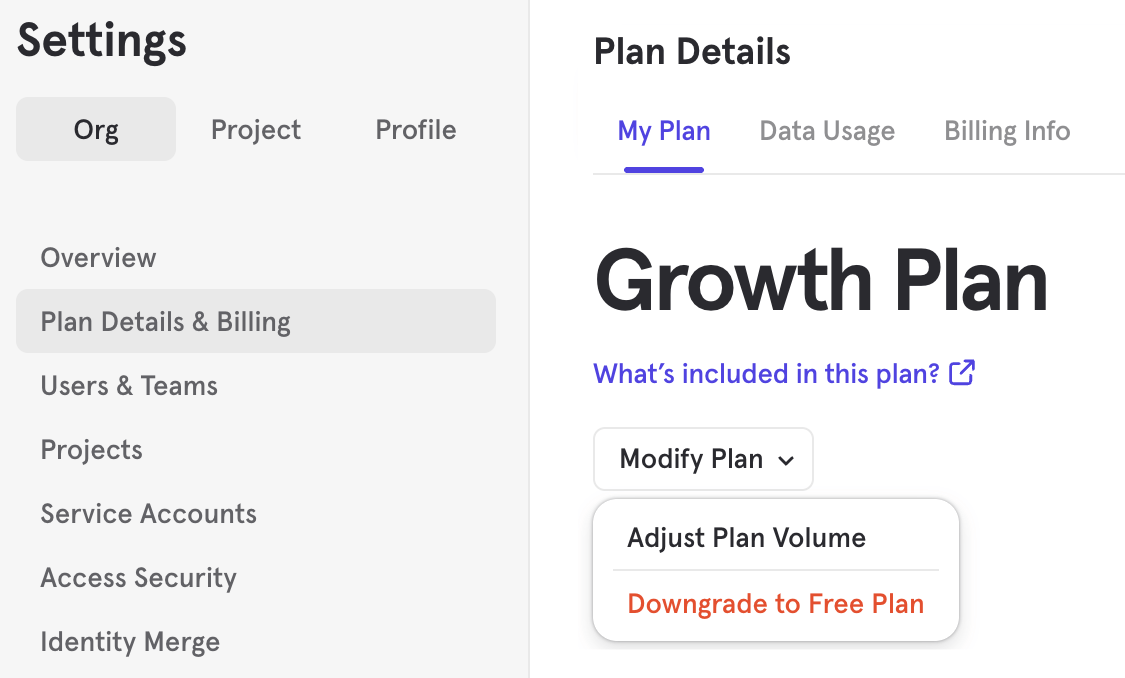
- In your organization’s “Plan Details & Billing” tab, click “Modify Plan”, and then “Downgrade to Free Plan”.
- A pop-up window will appear, informing you that your account will remain active and be automatically moved to a Free plan after your current monthly/annual subscription ends.
- After clicking the “Submit” button, a Downgrade Request Email is sent to all organization owners as proof of your request, and a copy of it goes to Mixpanel’s Billing Team for processing.
FAQs
How do I reduce my Mixpanel bill?
The best way to reduce your bill is to send fewer events to Mixpanel. Check your project’s Lexicon for events you are not querying, or for events with few queries and a high volume not providing value. You can also check the top events contributing towards your event count by creating a monthly Insights report querying “All Events” with a breakdown by “Event Name” (example). Hiding events in Lexicon won’t stop their ingestion. Dropping an event in Lexicon will only block its ingestion from the moment it was dropped, not removing it retroactively.What if I go over my event plan allowance? Do you stop tracking my events?
If you go over your plan’s events, Mixpanel won’t stop collecting your data:- If you’re using a Free plan, Mixpanel won’t stop collecting your data, but querying is paused once you go over the Free plan’s monthly event limit. The pause stays in place until you upgrade to a Growth plan. Growth plan pricing depends on the event allowance and add-ons you choose (see our pricing page), and requires a credit card. Your Growth plan starts from the first of the current month, so all of this month’s events count toward its allowance, and any events above it are billed at your plan’s cost per event on your next invoice.
- If you’re using a Growth plan, events above your plan are billed at the beginning of the next month at the same cost per event as your plan; you can find your rate in the “Plan Details & Billing” section in your Organization Settings. If you want to avoid paying for additional events, you can either downgrade your paid plan to the Free one or upgrade to a plan that covers your usage before the end of the billing cycle. See our pricing page for details.
Alerts for Additional Data Charges
Organization owners and billing admins are sent an alert email if their account reaches the following percentages of their plan volume: 85%, 100%, 110%, 120%, 200%, 300%, and 400%. If an account reaches two or more of these thresholds, it is possible to receive multiple alerts in one month. Additionally, email addresses that are CC’d on invoice receipts will also be CC’d on alert emails.Can I set a billing limit?
While it’s not possible to set a billing limit at this moment, read this article to learn how to create a report and get warning alerts when you’re close to exceeding your plan limit.I signed up for the lowest-volume Growth plan. What happens if I go over that amount?
Events within your plan’s free monthly allowance are free! If you go over your plan’s event volume, each additional event is charged at the same cost per event as your plan, which you can see in the “Plan Details & Billing” section in your Organization Settings. Larger plans include volume discounts, so purchasing a higher volume upfront lowers your cost per event. For current pricing, see our pricing page. If you have add-ons such as Group Analytics or Data Pipelines, they can also affect what you’re charged for additional data. For current add-on plan availability, see our pricing page. As an example:- You signed up for the lowest-volume Growth plan
- If you send 10% more events than your plan includes in a month, you’ll be charged for those extra events at your plan’s cost per event.