

Before You Debug
Create a Test Project
Mixpanel recommends that you create a separate development Mixpanel project to validate your event data. This ensures that your testing data does not contaminate your production environment.Send Events
Mixpanel doesn’t receive any data until you start sending events. If you haven’t started sending data to Mixpanel, check out our quickstart guides for JavaScript, Server, and Mobile. We have a simple HTTP API for any languages we don’t support. 🎉 Congratulations, you’re ready to debug! Theres are two primary places to inspect your raw events as they flow into your Mixpanel project: Events and User Profiles.Debugging with Events
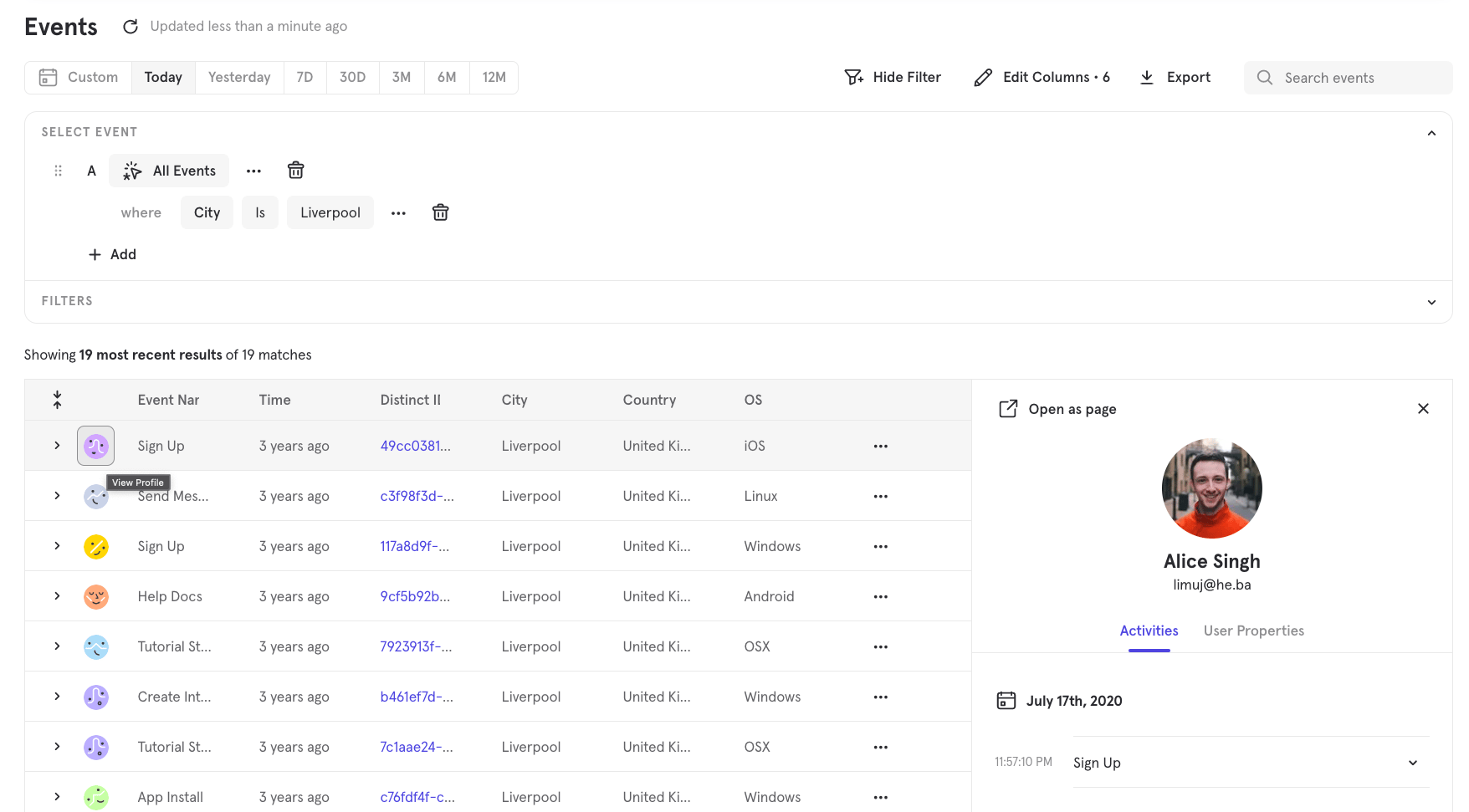
Use the Events view (formerly called “Live View”) to confirm that events are arriving to your Mixpanel project, so you can troubleshoot your Mixpanel setup quickly. To access the Events view, expand the “Data” tab from the left-hand navigation of the UI and select “Events”. With Events, you can see a feed of events along with all of their properties coming into Mixpanel.Find Yourself
The next step to validating your events is to manually trigger some of those events on your own device. After you have fired some events, navigate to Events and search or filter using any user-level information you know is available in the event’s raw payload. Search by$user_id, $device_id, distinct_id, or user property values. If you are using Mixpanel’s JavaScript SDK, you can use mixpanel.get_distinct_id to return your own distinct_id in your browser console and copy the distinct_id value into the Events search bar.
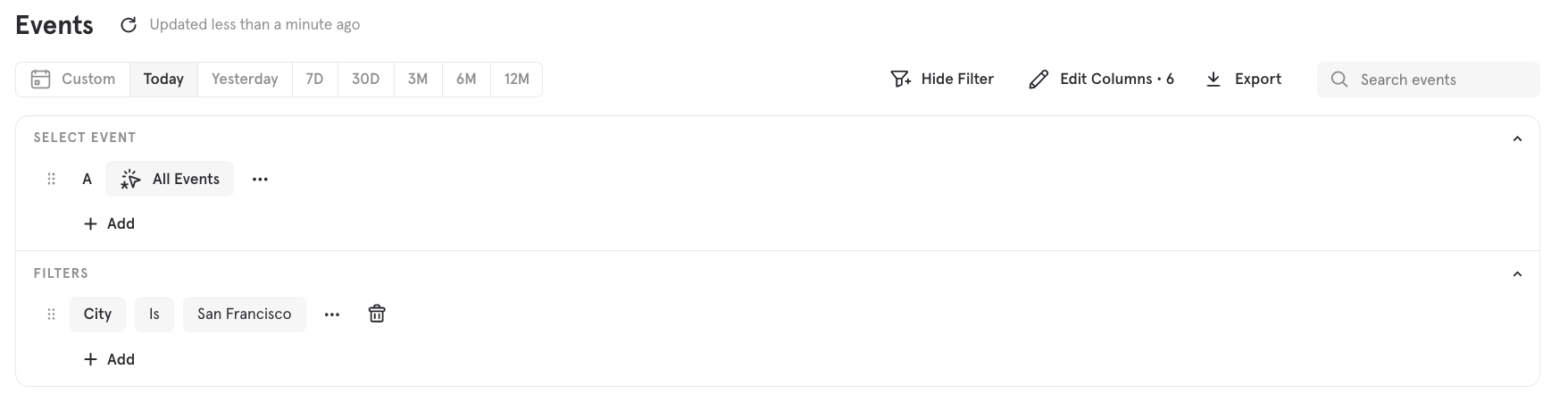
- Events are triggered as expected and requests are successful.
- Events contain all of the expected properties and event property values, including distinct_id. Keep in mind that event properties should reflect the value at the time of the event, whereas user properties reflect the most recent value.
- Property values are sent with the expected data type.
- Event and property names are in the correct taxonomy and casing (Mixpanel is CaSe Sensitive)
Debugging with User Profiles
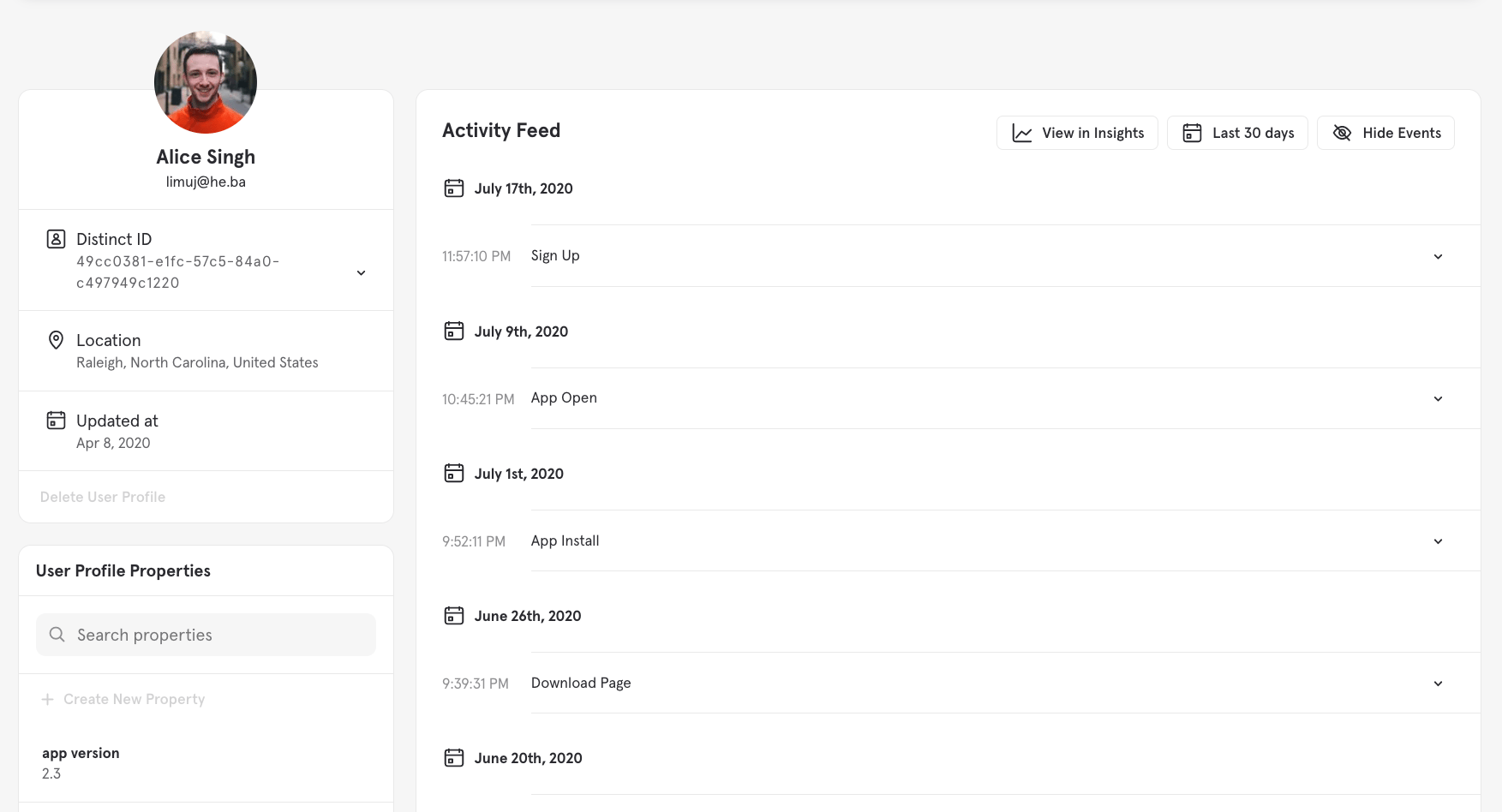
User Profiles allow you to see the events feed and all user properties for a specific user. The Activity Feed displays a user’s entire event history. The most recent activity appears at the top of the list. By reviewing User Profiles, you can validate:- User Properties set on the profile correctly. Keep in mind that user properties should reflect the most recent value of the property, unlike event properties which reflect the value at the time of the event.
- Whether the expected events are appearing in the Activity Feed correctly and in order. For example, if you only trigger an event onces but two instances of the event appear in the event stream, you should check your initialization and the logic triggering the event for errors.
- If user property names are in the correct taxonomy and casing (Mixpanel is CaSe Sensitive)
Missing or Incomplete Events
Enable Debug Mode
If you are using one of Mixpanel’s client-side SDKs, you can enable debug mode to confirm that requests are sending to Mixpanel:- JavaScript Debug Mode
- iOS - Objective-C Debugging and Logging
- iOS - Swift Debugging and Logging
- Android - Debugging and Logging
- React Native - Debugging and Logging
- Flutter - Debugging and Logging
Debugging with the Browser Console (Web)
If you’re using Mixpanel in a web application, you can use your browser’s developer console to view Mixpanel API calls being made from each page.- On your website, enable debug mode.
- Open your browser’s developer console and navigate to the Network > Fetch/XHR tab.
-
Perform an action that triggers the
mixpanel.trackcall. -
Look for requests to the Mixpanel API and troubleshoot any error messages.
- If your project has US Data Residency, look for a request triggered to
api.mixpanel.com/track. - If your project has EU Data Residency, look for a request triggered to
api-eu.mixpanel.com/track. - If your project has India Data Residency, look for a request triggered to
api-in.mixpanel.com/track.
- If your project has US Data Residency, look for a request triggered to
- If the request is successful, check that the “token” in the data payload matches the token in your Project Settings. From here, you can then validate that the event was directed to the right project token and using Events, and confirm that the data is arriving correctly in Mixpanel.
Ensure you are using the API host that matches your project’s data residency
If you are using a Mixpanel SDK, you must configure it to talk to the correct api host depending on your project’s data residency. Refer to the SDK documentation for how to configure the API host.
⚠️ Important: Projects with EU or India Data Residency must configure their SDK with the matching regional host (
api-eu.mixpanel.com or api-in.mixpanel.com). Events sent to the wrong host will not be ingested in your Mixpanel project.
Customize Flush Interval (Mobile)
Both the Mixpanel iOS and Android libraries employ queueing to optimize battery and data use on the end user’s device. Calling track does not send the event immediately, Events and User data sent to Mixpanel gets queued and flushed at certain intervals by default. This interval can be adjusted to flush more or less frequently.iOS
On iOS, data gets flushed every time the user backgrounds the app or every 60 seconds. Shorten or lengthen the flush interval to send data to Mixpanel on a more or less frequent basis by changing the value ofself.mixpanel.flushInterval. You can also explicitly call flush() to send the phone’s queue immediately after having collected key events (such as sign up).
Android
On Android, both Event and People calls are put into a queue that gets flushed to Mixpanel according to either time or size. If the bulk upload limit of 40 records is not reached, the default flush interval is 60 seconds. You can also flush manually with publicvoid flush(). One common use case is to call flush before the application is completely shut down to ensure that all of Events are sent to Mixpanel.
Unity
On Unity, you can configure the interval at which data is flushed to Mixpanel. The default time is that data gets flushed every 60 seconds. You can also flush manually with publicvoid flush().
Check for Hidden Events and Properties
Hidden in Lexicon
Project Owner and Admin users can hide events, event properties, and user profile properties in your Mixpanel project through Lexicon. Check Lexicon to review if the event or property may be hidden.Inactive Events and Properties
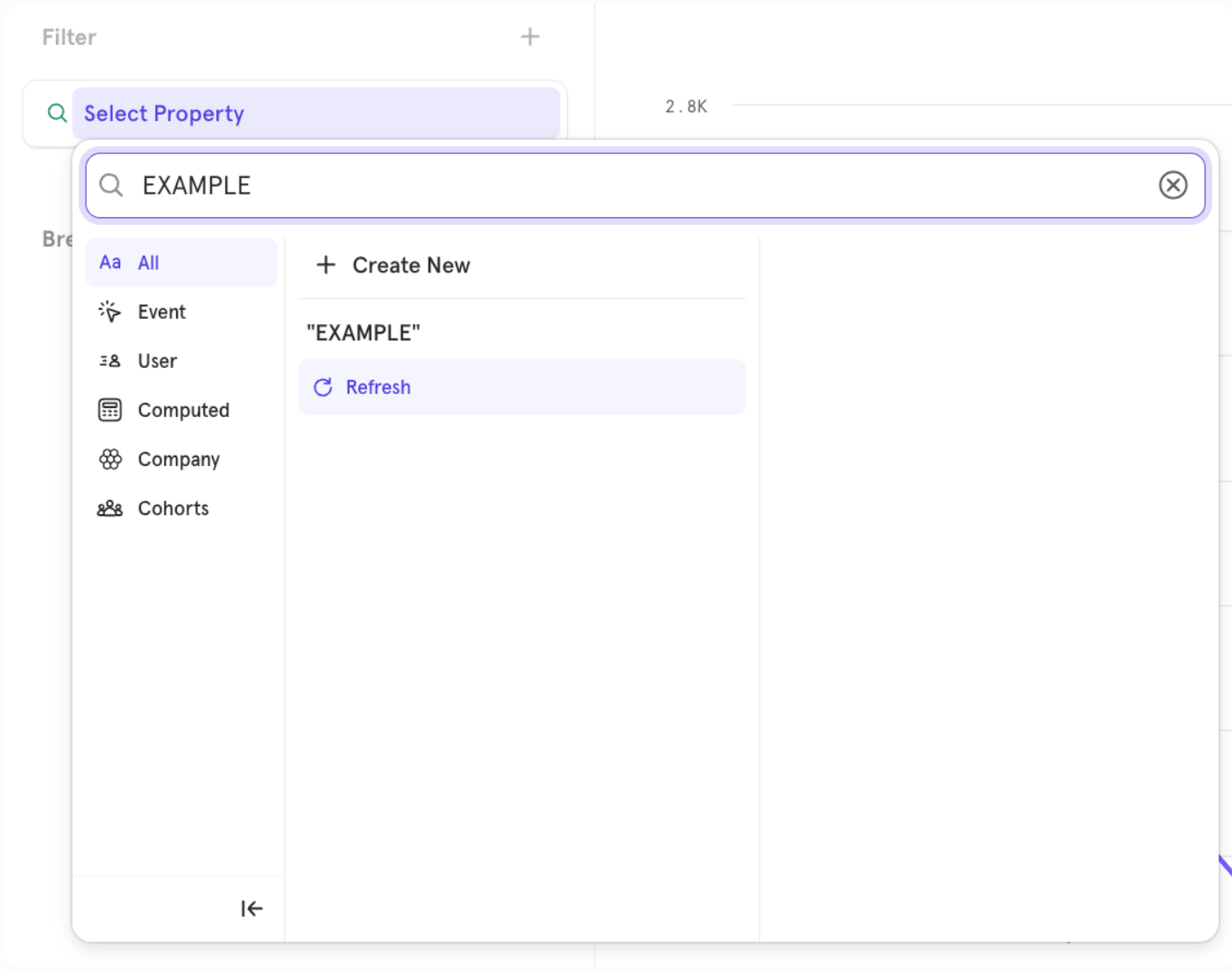
Mixpanel’s report dropdown menus hide events that have not been fired within the last 30 days. The only exception are events that have been modified via the Lexicon interface, eg: by adding a description, hiding the event, changing the display name, etc. The events will still be available in the project’s raw data, but will not be visible in the UI. We do this to reduce clutter from events that are no longer firing. Event properties and property values that have not been sent to your project in the last 28 days will also be hidden from dropdowns. To have an imported event, event property, or property value that’s older than 30 days show in the dropdowns, you can fire a single instance of that event, property, or property value and the data will resurface it in the UI. If you know the name of the event, you can also search for it by typing the name in the dropdown menu (case sensitive). In addition to events and properties that haven’t fired recently, Mixpanel also caches property names and property values to help dropdown menus load quickly. If you’ve just implemented a new property or a new value for an existing property and don’t see it appear in a report’s dropdown, the cache may not have refreshed yet. To manually refresh the dropdown cache:- Open the property dropdown menu
- Type any string into the search box, e.g. “Refreshing Cache” (this doesn’t need to match an actual property — it just triggers the dropdown’s search state).
- A Refresh option will appear in the dropdown.
- Click Refresh to refresh the cache of property names and values for that dropdown.
Understanding CORS Errors
CORS stands for Cross-Origin Resource Sharing, and it is a security feature implemented by web browsers to prevent potentially harmful interactions between websites (or apps) from different domains (origins). An “origin” refers to the combination of the protocol (HTTP or HTTPS), domain (example.com), and port (8080, for example). When a webpage from one origin tries to make requests (like loading data or interacting with a server) to a different origin, that is a cross-origin request.Why do CORS errors happen?
By default, browsers block web pages from making requests to a different domain, protocol, or port than the one the page originated from (this is called the same-origin policy). This helps protect users from cross-site scripting (XSS) and other malicious attacks. However, there are legitimate scenarios where a website might need to request resources from another domain. For example:- A front-end app (like a React or Angular app) might need to get data from an API hosted on a different domain.
- A website might want to load images or resources hosted elsewhere.
Fixing Common Cases of CORS Errors
- CORS Configuration
- Proxy Adjustments
- Initialization Setup
- Content Security Policy (CSP)
- Fallback Option
- Debugging Tips
Data Discrepancies
Discrepancies in Mixpanel Reports
Mixpanel reports calculate data in different ways. While the Insights report may be counting the total event count (‘Total Events’), the funnel report may be counting based on unique user count (‘Uniques’). So if you are seeing discrepancies between a Funnel and an Insights report, take a step back and look at the filtering for the events. It’s important to note that the ‘totals’ in Funnels show total conversions, not total event count. With discrepancies within the Mixpanel interface, it’s important to look out for:- Comparisons between unique user count vs. total event count? In funnels; Are you using unique, total conversions or session conversions?
- Differences in properties - E.g. event property vs. user property vs. custom property
Discrepancies between Mixpanel and other sources
Two systems will always track data differently due to their nature. It might very likely be that the systems will never track exactly the same data. However, it is important to get to the bottom of what’s causing the discrepancy so you can establish trust in your data. Below is a list of common causes of discrepancies between Mixpanel and other sources:Ad Blockers and Do Not Track Settings
Client-Side Tracking can be unreliable, you may lose events for 30-50% of your users. You can resolve this by sending events through a proxy, but it requires a bit more effort. We recommend server-side tracking, since it is more reliable and easier to maintain than web/mobile tracking.Different Timezones
Mixpanel records all events in Coordinated Universal Time (UTC) at intake. By default, Mixpanel displays events times in US Pacific Time but this is adjustable in Project Settings. Navigate to your Project Settings to determine what timezone your Mixpanel events are displayed in.- Are event timezones tracked in the same way?
Different Queries
- Are both systems looking at the same event and the same time frame?
- Are any filters applied to the query? Does the discrepancy persist if you remove them?
- Are you looking at event or user properties?
Different Calculations
- Some of our reports have calculations applied, such as Funnels or Retention. Does the same calculation apply to the data in your other source?
Client-Side vs. Server-Side Tracking
- Client-side integrations are more vulnerable to data tracking issues due to ad blockers and DNT settings
- Mixpanel’s SDKs needs to be loaded to trigger the first event
Different Triggers to Track Data
- Are both systems using the same triggers to track events? For example, the First App Open event in Mixpanel will trigger when our SDK has loaded, other systems might trigger a comparable event earlier.
- The event definitions might be different - Think of a button click on the client-side triggering the event in one system vs. an API call triggering the event in the other system.
Delayed Ingestion
- Mixpanel accepts data that has been triggered a while ago, either via mobile SDKs or event import. You can check the $import property and the mp_processing_time_ms to confirm when data has been ingested.
- Mixpanel events older than 5 days sent to our /track endpoint will not be ingested, but other systems might accept these events (e.g. Firebase). Check how old an event was at point of ingestion in the other system to confirm.
- If the same report with the same date range returns different metrics from one day to the next, this typically indicates that late-arriving data were not yet ingested at the time of the previous view. This can occur when data are imported retroactively or when other ingestion delays occur.
Cohort Export
A cohort might show more in Mixpanel than what is actually being exported to the partner. You can find out more about troubleshooting this here.Debugging Discrepancies
To debug, please make sure that you are looking at data in both systems like this:- data that is triggered at the same point of the user journey
- at the same time frame and timezone
- with the same filtering for the query of the data
- at the same unit (unique user count, total event count or session count)
Discrepancies with Segment
The first step here would be to check if you are tracking with a cloud-mode or device-mode integration. If the discrepancy is between Mixpanel and another source, but you’re tracking via Segment in cloud-mode, you can do the following to troubleshoot:- If Segment and Mixpanel show the same data, we recommend reaching out to Segment Support, as this likely points to an issue with Segment tracking.
- If Mixpanel and Segment don’t show the same data, and both have a discrepancy with a third source, we also recommend reaching out to Segment Support to troubleshoot the discrepancy between the 3rd party and Segment. In Mixpanel, you can check for specific distinct_ids that should have events in Mixpanel, or specific events that should be in Mixpanel but might’ve been ingested with a different distinct_id.